

2026.11: A lot in store!
 Franck Nijhof
Home Assistant 2026.11! 🎉
This is the biggest release we’ve ever shipped, by far. It’s ridiculously large. 🤯 A huge shout-out to everyone who helped make it happen, thank you! ❤️
For years, HACS, the Home Assistant Community Store, has been the place to find custom integrations, dashboard cards, and themes made by the community. Starting with this release, it’s built right into Home Assistant as the new Marketplace. I’ve been working on bringing it over myself, and my goal was simple: if you use HACS today, it should feel like only the name changed. Everything you installed stays installed and keeps getting updates. And if you never tried HACS because installing it felt like a hurdle, that hurdle is gone: it’s simply there, under Settings, on every installation type. 🛍️
None of this would exist without @ludeeus, who started HACS and donated it to the Open Home Foundation, and all the maintainers and developers who built that ecosystem over the years. 🙏 And this is just the first version of what a marketplace for Home Assistant could become.
You know by now I’m an automation person, so I’m also very happy you can finally exclude items from a target. Turn on all the lights downstairs, except the one in the kitchen? Done. And it stays smart: add another light to the kitchen next month, and it’s left out too. 🧠
Then there’s naming. More than four years in the making, entity naming got a complete rethink: you name a thing once, and Home Assistant adds the context where it helps. Fair warning: this is a backward-incompatible change, and some names on your dashboards will look different after updating. The full story is in its own blog post.
There’s more: Matter cameras you can talk back through, LoRaWAN support, sections that fill themselves, backups on local drives, a bunch of new ways to find out why something happened, and 38 new integrations! 🚀
Two more things before you dive in. November is the Month of “What the Heck?!” again, and this year it’s about everyone who lives in your home, including the people who didn’t set it up. Does your partner, kid, or housemate get annoyed by something in Home Assistant? Have them share it on the forum! You can read all about it in the announcement. 🗣️
And this Saturday, November 7, is Community Day! There are 97 meetups around the world, in more than 30 countries, so there’s a good chance there’s one near you. This is your last chance to sign up. I’ll be at the meetup in Enschede myself, and I hope to see some of you there. 👋
Enjoy the release!
../Frenck
- Welcome to the Marketplace
- Exclude items from a target
- Copy and paste dashboard sections
- Sections that fill themselves
- New cards and badges
- Color control on light tiles
- Name it once, Home Assistant adds the context
- Forms that ask only what they need
- From power to energy in one step
- Why did that happen?
- Cameras Matter
- Store backups and media on local drives
- Reach the far corners with LoRaWAN
- Batteryless switches with Zigbee Green Power
- Integrations
- Other noteworthy changes
- Need help? Join the community
- Backward-incompatible changes
- All changes
A huge thank you to all the contributors who made this release possible! And a special shout-out to @abb848, @bramkragten, and @piitaya who helped write the release notes this release. Also, @bieniu, @KapJI, and @Tommatheussen for putting effort into tweaking its contents. Thanks to them, these release notes are in great shape. ❤️
Welcome to the Marketplace
For years, the community has built custom integrationsA custom integration is an integration that has been created by someone from the Home Assistant community and has been published for others to use at their own risk. Custom integrations are not supported by the Home Assistant project. They are not reviewed or tested by the Home Assistant development team and thus may negatively impact the stability of your Home Assistant instance. An example of a custom integration is the Spook integration., dashboard cards, themes, and templates for Home Assistant. People found them through HACS, the Home Assistant Community Store. With this release, HACS becomes part of Home Assistant as the new Marketplace.
The Marketplace brings the existing HACS experience into Home Assistant and the regular release process. It works with every installation type, including Home Assistant ContainerHome Assistant Container is a standalone container-based installation of Home Assistant Core. Any OCI compatible runtime can be used, but the documentation focus is on Docker. [Learn more], without manually downloading or unpacking files. Everything in the Marketplace is free, and that will not change.
Browse and install
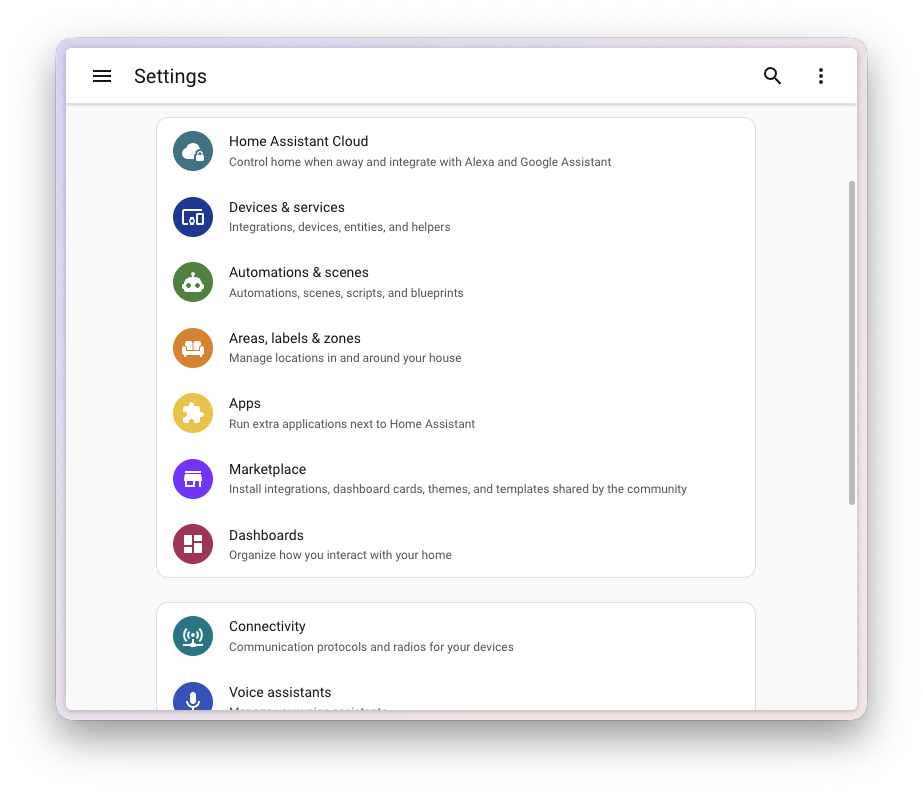
You can find the Marketplace under Settings > Marketplace. It comes with Home Assistant, so there is nothing to set up. As an administrator, you can browse the catalog and install integrations, dashboard cards, themes, and templates. You do not need a GitHub account to install or update projects.
Installing a new integrationIntegrations connect and integrate Home Assistant with your devices, services, and more. [Learn more] got shorter, too. In HACS, you downloaded it, restarted Home Assistant, went to Devices & services, and searched for it again to set it up. In the Marketplace, you select Install, and you land straight in its setup flow, without a restart. Updates still need a restart for now.
The page of each project now shows more than its README: how often it was downloaded, its stars on GitHub, and the Home Assistant version it requires, so you know what you’re getting into before you install.
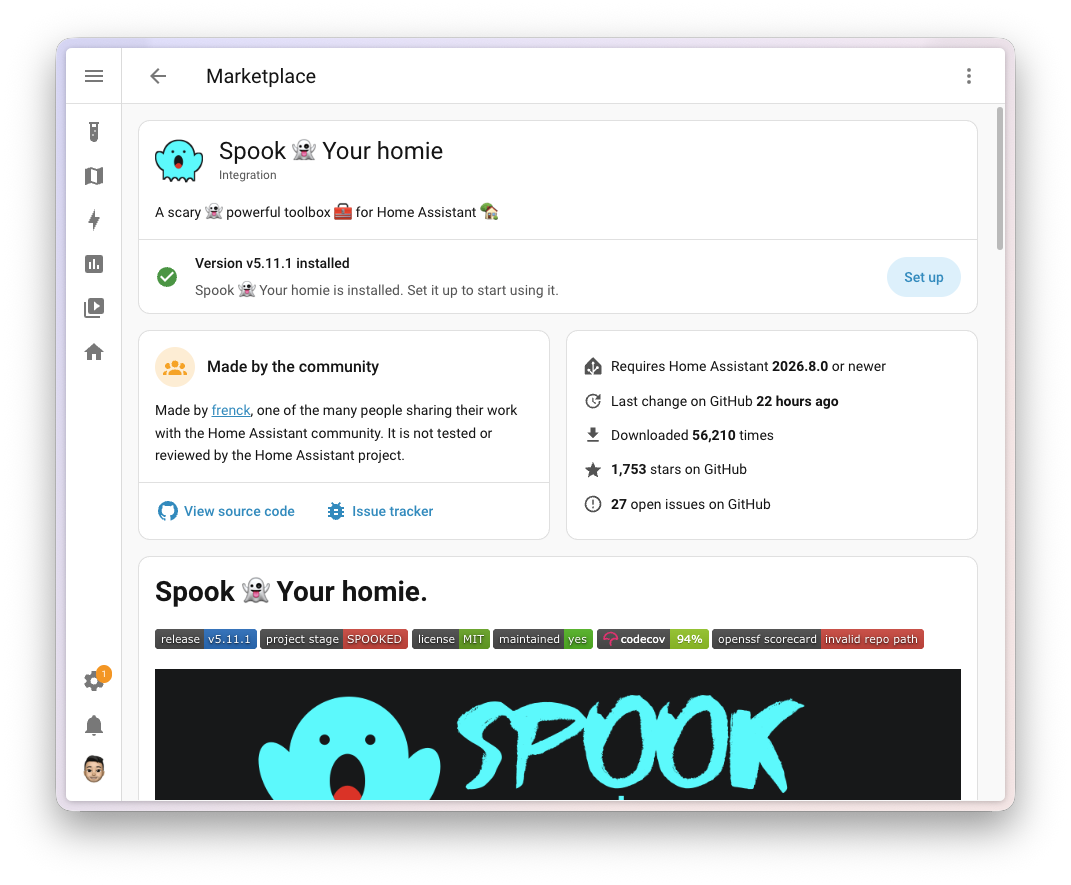
Every project you install gets an “update entity”An update entity is an entity that indicates if an update is available for a device or service. [Learn more], so updates show up under Settings > Updates, next to the updates of Home Assistant itself. After an update, a repair tells you when a restart is needed, and can restart Home Assistant for you.
The first time you open the Marketplace, it shows a notice. Everything in the Marketplace is made by the community. It is not tested, audited, or supported by the Home Assistant project, and it runs inside your Home Assistant. Read the notice, select I understand the risks and agree, and you’re in. Browsing works before that. Installing and updating does not.
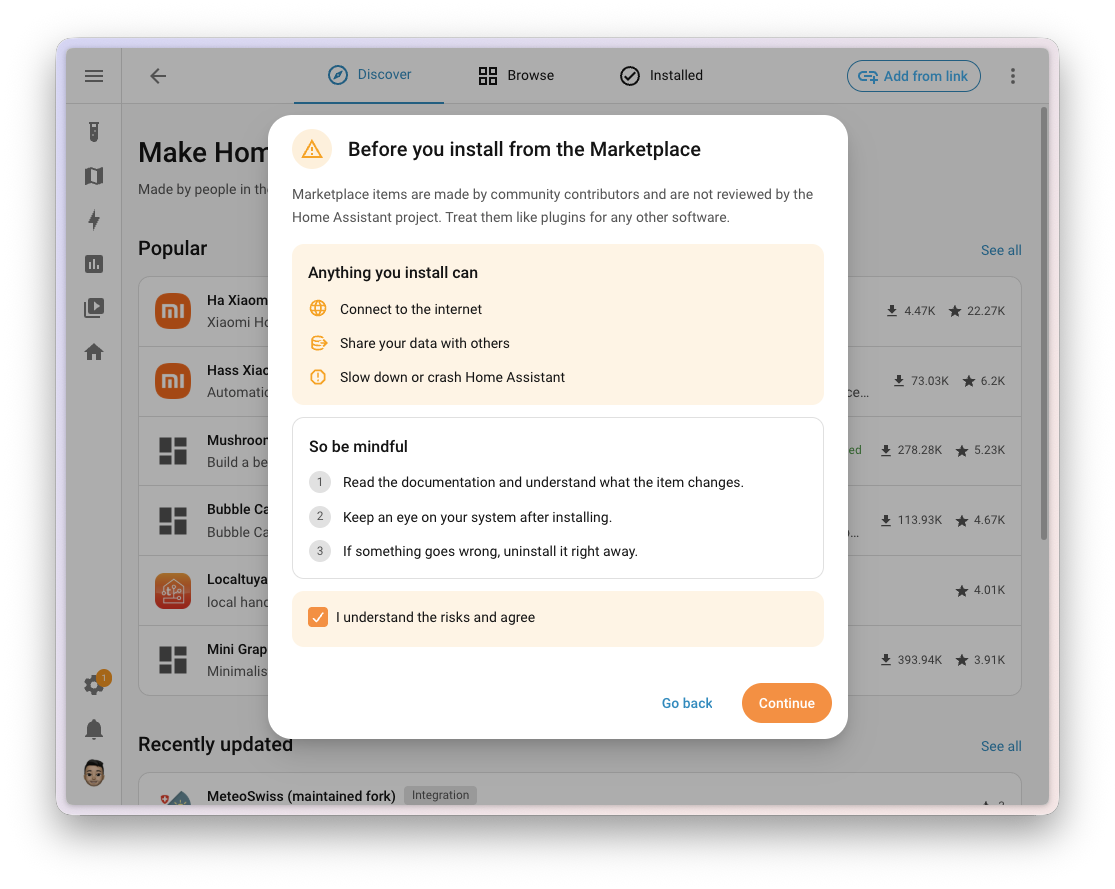
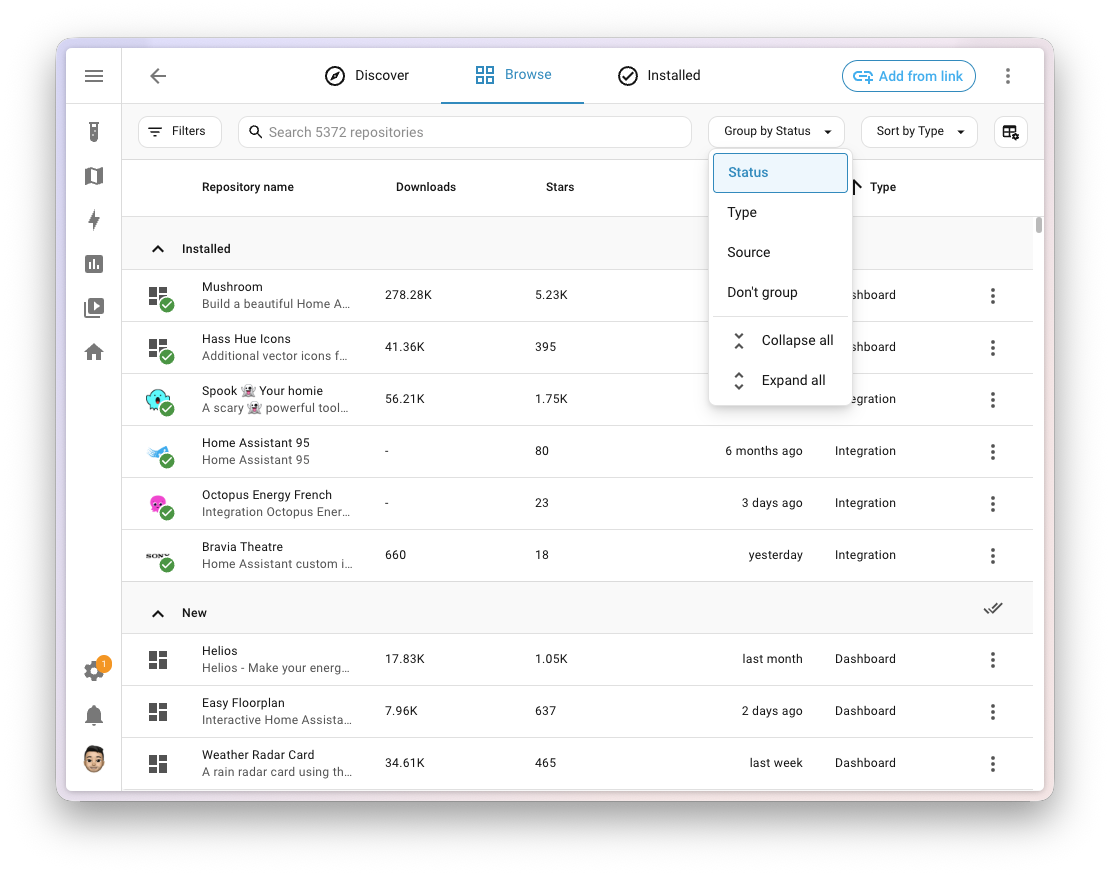
The Marketplace adds several improvements:
- Group the Browse and Installed lists by status, type, or source. Home Assistant remembers your grouping.
- Filter by source to distinguish the community catalog from custom repositories.
- Select multiple repositories on the Installed tab and uninstall them at once.
- Skipped updates no longer keep a repository at the top of the list or count in the update badge. A new release makes the update available again.
- Search, filters, and sorting are saved in the URL, so you can share a link to a specific Marketplace view.
- Integrations show their brand images before you install them.
Custom repositories
Not every project is in the catalog. To add one that is missing, select Add from link and enter its repository URL. The Marketplace then lists it with your other repositories.
The Custom repositories page lists repositories you added this way and lets you open or remove them. A repository stays in the list until you uninstall it.
Custom repositories require a GitHub connection. The Marketplace uses GitHub device sign-in, so you approve the connection on GitHub without entering your password in Home Assistant. The connection only reads public information and cannot access private repositories.
Thank you, HACS
HACS made this possible. @ludeeus founded it and donated it to the Open Home Foundation about a year and a half ago, which is what made bringing it into Home Assistant possible. Together with the HACS maintainers and the many developers publishing their projects, he built the ecosystem that the Marketplace now carries forward. Thank you. ❤️
If you use HACS today, there is nothing you need to do. Home Assistant migrates it when it starts after the update. Everything you installed stays installed and keeps receiving updates, your custom repositories and update entities carry over, and links and bookmarks that point to HACS now open the Marketplace.
The HACS installer stops at Home Assistant 2026.11, so a separate HACS installation is no longer possible on this version. The old HACS won’t get new releases either: the Marketplace ships with every Home Assistant update. Everything you need to know about the move, for users and for publishers, is in the Marketplace documentation.
This is a starting point, and the first version of what a marketplace for Home Assistant could become. Got ideas? Share them in the Marketplace section of the feature request discussions on GitHub. Found a bug? Report it in the Home Assistant issue tracker, not in the HACS repository.
Exclude items from a target
Targets are a great way to keep your automationsAutomations in Home Assistant allow you to automatically respond to things that happen in and around your home. [Learn more] and scriptsA script is a saved list of steps that runs when you start it, for example, from a dashboard, with Assist, or from an automation. Unlike an automation, a script has no triggers, so it doesn’t start by itself. [Learn more] up to date. Point one at an areaAn area in Home Assistant is a logical grouping of devices and entities that represents a room or space in your home, such as the living room, kitchen, or garage. [Learn more], a floorA floor in Home Assistant is a logical grouping of areas that are meant to match the physical floors in your home. Devices & entities are not assigned to floors but to areas. Floors can be used in automations and scripts as a target for actions. For example, to turn off all the lights on the downstairs floor when you go to bed. [Learn more], or a labelLabels in Home Assistant allow grouping elements irrespective of their physical location or type. Labels can be assigned to areas, devices, entities, automations, scenes, scripts, and helpers. Labels can be used in automations and scripts as a target for actions. Labels can also be used to filter data. [Learn more], and Home Assistant finds the matching entitiesAn entity represents a sensor, actor, or function in Home Assistant. Entities are used to monitor physical properties or to control other entities. An entity is usually part of a device or a service. [Learn more] for you, including the ones you add later. There was just one catch: you couldn’t leave one out. Turn on all the lights on the ground floor, except the one in the kitchen? Your only option was to list every light yourself, and lose everything that made the target smart in the first place.
You can now exclude entities, devicesA device is a model representing a physical or logical unit that contains entities., areas, floors, and labels from a target. In a triggerA trigger is the part of an automation that makes the automation start when something specific happens, for example, when the sun sets, a door opens, or a button is pressed. [Learn more], conditionConditions check whether something is true at that moment, for example, whether a door is closed. You can use them in automations and scripts. If a condition is not met, the actions that come after it in the same sequence do not run. At the top level of an automation or script, this stops the automation or script. [Learn more], or actionAn action makes Home Assistant do something, for example, turn on a light, send a notification, or activate a scene. Automations and scripts run a list of actions. [Learn more], select Exclude target next to Add target, then choose what to leave out. You can also open a target’s details, clear the checkboxes of the items to exclude, and select Apply.
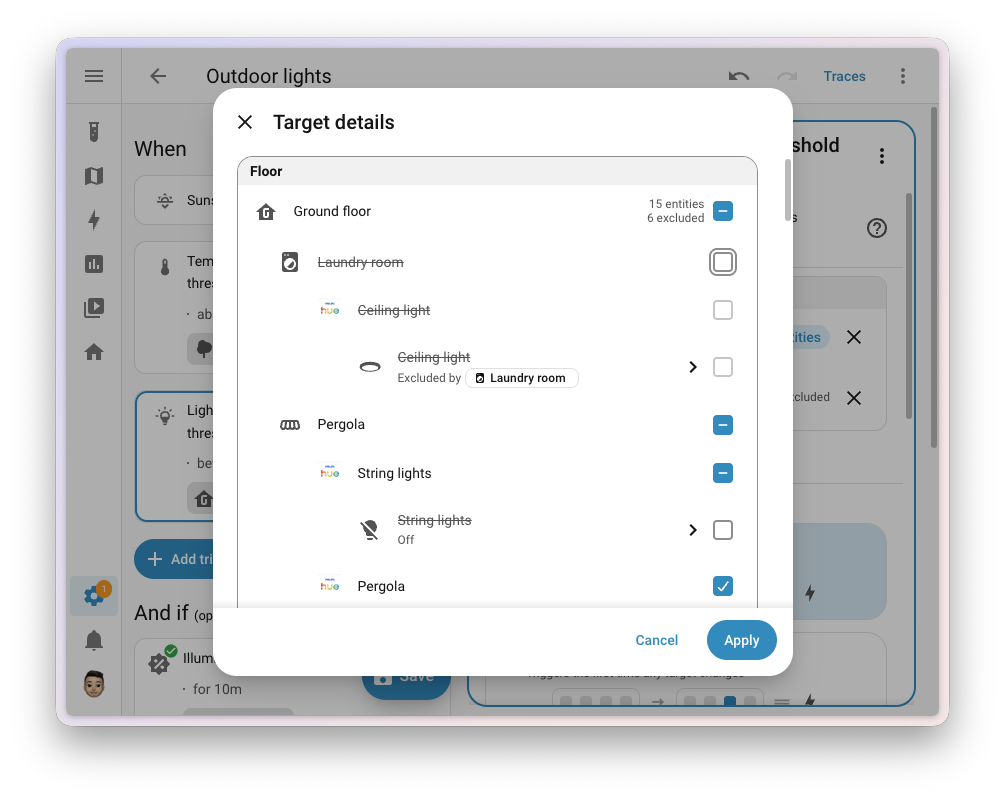
Each exclusion is listed below the targets it takes entities out of, with the number of entities it removes. An exclusion that doesn’t match anything has no effect, and is listed under Exclusions with no effect, where you can remove it.
And exclusions stay as smart as the targets they belong to. Home Assistant works them out every time the trigger, condition, or action runs. Exclude the kitchen, add another light to the kitchen next month, and that light is left out as well. No need to touch the automation again.
This works in triggers, conditions, and actions, in both automations and scripts. If you write YAMLYAML is a human-readable data serialization language. It is used to store and transmit data in a structured format. In Home Assistant, YAML is used for configuration, for example in the configuration.yaml or automations.yaml files. [Learn more], add an exclude block to the target, with the same keys as the target itself. For all the details, including how old-style groupsGroups are a way to organize your entities into a single unit. [Learn more] behave, refer to excluding targets.
Thanks, @jpbede, @emontnemery, and @marcinbauer-ohf! 🙏
The automation editor also has a few improvements:
- Replace a step: Changed your mind about a triggerA trigger is the part of an automation that makes the automation start when something specific happens, for example, when the sun sets, a door opens, or a button is pressed. [Learn more], conditionConditions check whether something is true at that moment, for example, whether a door is closed. You can use them in automations and scripts. If a condition is not met, the actions that come after it in the same sequence do not run. At the top level of an automation or script, this stops the automation or script. [Learn more], or actionAn action makes Home Assistant do something, for example, turn on a light, send a notification, or activate a scene. Automations and scripts run a list of actions. [Learn more]? Select Replace in its menu to swap it for another one in the same place. Home Assistant keeps the settings the new item accepts, so you don’t have to pick the target and fill in the options again. It works in the script editor as well. Thanks, @nielsrowinbik!
- Is not for the state trigger: Set From or To to Is not to make a triggerA trigger is the part of an automation that makes the automation start when something specific happens, for example, when the sun sets, a door opens, or a button is pressed. [Learn more] fire when the state changes to or from any value other than the one you select. No YAML is needed. Thanks, @Skaronator!
- Recently used: The dialog for adding a trigger, condition, or action now starts with the ones you used recently, including your recently selected targets. Thanks, @wendevlin!
- People in the target picker: When adding a trigger or condition, find People under Other, next to Time and Sun. This makes it easier to create a rule for when someone comes home. Thanks, @marcinbauer-ohf!
- Edit ID is back: You can set the ID of a trigger from its menu again. Thanks, @jpbede!
- Edit in YAML for choose options: Edit the options of a choose action in YAML, like other rows. Thanks, @oneseventhree!
- Undo after cutting: If you cut a trigger, condition, or action by mistake, select Undo in the notification to restore it. Thanks, @marcinbauer-ohf!
Copy and paste dashboard sections
In dashboard edit mode, you can copy or cut a section, then paste it after another section. You can move sections between views and dashboards without dragging them across the screen. Thanks, @jce200!
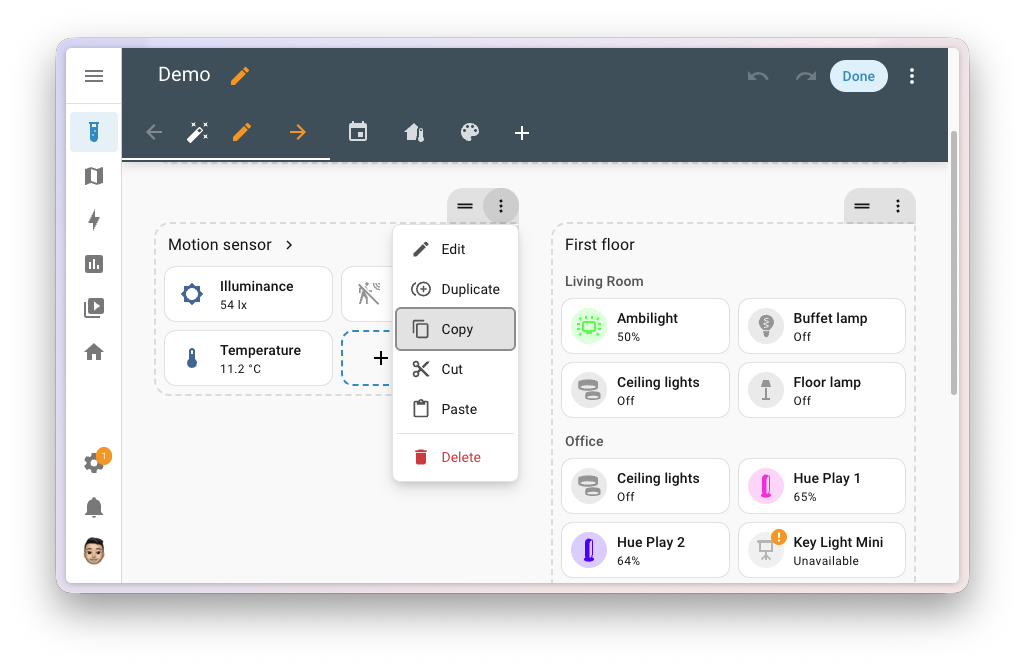 Copy, cut, and paste sections from the section menu.
Sections that fill themselves
A dashboard section is usually a list of cards you put together by hand. Add a new light to the living room, and you have to remember to add its card too. Automatic sections take care of that for you: they pick their cards themselves, and stay up to date when you add or remove devicesA device is a model representing a physical or logical unit that contains entities. and entitiesAn entity represents a sensor, actor, or function in Home Assistant. Entities are used to monitor physical properties or to control other entities. An entity is usually part of a device or a service. [Learn more].
When you create a section, Home Assistant now asks what you want: a manual section you fill card by card, an automatic section, or the section you just copied. Pick Automatic section, and you get the list of automatic sections, each with a live preview, so you see what you get before adding it.
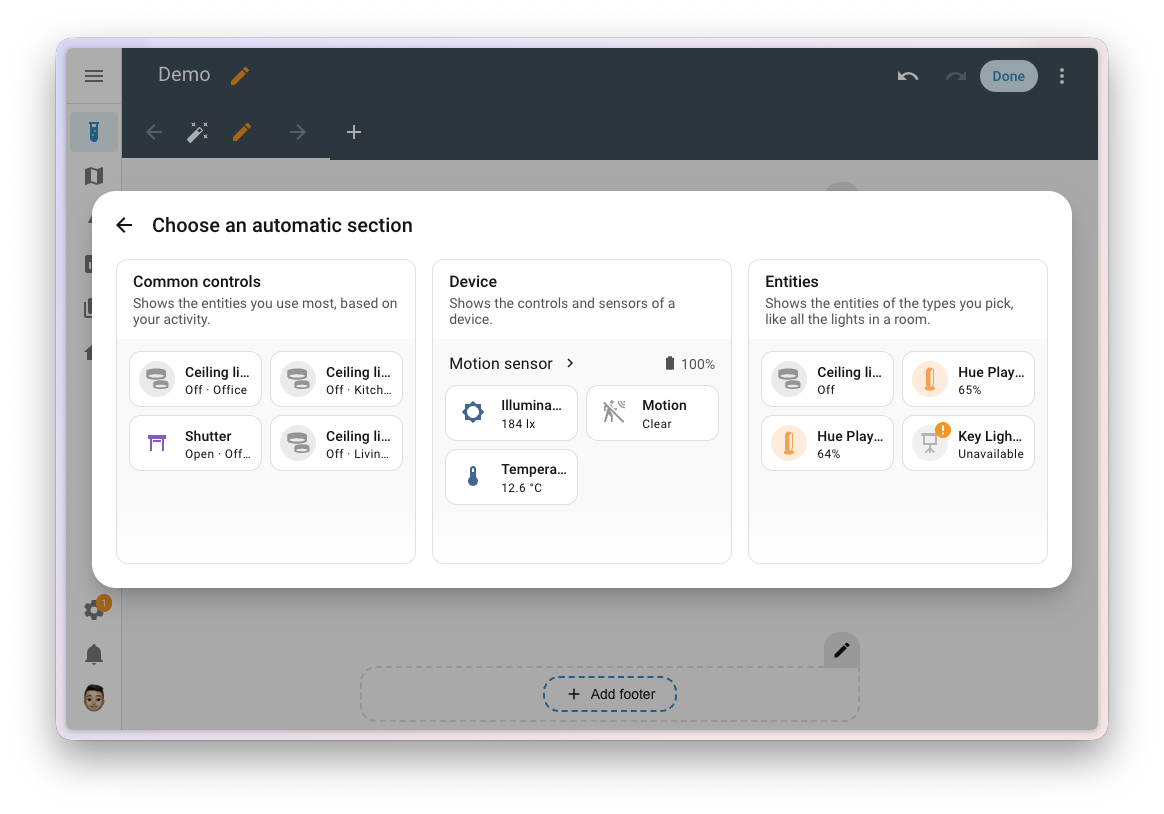 Pick an automatic section, and see what it looks like before adding it.
Common controls shows the entities you use the most, just like on the Overview dashboard. Next to it, two automatic sections are new in this release. The Device section shows the entities of one deviceA device is a model representing a physical or logical unit that contains entities., as tiles or in a single entities card, grouped by category, with the device name, its areaAn area in Home Assistant is a logical grouping of devices and entities that represents a room or space in your home, such as the living room, kitchen, or garage. [Learn more], and its battery level in the heading. The Entities section shows every entityAn entity represents a sensor, actor, or function in Home Assistant. Entities are used to monitor physical properties or to control other entities. An entity is usually part of a device or a service. [Learn more] of the types you pick, like all your lights or all your batteries, in the areas, floors, devices, or labels you choose. Add a light to the ground floor, and it shows up in your ground floor lights section on its own. If you installed sections made by the community, they are listed too, under Community sections.
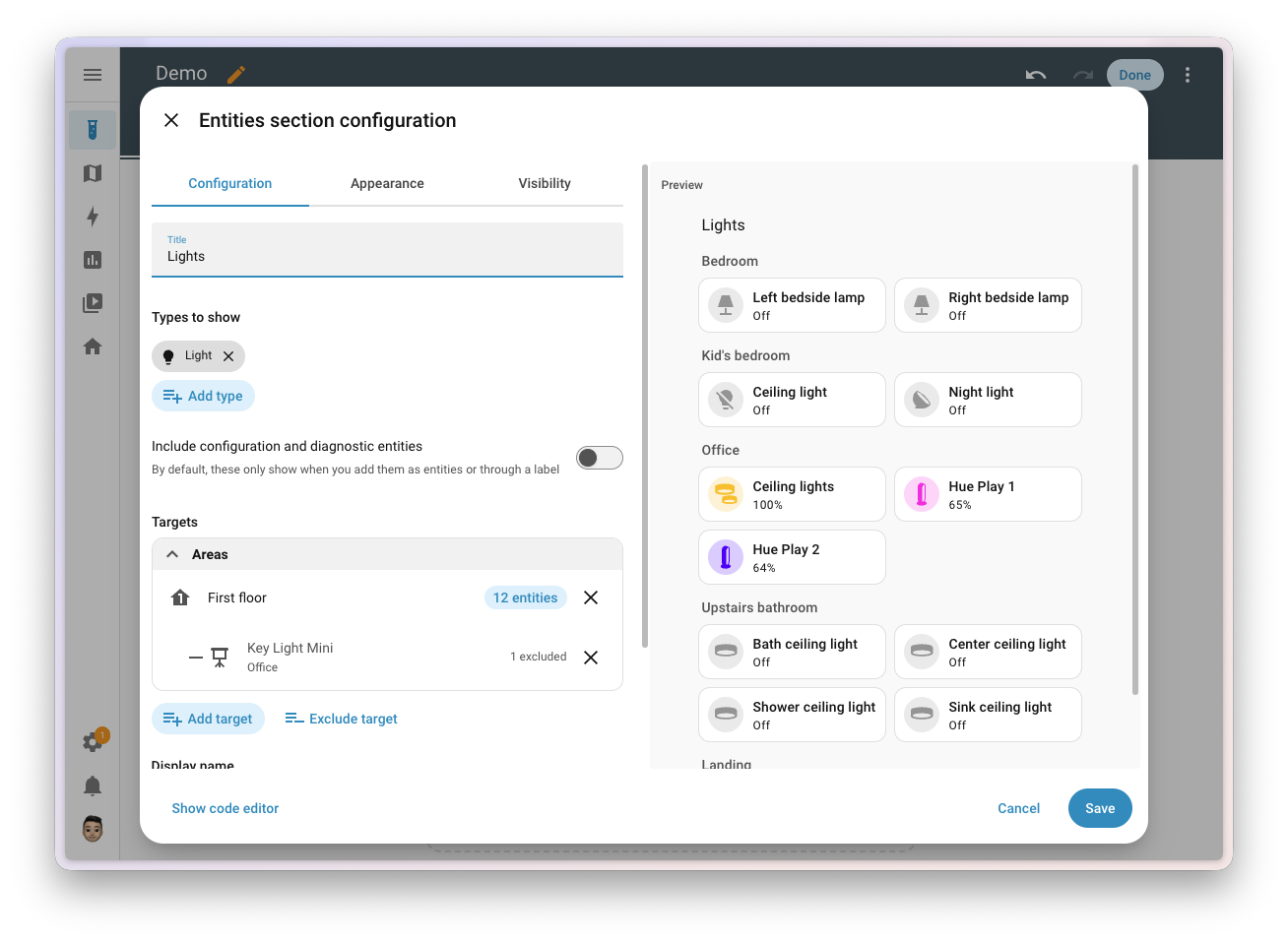 Pick the types of entities and the targets, and the section shows every match.
You can also start from the device. On its device page, select Add to… > Add to a dashboard, and pick a dashboard and a view. In a sections view, you get a Device section for that device. In other views, you get an Entities card, and you choose which categories of entities to include. This replaces the Add to dashboard buttons at the bottom of each list of entities on the device page.
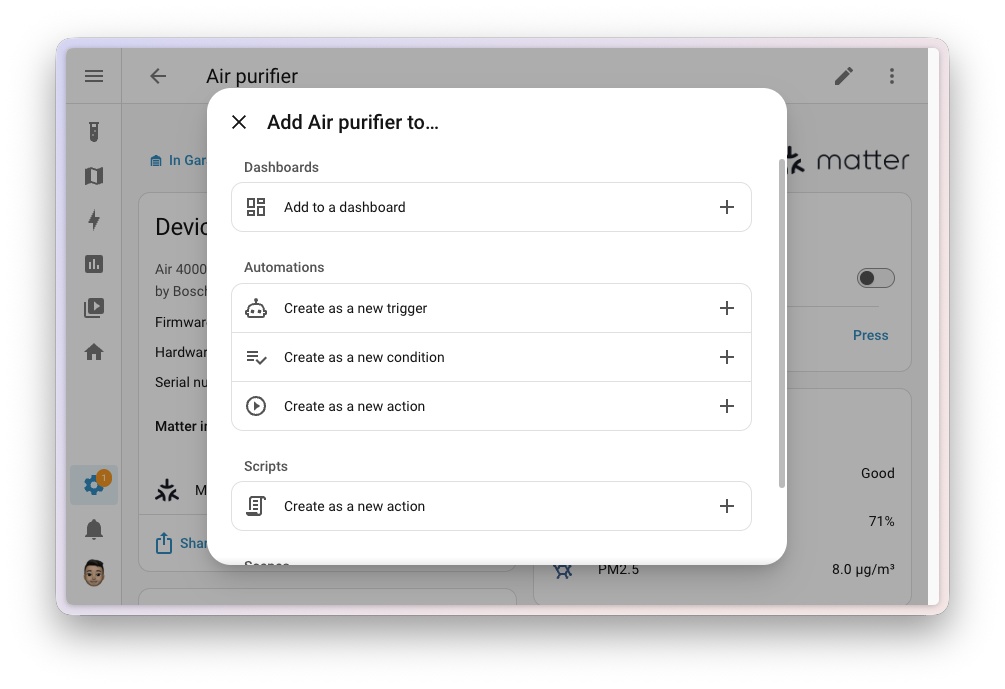 Add a device to a dashboard, straight from its device page.
If you want more control over an automatic section, select Convert to manual section in the section menu. The section keeps its cards, and you can edit, move, or remove each of them. In return, it no longer updates on its own, so Home Assistant asks you to confirm first.
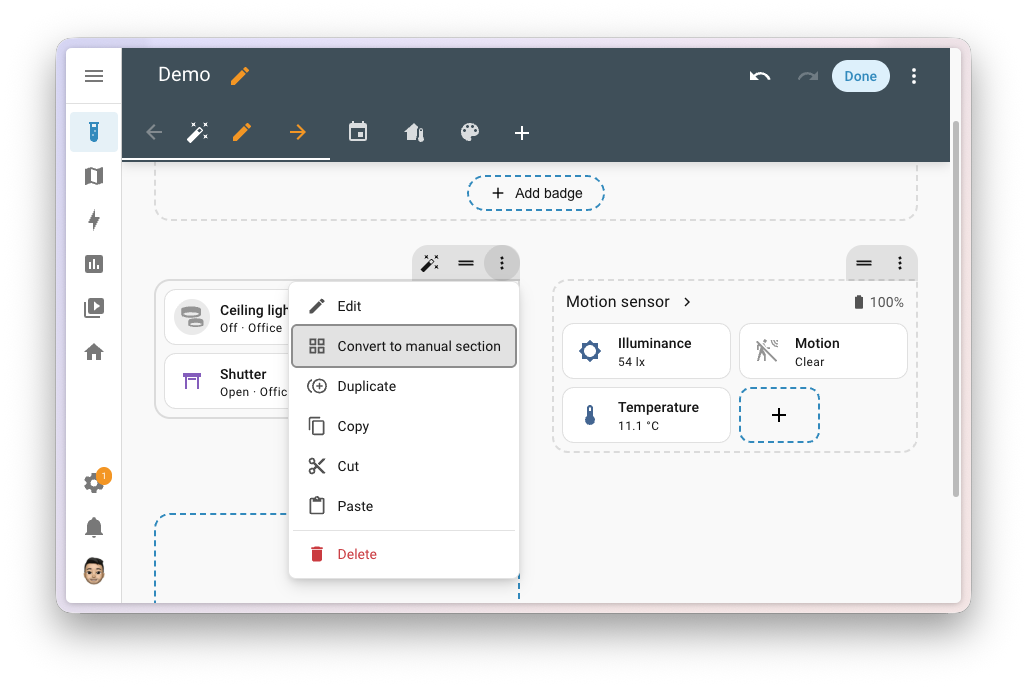 Convert an automatic section to edit its cards one by one.
Thanks, @piitaya!
New cards and badges
The new Date card shows the current date. The Alert badge shows an entityAn entity represents a sensor, actor, or function in Home Assistant. Entities are used to monitor physical properties or to control other entities. An entity is usually part of a device or a service. [Learn more]’s state on a colored background that can pulse. The Sensor card takes a color, which tints both its icon and its graph. For target temperature controls, you can choose buttons or a slider. When adding a card or badge, a paste bar lets you add a copied item.
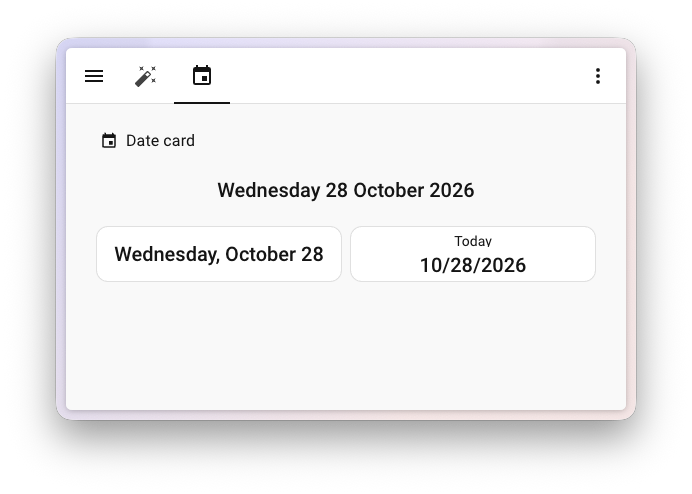 Show the current date in the format you like.
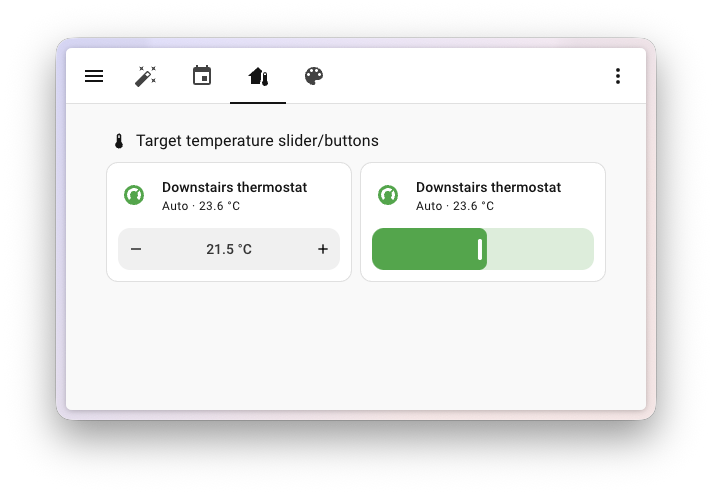 Choose buttons or a slider for target temperature controls.
Thanks to @Lackmake, @pcan08, @timmo001, @piitaya, and @wendevlin.
Alert card, now without YAML
The Alert card now has a visual editor. You can set separate colors for alert and clear states without editing YAMLYAML is a human-readable data serialization language. It is used to store and transmit data in a structured format. In Home Assistant, YAML is used for configuration, for example in the configuration.yaml or automations.yaml files. [Learn more]. Thanks, @timmo001!
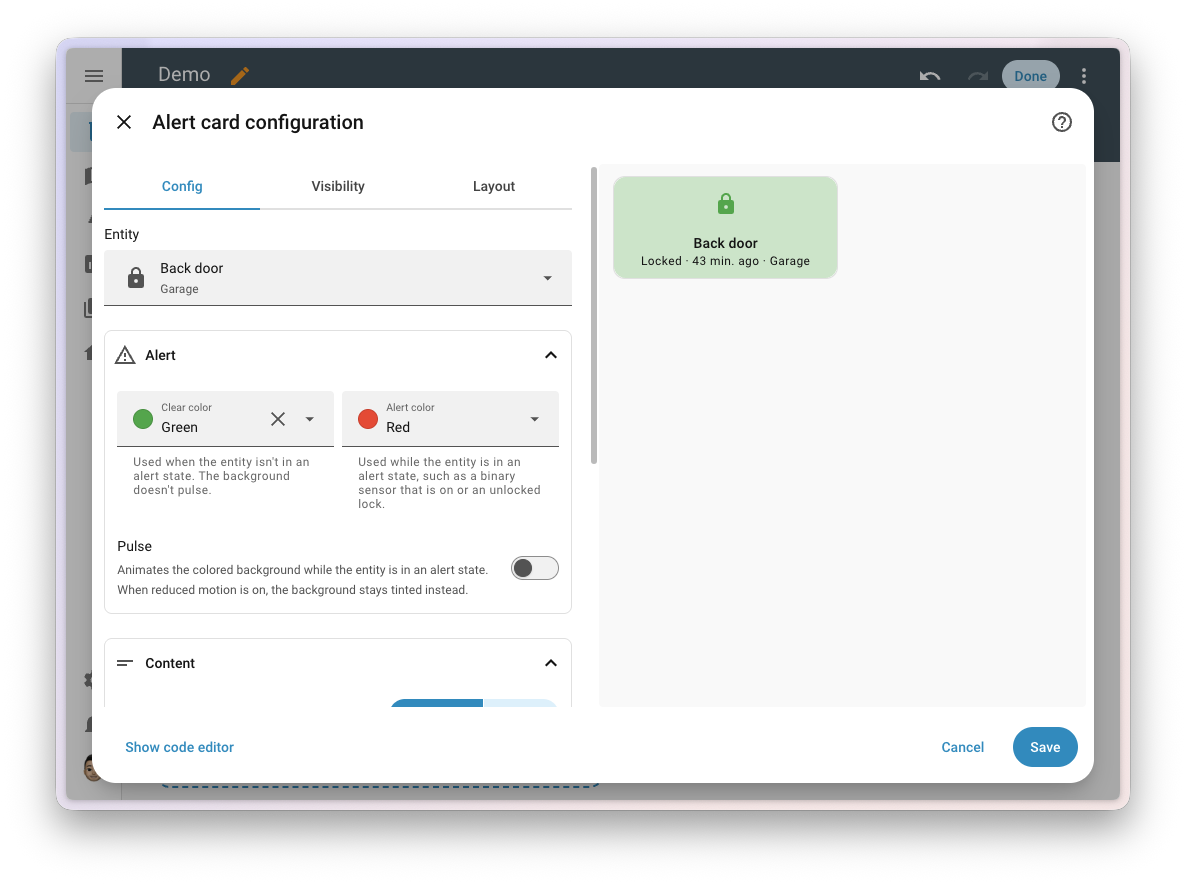 Set separate colors for alert and clear states in the visual editor.
Color control on light tiles
Light tiles now have a color strip for setting hue, with an optional saturation slider. The color controls fade when the lightA light has a brightness you can control, and optionally color temperature or RGB color control. [Learn more] is off, and members of a light groupGroups are a way to organize your entities into a single unit. [Learn more] show the color control in their more-info dialog. Thanks, @piitaya!
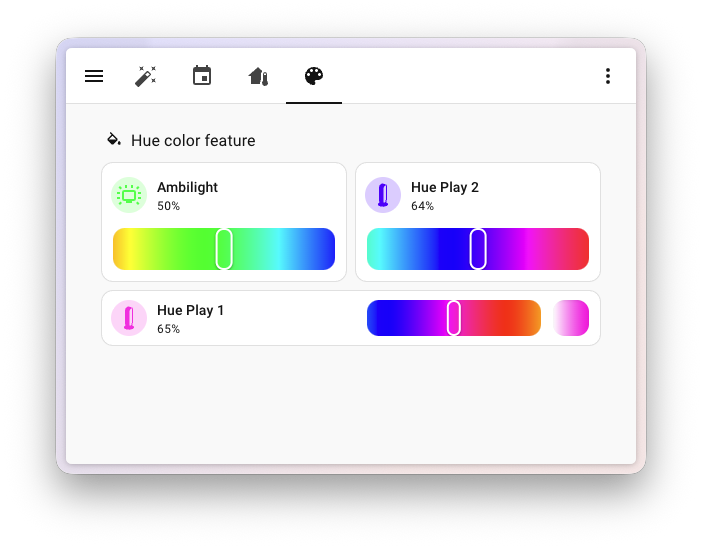 Adjust hue and saturation from a light tile.
Name it once, Home Assistant adds the context
Name a thing once, and Home Assistant makes sure it makes sense everywhere. That is the idea behind how entitiesAn entity represents a sensor, actor, or function in Home Assistant. Entities are used to monitor physical properties or to control other entities. An entity is usually part of a device or a service. [Learn more] are named from this release on, and it has been more than four years in the making. You give an entity its own name, like “Temperature”. Home Assistant knows which deviceA device is a model representing a physical or logical unit that contains entities. it belongs to, and in which areaAn area in Home Assistant is a logical grouping of devices and entities that represents a room or space in your home, such as the living room, kitchen, or garage. [Learn more] that device lives, so it can add that context where it helps. By default, that is the name of the device: the “Temperature” of a “Thermostat” in the “Bedroom” shows up as “Thermostat Temperature”. Where you want more, a card can add the area too, like “Bedroom Thermostat Temperature”.
Naming has been a topic in the community for years, with threads like “How do you name your devices?” and “Naming strategies for entities?”, all looking for a system that keeps a growing home readable.
It’s time to let those systems go. You shouldn’t need a strategy to make sense of the information in Home Assistant. Home Assistant should give you the context you need, at the moment you need it. Now you rename the device, and every entity on it follows. Entities you renamed, and entities you never touched, get their context the same way.
You see this in dashboards, settings, the activity and logbook, the voice assistant settings, and the apps. The same name, in the same structure, everywhere you look.
A few things to know:
- Renaming an entity only renames the entity. If you want to change the name of the device, rename the device. If an entity represents the main function of its device, turn on Main entity of the device in its settings, and it goes by the name and the area of the device.
- Devices with multiple parts, like a power strip, now get a deviceA device is a model representing a physical or logical unit that contains entities. per part, each with its own name and areaAn area in Home Assistant is a logical grouping of devices and entities that represents a room or space in your home, such as the living room, kitchen, or garage. [Learn more]. These are called child devices. A child device inherits the area of its parent, until you give it one of its own. Integrations are moving to them one by one, starting with the multi-channel switches in Tuya.
- Your own names are kept. Home Assistant migrates names you set. If an entity’s displayed name changes, the old name remains an alias for voice assistants. For example, “turn on the ceiling light” continues to work.
-
Templates: The
friendly_nameattribute is planned for deprecation. Useentity_name(),device_name(), andarea_name()to build the name you need.
What doesn’t change: entity IDs. Your automationsAutomations in Home Assistant allow you to automatically respond to things that happen in and around your home. [Learn more], scriptsA script is a saved list of steps that runs when you start it, for example, from a dashboard, with Assist, or from an automation. Unlike an automation, a script has no triggers, so it doesn’t start by itself. [Learn more], and dashboards keep working.
We are upfront about one thing: this is a backward-incompatible change. Some names look different after the update, and you notice that most on your dashboards. Cards, badges, and rows without a name now show the device name followed by the entity name, instead of the friendly name. Making them shorter is quick: rename the device or the entity, turn on Main entity of the device for the entity that represents the device, or set a name on the card. The details are in the backward-incompatible changes below.
This is the short version. A separate blog post about entity naming tells the full story.
This project ran for more than four years, and many people worked on it along the way. Thank you to everyone who helped make this happen! 🙏
Forms that ask only what they need
Setting up an integrationIntegrations connect and integrate Home Assistant with your devices, services, and more. [Learn more] sometimes meant reading past options that had nothing to do with your choices. A field can now appear only when another field has a certain value, so a form asks what is relevant and leaves out the rest. While a field is hidden, it isn’t required, and its value isn’t saved.
You can already see it in the integrations for AI conversation agents, where the settings you rarely touch stay out of the way until you ask for them.
The same works for a blueprintA blueprint is a script, automation, or template entity configuration with certain parts marked as configurable. This allows you to create multiple scripts, automations, or template entities based on the same blueprint, with each having its own configuration-specific settings. Blueprints are shared by the community on the blueprints exchange in the forum. [Learn more]. An input, or a whole group of inputs, can depend on the answers you gave earlier, so a blueprint only asks what still applies.
Thanks, @piitaya!
From power to energy in one step
The Energy dashboard works with energy in kilowatt-hours, but plenty of devicesA device is a model representing a physical or logical unit that contains entities. only report power in watts. A device like that could not be added directly: first you had to set up a sensorSensors return information about a thing, for instance the level of water in a tank. [Learn more] that adds the power up over time, then come back and add the device.
Home Assistant now offers to do that for you. Add an individual device, a solar panel, or your home consumption with only a power sensor, and when you save, Home Assistant offers to derive the energy sensor from it, or to reuse one you derived from the same sensor earlier. Gas and water work the same way: pick a sensor that reports a flow rate, and Home Assistant offers to derive the total from it.
Thanks, @MindFreeze!
Why did that happen?
A light turned on, and nobody touched it. Or an automationAutomations in Home Assistant allow you to automatically respond to things that happen in and around your home. [Learn more] did something you didn’t expect. Finding out why is part of living with a smart home, so this release adds a handful of ways to find the answer faster.
See what triggered it
The Activity panel has a new Triggered by filter. Use it to show only what a person did, what your automationsAutomations in Home Assistant allow you to automatically respond to things that happen in and around your home. [Learn more] or scriptsA script is a saved list of steps that runs when you start it, for example, from a dashboard, with Assist, or from an automation. Unlike an automation, a script has no triggers, so it doesn’t start by itself. [Learn more] did, or what an integrationIntegrations connect and integrate Home Assistant with your devices, services, and more. [Learn more] did, like HomeKit or Google Assistant. Accounts that don’t belong to a person, like the one used by Node-RED, count as integrations. Entries without a known cause are listed under Other.
Thanks, @piitaya!
Follow a trace into the script it called
When an automationAutomations in Home Assistant allow you to automatically respond to things that happen in and around your home. [Learn more] or scriptA script is a saved list of steps that runs when you start it, for example, from a dashboard, with Assist, or from an automation. Unlike an automation, a script has no triggers, so it doesn’t start by itself. [Learn more] runs another script, or triggers an automation, the step in its trace now has a View trace of link to exactly that run. Before, you had to find the right run yourself, by timestamp. It works from automation to script, script to script, and automation to automation, for each iteration of a repeat, and for a script that starts itself. The link shows up in the step details and in the trace timeline. The page also keeps the run you are looking at in its address, so going back in your browser takes you back to the previous run.
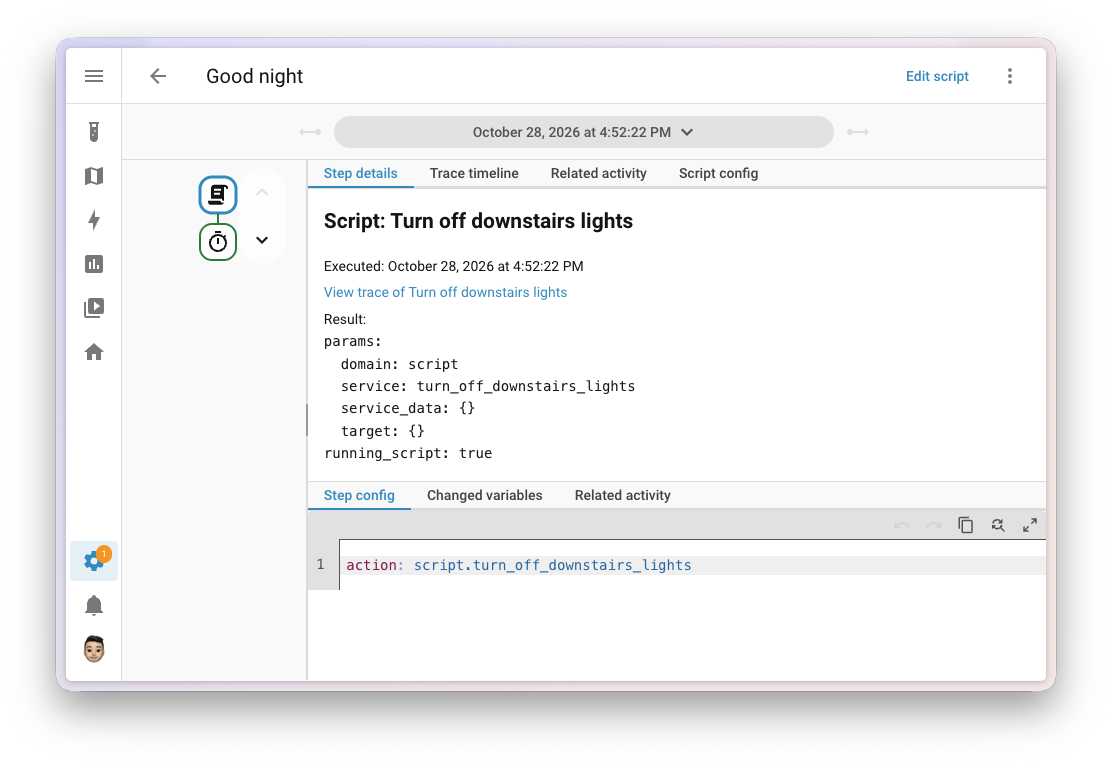
Thanks, @Xyolyp!
Live logs for each integration
While debug logging is enabled for an integrationIntegrations connect and integrate Home Assistant with your devices, services, and more. [Learn more], the banner on its page now has a Show logs button, next to Disable. It opens a dialog with only the log lines of that integration, including the libraries it uses: first what it logged since Home Assistant started, then new lines as they come in. You can search, turn line wrapping on or off, and download what you captured. Handy while you’re trying to reproduce an issue, without digging through the full log.
The logs page under Settings > System > Logs got a filter as well. Select one or more integrations, and the errors list and the raw logs only show their lines. Your search, your filter, and the raw view are kept in the address, so you can bookmark a filtered view or share a link to it. Searching the raw logs now shows each match with three lines around it, the way a diff does, and a button reveals the lines in between. When an appApps are additional standalone third-party software packages that can be installed on Home Assistant OS. [Learn more] update fails, opening its logs takes you straight to the lines of that app.
Thanks, @erwindouna and @timmo001!
Remove bad readings from your history
One bad measurement can ruin the graph of a sensorSensors return information about a thing, for instance the level of water in a tank. [Learn more]. “Statistics”Home Assistant keeps statistics for sensors that have a state class, such as measurement, total, or total increasing. Every 5 minutes, it saves short-term statistics, which are deleted after 10 days by default. Every hour, it saves long-term statistics, which are never deleted automatically. The Energy dashboard and statistics cards use them. [Learn more] of values like temperature can’t be adjusted, so the only fix was to delete the whole statistic and lose its history. Now you can delete just a time range. In Settings > Tools > Statistics, select the delete option of a statistic, pick the time range, and the dialog previews the data before you delete anything. Everything outside that range stays.
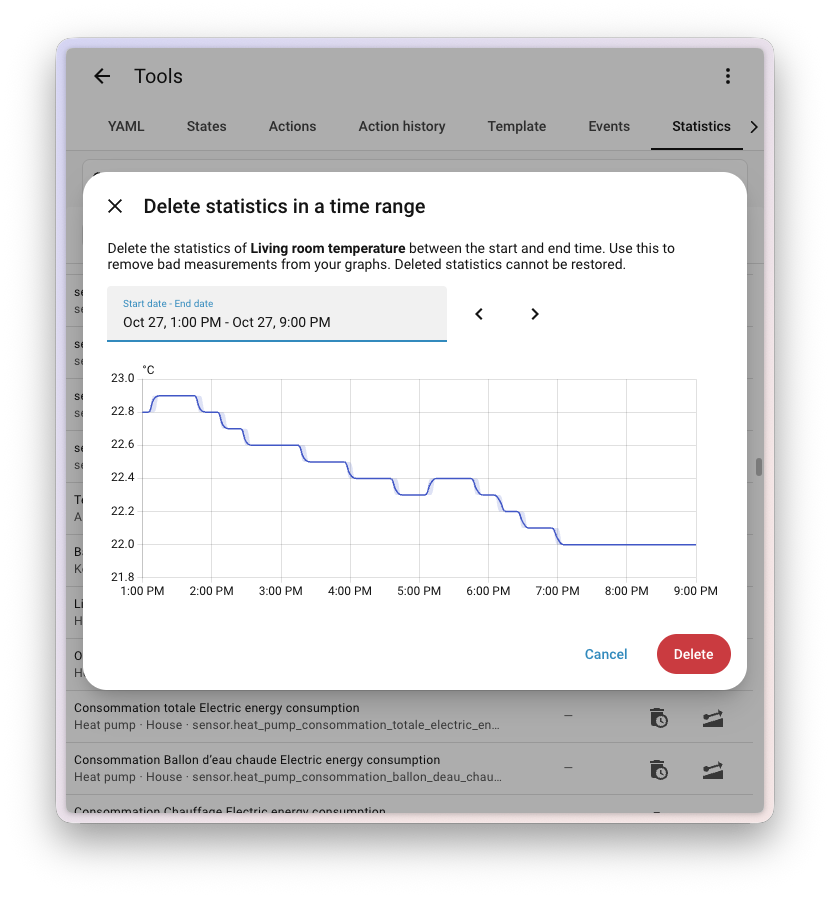
Thanks, @balloob!
Zoom in on a chart
Charts that plot values over time now zoom with a plain drag: drag across the part you want to see, and the chart follows. A slim slider appears underneath to move or resize the range, and scrolling sideways pans along. On the history page, one zoom bar drives every chart at once, so you can line up what happened across several entitiesAn entity represents a sensor, actor, or function in Home Assistant. Entities are used to monitor physical properties or to control other entities. An entity is usually part of a device or a service. [Learn more].
Thanks, @MindFreeze!
Every action, on the record
Settings > Tools has a new Action history tab. It lists the actionsAn action makes Home Assistant do something, for example, turn on a light, send a notification, or activate a scene. Automations and scripts run a list of actions. [Learn more] that were called in Home Assistant, with the action, its targets, what caused it, and when. You can search the list and pick a time range. Select an action to see its details: the cause, the user, the context ID, and the data it was called with. Copy that data as YAMLYAML is a human-readable data serialization language. It is used to store and transmit data in a structured format. In Home Assistant, YAML is used for configuration, for example in the configuration.yaml or automations.yaml files. [Learn more] with one button, and when there is a trace, View trace opens it.
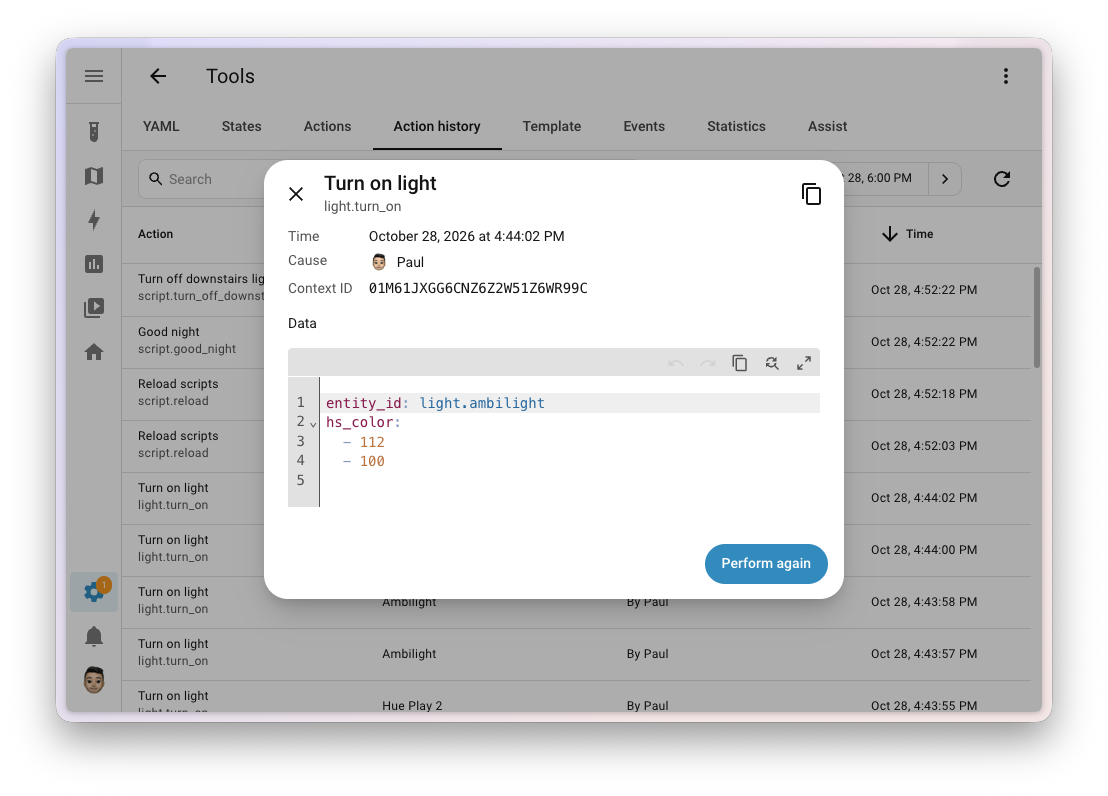
The details of an entry in Activity got better too. When an automationAutomations in Home Assistant allow you to automatically respond to things that happen in and around your home. [Learn more] calls scriptsA script is a saved list of steps that runs when you start it, for example, from a dashboard, with Assist, or from an automation. Unlike an automation, a script has no triggers, so it doesn’t start by itself. [Learn more], each run now links to its own trace. Before, they all opened the same one.
Thanks, @joostlek and @Xyolyp!
Cameras Matter
MatterMatter is an open-source standard that defines how to control smart home devices on a Wi-Fi or Thread network. [Learn more] keeps growing up. With Matter 1.5, cameras are part of the standard, and Home Assistant now supports them. And while we were at it, cameras got a voice.
Matter cameras
The Matter integration now supports Matter 1.5 cameras. A Matter camera shows up as a camera in Home Assistant, with live video and snapshots. The live video is streamed with WebRTC, directly between your browser and the camera. The camera entityAn entity represents a sensor, actor, or function in Home Assistant. Entities are used to monitor physical properties or to control other entities. An entity is usually part of a device or a service. [Learn more] mirrors the state of the camera, including whether its privacy mode is on.
Matter cameras need a Matter server that is recent enough to support them. Home Assistant only discovers cameras when the connected server does.
Thanks, @arturpragacz!
Talk back through your cameras
Cameras can talk now, too. A new Labs preview feature, Two-way audio, adds a talk button to the live stream, so you can talk to whoever is near your camera or doorbell. Turn it on in Settings > System > Labs.
The talk button appears for cameras that support two-way audio, and whose integrationIntegrations connect and integrate Home Assistant with your devices, services, and more. [Learn more] has added support for it. In this release, that is Matter cameras and Reolink. A Reolink camera needs to use RTSP, because RTMP and FLV can’t carry audio back to the camera.
Browsers only allow microphone access over a secure connection, so for now two-way audio works when you open Home Assistant over HTTPS. We’re working on bringing it to the Home Assistant apps over HTTP as well.
Thanks, @starkillerOG! And thanks to @sdb9696 for the earlier work this builds on.
Store backups and media on local drives
“Backups”Home Assistant has built-in functionality to create files containing a copy of your configuration. This can be used to restore your Home Assistant as well as migrate to a new system. The backup feature is available for all installation types. [Learn more] and media take up a lot of space, and the best place for them is often not the drive Home Assistant runs on. Besides network storage, you can now add an internal drive or a USB drive. Go to Settings > System > Storage, select Add storage, and select Local disk as the type. Use it for backups, media, or shared files, just like network storage. Home Assistant remembers the disk by its file system identifier, so it keeps working after a restart or when the device name changes, and a repair tells you if the disk is disconnected. The disk needs to be formatted already. For the supported file systems and all the details, refer to the local disk storage documentation.
Backups got a few more improvements. Restoring no longer makes a temporary copy of the whole backup first, which saves free space and time, especially for backups on network storage. The progress bar on the backup page now fills as the backup uploads, and Dropbox, Azure Storage, SFTP Storage, Synology DSM, and Backblaze B2 now report their upload progress too. And the new Last successful automatic backup size sensorSensors return information about a thing, for instance the level of water in a tank. [Learn more] lets you keep an eye on how big your automatic backups are, so you can get notified when they suddenly grow or shrink.
Thanks, @MindFreeze, @agners, @KapJI, and @erwindouna!
Reach the far corners with LoRaWAN
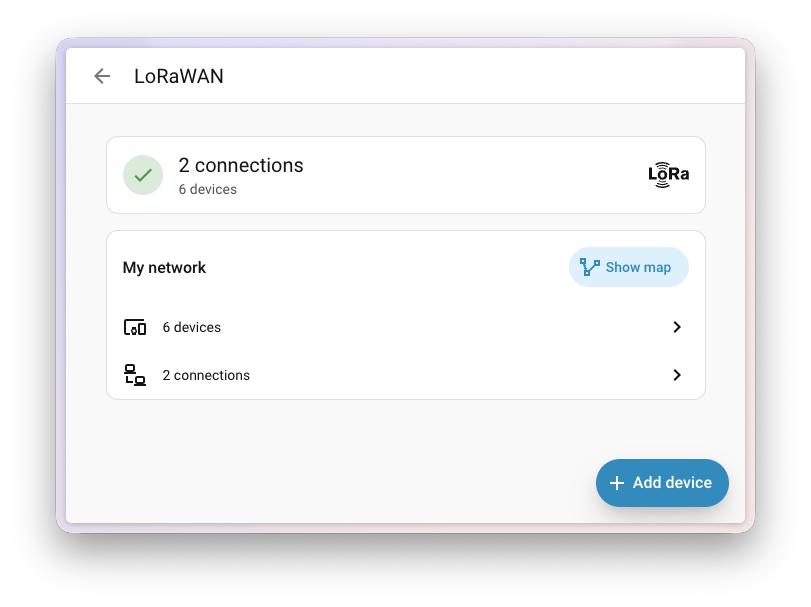
LoRaWAN is a long-range, low-power wireless protocol, often used for battery-powered sensors in places your Wi-Fi never reaches, like a garden, a shed, or a field. Home Assistant now speaks it. Connect your LoRaWAN network server, ChirpStack or The Things Network, and Home Assistant offers the matching device integrationIntegrations connect and integrate Home Assistant with your devices, services, and more. [Learn more], like SenseCAP, when a supported device shows up.
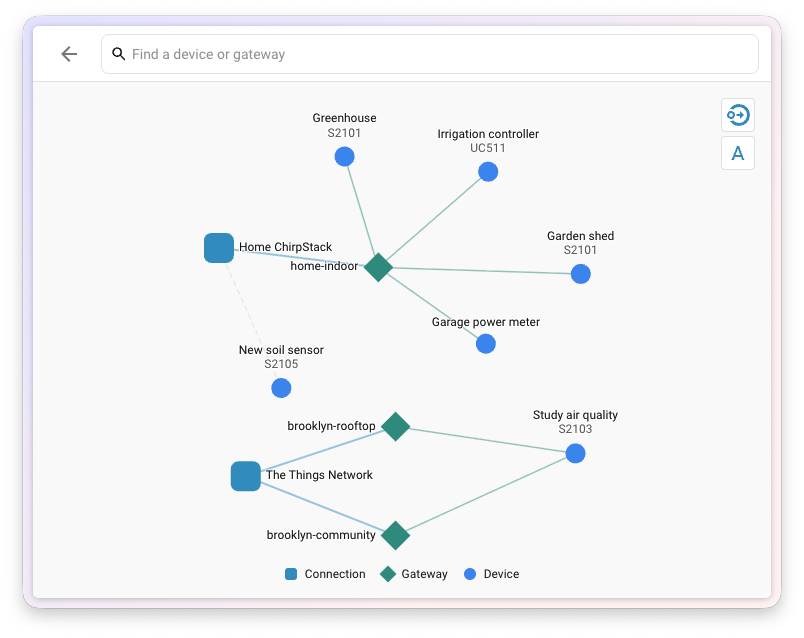
All of it comes together in a new LoRaWAN page in Settings > Connectivity. It shows your connections and how many devicesA device is a model representing a physical or logical unit that contains entities. each has, and a table of all your devices that you can search and filter by connection. A map shows how your network hangs together: which gateways receive which devices, and which devices no gateway has seen. On the page of a device, you find its radio details, like signal strength, the last time it reported in, and its battery. A device that Home Assistant doesn’t support yet still shows up, with a note on what is missing. And when you want to add a new device, Home Assistant takes you straight to the management console of its connection.
Thanks, @balloob!
Batteryless switches with Zigbee Green Power
Zigbee Home Automation now supports Zigbee Green Power. Green Power devicesA device is a model representing a physical or logical unit that contains entities. run without a battery: a wall switch powered by the energy of your press, or a sensor that lives off the light in the room. Friends of Hue switches are the best-known example. Until now, Home Assistant passed them by.
They work differently from other Zigbee devices, and the interface follows along. A Green Power device lists its Source ID with its network details, and the options that don’t apply to it, like reconfiguring it or managing its clusters, are left out. In the network visualization it shows up without a line to a parent, because a Green Power device doesn’t have one.
Thanks, @puddly!
Integrations
Thanks to our community for keeping pace with the new integrationsIntegrations connect and integrate Home Assistant with your devices, services, and more. [Learn more] and improvements to existing ones! You’re all awesome 🥰
New integrations
We welcome the following new integrations in this release:
-
A Better Routeplanner, added by @mtandersson
Bring the vehicles in your A Better Routeplanner (ABRP) account into Home Assistant. Each vehicle gets sensors for its state of charge, range, battery temperature, odometer, and charging state. Sign in with your ABRP account. -
aerosmart, added by @kayloehmann
Monitor an aerosmart ventilation and heat-pump installation over Modbus, through a TCP gateway or a serial connection. No vendor app or cloud service is needed. Home Assistant reads operating values, filter information, and controller status. -
Alpha Bidet Infrared, added by @eseverson
Control an Alpha Bidet seat with an infrared transmitter already set up in Home Assistant. Start or stop a wash, run the dryer, and set water pressure, nozzle position, and temperatures. Infrared is one-way, so the integration cannot confirm the bidet’s state. -
AnyList, added by @BookCatKid
Bring your AnyList shopping lists into Home Assistant. Each list becomes a to-do list. Add, edit, and check off items from a dashboard or an automationAutomations in Home Assistant allow you to automatically respond to things that happen in and around your home. [Learn more]. Changes in the AnyList app also appear in Home Assistant. -
BLUETTI Modbus, added by @chpego
Connect a BLUETTI power station over your network using its built-in Modbus TCP interface. No account, API key, or cloud connection is needed, so readings continue if your internet connection is down. -
Bosch Smart Camera, added by @mosandlt
Connect your Bosch SingleKey ID account to use Bosch Smart Home cameras, such as the Eyes Outdoor and the 360° Indoor camera. This first version sets up the account connection, and the cameras themselves follow in a later release. -
ChirpStack, added by @balloobbot
Connect your ChirpStack LoRaWAN network server to Home Assistant. Select a tenant and its applications to make supported devices available. -
Debug console, added by @frenck
Run Python code inside Home Assistant, similar to a browser’s developer console. This integration is for developers who need to inspect Home Assistant and integration internals, not for everyday use. Because it has full access, enable it in yourconfiguration.yamlThe configuration.yaml file is the main configuration file for Home Assistant. It lists the integrations to be loaded and their specific configurations. In some cases, the configuration needs to be edited manually directly in the configuration.yaml file. Most integrations can be configured in the UI. [Learn more] file. Only administrators can use it, and Home Assistant shows a warning first. -
ecosmart, added by @Daryn-L
Get half-hourly wholesale electricity prices from ecosmart, a New Zealand retailer that passes spot prices on to customers. Use the prices to shift consumption to cheaper periods. -
ENGIE Belgium, added by @DaanVervacke, launching at 🥈 silver quality
Track electricity and gas prices for your ENGIE Belgium contracts. With a dynamic tariff, you also get Belgian EPEX day-ahead wholesale prices to help you choose when to run appliances. -
Flic, added by @alhia and @joostlek
Pair Flic 2, Flic Duo, and Flic Twist buttons with Home Assistant directly over Bluetooth, without an account. Each push shows up as an event you can use in automationsAutomations in Home Assistant allow you to automatically respond to things that happen in and around your home. [Learn more]. The Flic Twist also reports how far it is turned. -
Foreca, added by @EetuPelkonen
Get weather forecasts for locations worldwide from Foreca. For noncommercial use, you can choose a free Foreca Weather API Freemium key or one of its premium packages. -
Grandstream Home, added by @wtxu-gs
Monitor Grandstream GDS372x and GSC356X door access systems from Home Assistant. Home Assistant discovers them on your local network. -
Hase iQ, added by @bbayszczak
Monitor the combustion phase, firebox temperature, heat-up progress, and combustion performance of a HASE wood stove with iQ monitoring. Home Assistant reads the stove over your local network, without the vendor app or a cloud service. You can get a notificationYou can use notifications to send messages, pictures, and more, to devices. [Learn more] when it is time to add wood. The integration is read-only, so it cannot turn the stove on or off. -
HAVEN IAQ, added by @krhtzoa, launching at 🥈 silver quality
Connect HAVEN IAQ Room Air Monitors and Central Air Monitors over your local network. Home Assistant discovers them and provides indoor air quality and airflow measurements. -
Helty Flow Cloud, added by @ebaschiera
Control Helty Flow heat-recovery ventilation units with the newer control panel, which is managed through the Helty Home app. The panel connects through the manufacturer’s cloud, so the integration uses your Helty Home account. Units with the older panel continue to use the Helty Flow integration. -
HP Printer, added by @chemelli74
Monitor an HP printer over your local network without a cloud account. See its status, ink or toner levels, and page counts for printing, scanning, copying, and faxing. Get a notification before a cartridge runs out. -
Hydro-Québec Peak Events, added by @Beat-YT
Track winter peak demand events (événements de pointe) announced by Hydro-Québec, Québec’s electricity utility. Preheat your home before an event and lower the thermostat while it runs. The integration uses public data, so no account is needed. -
KACO RS485, added by @g4bri3lDev, launching at 🥈 silver quality
Read KACO new energy Powador xi solar inverters over their RS485 serial bus. These inverters have no network port. Up to 32 inverters can share one bus, and their production appears on the Energy dashboard. -
LibreSync, added by @drsound
Control audio hubs built on the Libre Wireless LibreSync platform over your local network, such as the Platin Stereo Hub. See what is playing and from which source, and change the volume from a dashboard or an automationAutomations in Home Assistant allow you to automatically respond to things that happen in and around your home. [Learn more]. No account or cloud connection is needed. -
LoRaWAN, added by @balloobbot
Connect LoRaWAN network server integrations, such as ChirpStack and The Things Network, with supported device integrations, such as SenseCAP. -
Marantz RS-232, added by @balloobbot
Control a Marantz receiver through its RS-232 serial port, with local controlLocal control means Home Assistant talks to your devices directly over your own network, without going through a vendor cloud. and state updates. Set the input and volume in a movie-night sceneScenes capture the states you want certain entities to be. For example, a scene can specify that light A should be turned on and light B should be bright red. [Learn more], or put a zone in standby at bedtime. The integration supports receivers that use the 2007 Marantz protocol, tested with the SR7002. -
Marketplace, added by @frenck
Find and install community-created integrations, dashboard cards, themes, and templates, and get updates for installed projects. Administrators can open it under Settings > Marketplace. Community projects are not tested, audited, or supported by the Home Assistant project. Read the notice before installing a project. -
Mijn Farmad Apotheek, added by @DaanVervacke
Search your pharmacy’s catalog and order medication for pickup using your Mijn Farmad Apotheek account. The service is used by more than 1,000 pharmacies in Flanders. The integration provides two actionsAn action makes Home Assistant do something, for example, turn on a light, send a notification, or activate a scene. Automations and scripts run a list of actions. [Learn more]: search and order. -
Nature Remo, added by @tnj
Connect Nature Remo smart remote controllers through the Nature cloud. Each Remo reports the temperature and humidity of its room. A Remo E also reports energy imported from and exported to the grid for the Energy dashboard. -
OKOK Scale, added by @rrooggiieerr, launching at 🏆 platinum quality
Connect a Bluetooth scale that works with the OKOK·International app. Chart your weight on a dashboard and use each new measurement in automationsAutomations in Home Assistant allow you to automatically respond to things that happen in and around your home. [Learn more]. The integration does not depend on the OKOK cloud app. -
Philips Infrared, added by @javitonino
Control a Philips TV with an infrared emitter already set up in Home Assistant. Turn the TV on or off, change the volume, and switch channels. Infrared is one-way, so the integration cannot confirm the TV’s state. If your TV is on your network, the Philips TV integration can read its state. -
RainbowMiner, added by @El1t3Mult1pl3x0r
Monitor RainbowMiner, an open-source cryptocurrency mining program that switches between algorithms, pools, and coins on its own. Home Assistant reads its local API, so you can follow the mining status, earnings, and power consumption. -
Seafile, added by @erwindouna
Connect your own Seafile file sync and share server. See the size, number of files, and last change of the libraries you pick, and store your backupsHome Assistant has built-in functionality to create files containing a copy of your configuration. This can be used to restore your Home Assistant as well as migrate to a new system. The backup feature is available for all installation types. [Learn more] on the server. -
SenseCAP, added by @balloob
Add supported Seeed Studio SenseCAP sensors from your LoRaWAN connections. Depending on the model, Home Assistant provides temperature, humidity, illuminance, carbon dioxide, soil, and weather readings, plus battery level. -
SilverCrest Infrared, added by @tr4nt0r
Control SilverCrest fans and air coolers with an infrared emitter already set up in Home Assistant. Turn a device on or off and set its other functions. Infrared is one-way, so the integration cannot confirm the device’s state. -
SmartyPlants, added by @bigbimbs
Connect SmartyPlants plant sensors to Home Assistant. See soil moisture, temperature, humidity, and light, along with each plant’s health score and fertilizing countdown. You can get a reminder when a plant needs water. -
Solyx Energy Cloud, added by @MartinaeyNL
Monitor and control a Nymo device from Solyx Energy. The Nymo heats an electric boiler with the solar power you would otherwise feed back to the grid, so your surplus is stored as hot water. -
Spin EV Charger, added by @Dr-Blank
Connect an Exicom Spin EV charger directly over Bluetooth Low Energy, without a cloud service or vendor account. -
SteamVR Base Station, added by @g4bri3lDev, launching at 🥈 silver quality
Control Valve Index base stations (SteamVR Base Station 2.0) over Bluetooth Low Energy. Turn them on or off to stop their motors and lasers when you are not using VR. The original base stations that came with the HTC Vive are not supported. -
The Things Network, added by @balloobbot
Connect The Things Network or a self-hosted The Things Stack server to LoRaWAN using an application API key. Device integrations, such as SenseCAP, turn sensor readings into entitiesAn entity represents a sensor, actor, or function in Home Assistant. Entities are used to monitor physical properties or to control other entities. An entity is usually part of a device or a service. [Learn more]. The existing integration, now named The Things Network (Cloud Storage), remains available for sensors based on stored payload fields. -
Xiaomi Weather, added by @shirok1
Get current weather and daily, hourly, and twice-daily forecasts for cities in mainland China. Select a location on the map to find the matching city. No Xiaomi device, account, or API key is needed. -
Škoda, added by @TomVSB
Monitor your Škoda vehicle through Škoda Connect. See the mileage, fuel or battery level, charging state, range, and climate control target temperature. The integration is read-only. Create its API key in the MyŠkoda app.
Noteworthy improvements to existing integrations
It is not just new integrationsIntegrations connect and integrate Home Assistant with your devices, services, and more. [Learn more] that have been added; existing ones keep getting better too. Here are some of the noteworthy improvements this release:
- ESPHome devicesA device is a model representing a physical or logical unit that contains entities. can now share one of their serial ports over your network, so an integrationIntegrations connect and integrate Home Assistant with your devices, services, and more. [Learn more] can reach a serial-connected device, like an AV receiver or an energy meter, from anywhere in the house. Zigbee Home Automation can use it for a Zigbee adapter plugged into an ESPHome device, and keeps working when you move that adapter to another ESPHome device. Add the serial proxy component to your ESPHome device, and the port shows up when you set up the integration that needs it. Thanks, @puddly!
- Shelly added an “update entity”An update entity is an entity that indicates if an update is available for a device or service. [Learn more] for the BLU TRV, a Last seen sensorSensors return information about a thing, for instance the level of water in a tank. [Learn more] that tells you when a battery-powered device last reported in, a single actionAn action makes Home Assistant do something, for example, turn on a light, send a notification, or activate a scene. Automations and scripts run a list of actions. [Learn more] to set the position and tilt of a coverCovers are devices such as blinds, garage doors, etc that can be opened and closed and optionally set to a specific position. [Learn more] at once, and a sensor for what sent the last command to the device. Thanks, @bieniu and @thecode!
- Tuya supports more devicesA device is a model representing a physical or logical unit that contains entities. again: heated towel racks (with temperature control, switches, modes, and a countdown sensor), water valves on irrigation controllers, and the switches that were missing on multi-gang wall switches. Thanks, @rngarcia, @tritter, @alainmic, and @huangjt1!
- UniFi Protect now supports the UniFi Protect Alarm Hub. It is added as its own deviceA device is a model representing a physical or logical unit that contains entities., with “binary sensors”A binary sensor is an entity that reports one of two mutually exclusive states, on or off. The device class determines how those states are labeled in the UI. For example, open/closed for a door or detected/clear for motion. [Learn more] for tamper, backup battery, and each zone input. A new actionAn action makes Home Assistant do something, for example, turn on a light, send a notification, or activate a scene. Automations and scripts run a list of actions. [Learn more] triggers an alarm webhook, key fobs report their signal quality, and the API-key-only mode gained chimes, doorbell messages, pan and tilt control, and speaker audio. Thanks, @RaHehl, @SteveEdson, and @jzila!
- Zigbee Home Automation gives each group its own deviceA device is a model representing a physical or logical unit that contains entities., named after the group. You can give a group its own areaAn area in Home Assistant is a logical grouping of devices and entities that represents a room or space in your home, such as the living room, kitchen, or garage. [Learn more], and its entities are all in one place, just like on any other device. Thanks, @TheJulianJES!
- Bosch SHC grew a lot this release. The Intrusion Detection System of your controller is now an alarm control panel that you can arm and disarm without a code, each room and each heating circuit gets a “climate entity”The Climate entity allows you to control and monitor HVAC (heating, ventilating, and air conditioning) devices and thermostats. [Learn more], and Light Control micromodule dimmers show up as lightsA light has a brightness you can control, and optionally color temperature or RGB color control. [Learn more]. On top of that, there is a self-test button for smoke detectors, sensors for the Room Thermostat II, notification switches for the Camera 360 and Camera Eyes, and a long list of settings you can now change from Home Assistant, such as motion, smoke, and vibration sensitivity, the thermostat display, the state after a power outage, the temperature offset, and the LED brightness. Thanks, @mosandlt!
- HomematicIP Cloud added an identify button that makes a deviceA device is a model representing a physical or logical unit that contains entities. signal where it is, a heating output binary sensorA binary sensor is an entity that reports one of two mutually exclusive states, on or off. The device class determines how those states are labeled in the UI. For example, open/closed for a door or detected/clear for motion. [Learn more] for wall thermostats, the water supply stop valve with its water alarm sensor, distance and height sensors for the ELV-SH-DUSI, and the motion and illuminance entities of the HmIP-SMO230. An access authorization with a PIN can now be used with the Pull latch actionAn action makes Home Assistant do something, for example, turn on a light, send a notification, or activate a scene. Automations and scripts run a list of actions. [Learn more]. Thanks, @lackas!
- Teslemetry builds on the local Powerwall support from last release: grid and site “binary sensors”A binary sensor is an entity that reports one of two mutually exclusive states, on or off. The device class determines how those states are labeled in the UI. For example, open/closed for a door or detected/clear for motion. [Learn more], solar string sensors, and battery dispatch actionsAn action makes Home Assistant do something, for example, turn on a light, send a notification, or activate a scene. Automations and scripts run a list of actions. [Learn more] now come straight from your Powerwall over your own network. Vehicles gained Bluetooth binary sensors and buttons to keep the accessory power on, and Wall Connectors report the energy they delivered today. Thanks, @Bre77!
- Amazon Alexa can show a camera’s live view on an Echo Show, for cameras that support WebRTC, either directly or through go2rtc. Thanks, @nolimit-labs!
- Alexa Devices now supports the Amazon Echo Glow, including brightness, color, and light modes like Campfire and Disco as effects. Notifications can carry a title, and air quality monitors gained a switch for their LED. Thanks, @jamesonuk and @chemelli74!
- Midea keeps growing: washing machines and dryers with their controls and a progress sensor, refrigerator door “binary sensors”A binary sensor is an entity that reports one of two mutually exclusive states, on or off. The device class determines how those states are labeled in the UI. For example, open/closed for a door or detected/clear for motion. [Learn more], the water heater entities that were still missing, a power switch for air purifiers, and a prompt tone switch for dehumidifiers. Thanks, @rokam, @jebentancour, @devPalacio, and @vrpolice!
- MQTT devicesA device is a model representing a physical or logical unit that contains entities. can have child devices, so a device with several parts shows each part separately. The MQTT entity editor also gained a picker for the unit of measurement. Thanks, @jbouwh!
- Lutron Caseta creates an event entityAn event entity represents a momentary occurrence without a lasting state, for example, when you press a doorbell or a button on a remote control. Instead of a state such as on or off, the event entity keeps track of when the last event was detected and its event type, such as a single press or a long press. [Learn more] for every keypad and Pico remote button, so a physical button press can start an automationAutomations in Home Assistant allow you to automatically respond to things that happen in and around your home. [Learn more] directly. Lutron Athena processors are now supported as well. Thanks, @davidrecordon and @ImperatorRuscal!
- LIFX Ceiling and Mirror lights now expose their two components separately, so you can light a room softly with only the uplight of a Ceiling or the backlight of a Mirror, and switch on the other one when you need more light. The Color Sweep effect was added too. Thanks, @Djelibeybi!
- Nanoleaf panels with touch support report single taps, double taps, and swipes as an event entityAn event entity represents a momentary occurrence without a lasting state, for example, when you press a doorbell or a button on a remote control. Instead of a state such as on or off, the event entity keeps track of when the last event was detected and its event type, such as a single press or a long press. [Learn more]. On the Nanoleaf 4D, the screen mirroring modes are available as light effects. Thanks, @SeoFood and @loebi-ch!
- WLED added a switch for the AudioReactive usermod, a button that jumps to the next entry of a playlist, and temperature and humidity sensors for devices with the matching usermods. Thanks, @frenck!
- SwitchBot Bluetooth added the Circulator Fan Pro, key state sensors for the Climate Panel, a button to sync the date and time of the Meter Pro, and a button that puts a random image on the Art Frame. Thanks, @Onero-testdev, @skirmess, and @italo-lombardi!
- Renault now supports two-factor authentication. If your My Renault account has it turned on, Home Assistant asks for the verification code that was sent to your email. Entities are also set up per vehicle, so a vehicle you add to your account later shows up on its own. Thanks, @epenet!
- Apple iCloud added more sensors and “binary sensors”A binary sensor is an entity that reports one of two mutually exclusive states, on or off. The device class determines how those states are labeled in the UI. For example, open/closed for a door or detected/clear for motion. [Learn more] for each of your devices, and a Play sound button that rings a misplaced device, even when it is set to silent or Do Not Disturb. Thanks, @timlaing and @TeroPihlaja!
- LaMetric can be set up by pressing the button on top of the device, so you don’t need a LaMetric account for it at all. The screensaver can be switched on and off, and scheduled with start and end time entities. Notifications can play an MP3 from a URL or from your media, and a built-in sound can now be repeated, or kept playing until the notification is dismissed. Thanks, @frenck and @ElYoM!
- Rituals Perfume Genie gained a firmware “update entity”An update entity is an entity that indicates if an update is available for a device or service. [Learn more], a switch for the standby LED so the diffuser doesn’t light up your bedroom at night, a binary sensorA binary sensor is an entity that reports one of two mutually exclusive states, on or off. The device class determines how those states are labeled in the UI. For example, open/closed for a door or detected/clear for motion. [Learn more] that tells you whether a cartridge is inserted, and a fill level in percent. Thanks, @frenck!
- Ecovacs robots gained a button to wash the mop, a number to set after how many minutes of cleaning the station washes it, a switch and a frequency select for emptying the dust bin, an efficiency mode select, and more lifespan sensors. Lawn mowers can now be stopped. Thanks, @erwindouna!
- Tractive has been reworked to make it more reliable and to fix most known issues. It also adds a pet weight sensor. Thanks, @bieniu!
- Zonneplan brings your home battery into Home Assistant, with its state of charge, power, battery and inverter state, what it earned today and in total, and a select to change its control mode. EV charge points gained binary sensors. Thanks, @erwindouna!
- MELCloud Home keeps a connection open to the service, so changes reach Home Assistant as they happen, instead of waiting for the next “poll”Data polling is the process of querying a device or service at regular intervals to check for updates or retrieve data. By defining a custom polling interval, you can control how frequently your system checks for new data, which can help optimize performance and reduce unnecessary network traffic. [Learn more]. It also added the outdoor temperature of air-to-air units, the frost protection status, and binary sensors for the protections that are active. Thanks, @erwindouna!
- Portainer shows the running Portainer version next to the latest release as an “update entity”An update entity is an entity that indicates if an update is available for a device or service. [Learn more], with a link to its release notes. Container image updates now show their download progress while they install, and new buttons prune the build cache and unused networks. Thanks, @erwindouna!
- NeoPool can connect to your pool controller over a direct serial connection, next to Modbus over the network. It added selects, a temperature setpoint for intelligent mode, and a sensor for the filtration time remaining. Thanks, @svasek!
- Sofar inverters can be read over a direct RS485 serial connection as well as Modbus TCP, and gained battery cut-off state of charge sensors and a fault event entityAn event entity represents a momentary occurrence without a lasting state, for example, when you press a doorbell or a button on a remote control. Instead of a state such as on or off, the event entity keeps track of when the last event was detected and its event type, such as a single press or a long press. [Learn more]. And when Home Assistant restarts at night, while a solar inverter has switched itself off, the integration now still loads as long as the Modbus TCP bridge or serial port is reachable. Its entities fill in once the inverter answers again. Thanks, @darkrain-nl!
- Rain Bird added a next run sensor for each program, a button to sync the controller’s clock, and the zones with their run times in the description of each calendar event. Thanks, @pavandave and @airdrummingfool!
- System Bridge added sensors for the load average, the network download and upload rates, the disk read and write rates, and the battery state and AC power of the machine it runs on. Thanks, @timmo001!
- Discord channels, users, and direct messages can be added as notification targets from the UI. Each one becomes its own notify entityAn entity represents a sensor, actor, or function in Home Assistant. Entities are used to monitor physical properties or to control other entities. An entity is usually part of a device or a service. [Learn more], so you no longer need the channel ID every time you send a message. Thanks, @joostlek!
- SmartThings washers and dryers report their progress, and TVs gained a picture mode select, plus sound mode support on their media player. Thanks, @xthree and @zivgin!
- Velbus creates an event entityAn event entity represents a momentary occurrence without a lasting state, for example, when you press a doorbell or a button on a remote control. Instead of a state such as on or off, the event entity keeps track of when the last event was detected and its event type, such as a single press or a long press. [Learn more] for every physical button, which records whether it was a short or a long press. Thanks, @fredericdepuydt!
- Satel Integra added system status sensors, so you can keep an eye on the health of your alarm panel. You can see when the panel is in service mode or reports a problem, including power supply and battery faults. Thanks, @Tommatheussen!
- Victron GX devices can install firmware updates from Home Assistant, and my-PV added an “update entity”An update entity is an entity that indicates if an update is available for a device or service. [Learn more] and a “climate entity”The Climate entity allows you to control and monitor HVAC (heating, ventilating, and air conditioning) devices and thermostats. [Learn more]. Thanks, @tomer-w and @rrooggiieerr!
- Google Gemini “text-to-speech”TTS (text-to-speech) allows Home Assistant to talk to you. [Learn more] now runs on Gemini 3.8 Flash by default, with a style option to steer how a message is spoken, the voices from the voice library, and more supported languages. OpenAI added support for GPT-6.1 Terra. Thanks, @nikosavola and @Shulyaka!
Infrared and radio frequency keep growing
- Shelly adds an infrared platformPlatforms are building blocks provided by some integrations to be used by other integrations. [Learn more].
- Radio Frequency can receive signals from supported receivers.
- LG Infrared and Gree Infrared “climate entities”The Climate entity allows you to control and monitor HVAC (heating, ventilating, and air conditioning) devices and thermostats. [Learn more] can now be turned on and off. Gree Infrared also adds a switch.
- LED Infrared supports a generic 21-key remote.
- Alpha Bidet Infrared adds controls for water and seat temperature.
Thanks to @bieniu, @abmantis, @Dr-Blank, @tr4nt0r, and @eseverson for these improvements.
Integration quality scale achievements
One thing we are incredibly proud of in Home Assistant is our integration quality scale. This scale helps us and our contributors to ensure integrations are of high quality, maintainable, and provide the best possible user experience.
This release, we celebrate several integrationsIntegrations connect and integrate Home Assistant with your devices, services, and more. [Learn more] that have improved their quality scale:
-
19 integrations reached platinum 🏆
- 1-Wire, thanks to @epenet
- Axle Energy, thanks to @Herbertmt978
- Chef iQ, thanks to @Invader444
- Gatus, thanks to @TN-1
- Gree Infrared, thanks to @Dr-Blank
- LaMetric, thanks to @frenck
- LG Infrared, thanks to @Dr-Blank
- LIFX, thanks to @Djelibeybi
- Midea, thanks to @chemelli74
- Minecraft Server, thanks to @elmurato
- PVOutput, thanks to @frenck
- Qube heat pump, thanks to @MattieGit
- Radio Browser, thanks to @frenck
- Renault, thanks to @epenet
- ScorpionTrack, thanks to @Herbertmt978
- SMHI, thanks to @gjohansson-ST
- SMTP, thanks to @tr4nt0r
- Vistapool, thanks to @fdebrus
- WattWächter Plus, thanks to @smartcircuits
-
3 integrations reached gold 🥇
- Airly, thanks to @bieniu
- Imou, thanks to @Imou-OpenPlatform
- Qingping, thanks to @tengfeili-qingping
-
6 integrations reached silver 🥈
- DNS IP, thanks to @gjohansson-ST
- Eurotronic Comet Blue, thanks to @rikroe
- my-PV, thanks to @rrooggiieerr
- Rejseplanen, thanks to @Jawar19
- Threema, thanks to @LukasQ
- Tractive, thanks to @bieniu
-
7 integrations reached bronze 🥉
- Bluesound, thanks to @LouisChrist
- Holiday, thanks to @gjohansson-ST
- LOQED Touch Smart Lock, thanks to @mikewoudenberg
- Nettigo Air Monitor, thanks to @bieniu
- Sony Bravia TV, thanks to @bieniu
- Trafikverket Camera, thanks to @gjohansson-ST
- Trafikverket Weather Station, thanks to @gjohansson-ST
This is a huge achievement for these integrations and their maintainers. The effort and dedication required to reach these quality levels is significant, as it involves extensive testing, documentation, error handling, and often complete rewrites of parts of the integration.
A big thank you to all the contributors involved! 👏
Now available to set up from the UI
While most integrationsIntegrations connect and integrate Home Assistant with your devices, services, and more. [Learn more] can be set up directly from the Home Assistant user interface, some were only available through YAMLYAML is a human-readable data serialization language. It is used to store and transmit data in a structured format. In Home Assistant, YAML is used for configuration, for example in the configuration.yaml or automations.yaml files. [Learn more] configuration. We keep moving more integrations to the UI, making them more accessible for everyone to set up and use.
The following integrations are now available via the Home Assistant UI:
- Bitcoin, done by @Nihvel
- Folder, done by @gjohansson-ST
- Keyboard Remote, done by @lanrat
- OpenWrt (ubus), done by @apoorva-01
- Sky Hub, done by @jackstevenson
Farewell to the following
Time for a little cleaning. The following “integrations”Integrations connect and integrate Home Assistant with your devices, services, and more. [Learn more] are no longer available as of this release:
- Flipr has been removed because the company behind it was liquidated. A minimal version of the integration remains to show configuration alerts. You can remove the integration from your setup.
Other noteworthy changes
There is even more packed into this release. Here are some of the other changes worth a mention:
- Keep an eye on radon. Radon now has its own triggersA trigger is the part of an automation that makes the automation start when something specific happens, for example, when the sun sets, a door opens, or a button is pressed. [Learn more] and conditionConditions check whether something is true at that moment, for example, whether a door is closed. You can use them in automations and scripts. If a condition is not met, the actions that come after it in the same sequence do not run. At the top level of an automation or script, this stops the automation or script. [Learn more], so you can, for example, turn on a basement fan when radon levels rise, or check the radon level before running an automationAutomations in Home Assistant allow you to automatically respond to things that happen in and around your home. [Learn more]. Thanks, @abmantis!
- Act after an update. A new triggerA trigger is the part of an automation that makes the automation start when something specific happens, for example, when the sun sets, a door opens, or a button is pressed. [Learn more] starts an automationAutomations in Home Assistant allow you to automatically respond to things that happen in and around your home. [Learn more] once Home Assistant has started after an update, and tells you which version you updated from and to. It doesn’t fire on a normal restart. Thanks, @frenck!
- Expose many entities at once. Select the entitiesAn entity represents a sensor, actor, or function in Home Assistant. Entities are used to monitor physical properties or to control other entities. An entity is usually part of a device or a service. [Learn more] you want in the table under Settings > Devices & services > Entities, then choose Expose to voice assistant, or Stop exposing to voice assistant, from the selection menu. Looking each one up separately in the expose dialog is no longer needed. Thanks, @jpbede!
-
Switch to YAML with the keyboard. Press Ctrl + Shift + Y, or Cmd + Shift + Y on a Mac, to move between the visual editor and the YAMLYAML is a human-readable data serialization language. It is used to store and transmit data in a structured format. In Home Assistant, YAML is used for configuration, for example in the
configuration.yamlorautomations.yamlfiles. [Learn more] editor. It works in the automation, script, and scene editors, in card and dashboard editors, and in Settings > Tools > Actions. You can find it in the keyboard shortcuts dialog, under Other. Thanks, @Jump-333! - Drag picture elements into place. In the Picture elements card editor, select an element in the preview and drag it where you want it, instead of working out its coordinates. Thanks, @RaHehl!
- Combine calendars into one. Create a calendar group with the Group integration, and it shows the events of all its member calendars together. Thanks, @elupus!
- Let your AI assistant read the system log. AI assistants that use the Home Assistant LLM API can now read your System Log, so they can help you track down problems. Thanks, @allenporter!
- Water heaters and media players in Template. The Template integration can now create water heater and media player entities. Template coversCovers are devices such as blinds, garage doors, etc that can be opened and closed and optionally set to a specific position. [Learn more] can also report and set their speed. Thanks, @lboue, @Petro31, and @Bascht74!
- Use trigger variables in template entities. Trigger-based template entities can now use the variables of their triggerA trigger is the part of an automation that makes the automation start when something specific happens, for example, when the sun sets, a door opens, or a button is pressed. [Learn more]. Thanks, @Petro31!
Your AI assistant can help troubleshoot
Home Assistant’s LLM API gives compatible AI assistants tools to search for devicesA device is a model representing a physical or logical unit that contains entities. and automationsAutomations in Home Assistant allow you to automatically respond to things that happen in and around your home. [Learn more], review logs, and look up historical statistics. Log access requires an administrator account.
This release goes a step further. An assistant can look up your system information, search the actionsAn action makes Home Assistant do something, for example, turn on a light, send a notification, or activate a scene. Automations and scripts run a list of actions. [Learn more] that are available, and call one. It can list your integrationsIntegrations connect and integrate Home Assistant with your devices, services, and more. [Learn more] and reloadApplies the changes made to Home Assistant configuration files. Changes are normally automatically updated. However, changes made outside of the front end will not be reflected in Home Assistant and require a reload. [Learn more] one. That makes it something that can act on your setup, not only read it, so give it the access you are comfortable with and no more. You can set the MCP server to expose only read-only tools, and an AI conversation can now only be continued by the user who started it.
The KNX integration brings an LLM API of its own, with tools for its telegram store, its project file, and its data point types. Any LLM API becomes available only once an administrator attaches it to a conversation agent or to the MCP server.
Thanks, @balloob, @allenporter, and @martinhoefling!
Need help? Join the community
Home Assistant has a great community of users who are all more than willing to help each other out. So, join us!
Our very active Discord chat server is an excellent place to be, and don’t forget to join our amazing forums.
Found a bug or issue? Please report it in our issue tracker to get it fixed! Or check our help page for guidance on more places you can go.
Are you more into email? Sign up for the Open Home Foundation Newsletter to get the latest news about features, things happening in our community, and other projects that support the Open Home straight into your inbox.
Backward-incompatible changes
We do our best to avoid making changes to existing functionality that might unexpectedly impact your Home Assistant installation. Unfortunately, sometimes it is inevitable.
We always make sure to document these changes to make the transition as easy as possible for you. This release has the following backward-incompatible changes:
AdGuard Home
The Query log switch of the AdGuard Home integration now requires AdGuard Home v0.107.30 or newer. On older versions, the switch becomes unavailable.
If AdGuard Home forces HTTPS while the integration is set up without SSL, setup now fails instead of following the redirect to HTTPS. To fix this, remove the integration and add it again with SSL enabled.
Alert card
The Alert card now shows its color and its pulse only while the entityAn entity represents a sensor, actor, or function in Home Assistant. Entities are used to monitor physical properties or to control other entities. An entity is usually part of a device or a service. [Learn more] is in an alert state, and it supports alarm control panel, binary sensor, cover, and lock entities. The color option is renamed to alert_color, and a new clear_color option sets the color for the rest of the time. Without an alert_color, the card is red during an alert. Set alert_color: none to leave it uncolored.
The card was made for the home and security dashboards, which are not affected. If you added it to a dashboard in YAMLYAML is a human-readable data serialization language. It is used to store and transmit data in a structured format. In Home Assistant, YAML is used for configuration, for example in the configuration.yaml or automations.yaml files. [Learn more] yourself, update it to the new options.
Apple iCloud
Completed reminders are no longer fetched by default. The iCloud integration used to include completed reminders in every Reminders fetch, which on accounts with a very large history could block startup for a long time.
To keep the old behavior, enable Include completed reminders during setup or afterward in the integration options under Settings > Devices & services > Apple iCloud > Options.
Auth
When you reach Home Assistant at an IP address that is not on a local network, such as a public address, a global IPv6 address, or a Tailscale address (100.64.0.0/10), the address in your browser now has to match the address Home Assistant sees the request coming in on. Scheme, host, and port all have to match. If they do not, logging in fails with “Invalid client id”. Previously, such an address was accepted without that check as soon as it had a port, because of a bug in the check.
Most setups are not affected. Opening Home Assistant directly at such an address keeps working, and so does a reverse proxy that you have set up as a trusted proxy in the HTTP integration, because Home Assistant then uses the forwarded scheme and host. Domain names and local network IP addresses are accepted the same way as before.
If you do run into “Invalid client id”, add your proxy to the trusted proxies of the HTTP integration, or reach Home Assistant through a domain name.
(@elupus - #186537) (@elupus - #186543) (Auth documentation)
Besen
The Besen Charging status sensor now reports scheduled instead of canceled while a scheduled start is pending. Update automationsAutomations in Home Assistant allow you to automatically respond to things that happen in and around your home. [Learn more], scriptsA script is a saved list of steps that runs when you start it, for example, from a dashboard, with Assist, or from an automation. Unlike an automation, a script has no triggers, so it doesn’t start by itself. [Learn more], and templatesA template is an automation definition that can include variables for the action or data from the trigger values. This allows automations to generate dynamic actions. [Learn more] that check for canceled to use scheduled. The old name incorrectly described a pending reservation as canceled.
Bitcoin
If you set Bitcoin up in configuration.yamlThe configuration.yaml file is the main configuration file for Home Assistant. It lists the integrations to be loaded and their specific configurations. In some cases, the configuration needs to be edited manually directly in the configuration.yaml file. Most integrations can be configured in the UI. [Learn more], setup now moves to the UI. On the first restart after this update, Home Assistant reads the currency from your YAML and creates the integration for you. Your sensors keep the names and entity IDs they had.
The display_options option is no longer supported, so all 21 sensors are created, even if you previously selected only some of them. This does not add API requests, because all sensors use the same two calls.
Entity IDs created with entity_namespace are not preserved. For example, sensor.wallet_exchange_rate_1_btc becomes sensor.exchange_rate_1_btc.
Bluesound
The deprecated bluesound.join and bluesound.unjoin actionsAn action makes Home Assistant do something, for example, turn on a light, send a notification, or activate a scene. Automations and scripts run a list of actions. [Learn more] have been removed. Update automationsAutomations in Home Assistant allow you to automatically respond to things that happen in and around your home. [Learn more] and scriptsA script is a saved list of steps that runs when you start it, for example, from a dashboard, with Assist, or from an automation. Unlike an automation, a script has no triggers, so it doesn’t start by itself. [Learn more] to use media_player.join and media_player.unjoin.
Calendar and Sun
Sun triggersA trigger is the part of an automation that makes the automation start when something specific happens, for example, when the sun sets, a door opens, or a button is pressed. [Learn more] (sun.*) and the calendar.event_started and calendar.event_ended triggers used to default to offset_type: before, so a positive offset fired before the event. The sign of the offset now decides instead: negative fires before the event, positive fires after. If you wrote one of these triggers in YAMLYAML is a human-readable data serialization language. It is used to store and transmit data in a structured format. In Home Assistant, YAML is used for configuration, for example in the configuration.yaml or automations.yaml files. [Learn more] with an offset but without offset_type, flip the sign of the offset.
This is an edge case: the UI always wrote offset_type, so triggers created in the UI are not affected.
(@piitaya - #184855) (Calendar documentation) (Sun documentation)
Control4
The Control4 integration no longer lets you set the pollingData polling is the process of querying a device or service at regular intervals to check for updates or retrieve data. By defining a custom polling interval, you can control how frequently your system checks for new data, which can help optimize performance and reduce unnecessary network traffic. [Learn more] interval in its options. The integration now always polls the controller every 5 seconds, which was already the default. If you had set a different interval, it is no longer used.
If you need a different polling interval, you can disable polling for the integration in its system options and create an automation that calls the homeassistant.update_entity action on your own schedule.
Device tracker
Device trackers from integrations that scan your network, such as FRITZ!Box Tools, UniFi Network, NETGEAR, and Nmap Tracker, now always have a deviceA device is a model representing a physical or logical unit that contains entities.. If you renamed one of these tracker entities, its name now starts with the device name.
New trackers from these integrations are now always added disabled. Before, they were enabled when another integration already knew the MAC address of the device. Existing trackers keep their enabled or disabled state.
DoorBird
DoorBird events now include the matching image entity as entity_id: the last ring image for doorbell events, and the last motion image for motion events. Previously, every event included camera.<name>_last_motion. Other events no longer include an entity. If an automation uses the entity_id from a DoorBird event, update it to the image entity.
Electra Smart
climate.turn_on on Electra Smart now resumes the mode the air conditioner was last running in, instead of always switching it to heat.
If you relied on turn_on selecting heat mode, select it explicitly with climate.set_hvac_mode instead.
For units that don’t report a previous mode, turn_on falls back to cooling rather than heat.
Entity names
Entity names are now composed from the entity name and its context, which is usually the name of its device. Names you gave an entity yourself are migrated and follow the same rules. Where the full name of an entity changes because of this, the old name is kept as an alias for your voice assistants, and in the friendly_name attribute until the name is changed.
Cards, badges, and rows on dashboards that don’t have a name set now show the device name followed by the entity name, instead of the friendly name. For example, an entity you named “Off-peak consumption” on the “Power meter” device now shows as “Power meter Off-peak consumption”. To keep a short name, rename the device and turn on Main entity of the device for the entity, or set a name on the card.
Using custom cards? We worked with the creators of dozens of popular custom cards and sent them updates, so they show names the same way as the built-in cards. Many have already added them, so update your custom cards first. If a card still shows a name you don’t expect, set a name in the card, or let its creator know.
Entity IDs, automations, and scripts are not affected. In templatesA template is an automation definition that can include variables for the action or data from the trigger values. This allows automations to generate dynamic actions. [Learn more], use entity_name(), device_name(), and area_name() instead of the friendly_name attribute, which is going to be deprecated.
(@arturpragacz - #184340) (@arturpragacz - #184341) (@piitaya - frontend#54725)
Flow-it
The Flow-it integrationIntegrations connect and integrate Home Assistant with your devices, services, and more. [Learn more] is now called AriaQ, because the manufacturer is bringing its products together under that brand. Your devicesA device is a model representing a physical or logical unit that contains entities. and entitiesAn entity represents a sensor, actor, or function in Home Assistant. Entities are used to monitor physical properties or to control other entities. An entity is usually part of a device or a service. [Learn more] keep working and keep their IDs. Only the name you see in Home Assistant changes.
General Transit Feed Specification (GTFS)
GTFS stop times are in the agency’s local time. Previously, when the time zone configured in your Home Assistant instance differed from the GTFS feed time zone, you could use the offset parameter to match the time zones. The integration now automatically applies an offset, so a manual offset is no longer required and may overcorrect the feed stop times.
(@raman325 - #187429) (General Transit Feed Specification (GTFS) documentation)
Hayward Omnilogic
The Hayward Omnilogic integration no longer lets you set the pollingData polling is the process of querying a device or service at regular intervals to check for updates or retrieve data. By defining a custom polling interval, you can control how frequently your system checks for new data, which can help optimize performance and reduce unnecessary network traffic. [Learn more] interval in its options. A previously configured interval is ignored, and the default is used.
Hive
The Hive integration no longer lets you set a custom pollingData polling is the process of querying a device or service at regular intervals to check for updates or retrieve data. By defining a custom polling interval, you can control how frequently your system checks for new data, which can help optimize performance and reduce unnecessary network traffic. [Learn more] interval. If you configured one, it is ignored and the default interval is used.
Holiday and Workday
The holidays library no longer counts ordinary Sundays as holidays in Sweden. The Holiday calendar for Sweden no longer shows a “Söndag” event every Sunday. Named holidays that fall on a Sunday, such as Easter Sunday (Påskdagen) and Whit Sunday (Pingstdagen), are still included.
This also affects the Workday integration for Sweden if you have added Sunday to the workdays and relied on the holidays to exclude it. In that case, ordinary Sundays are now reported as workdays. To keep the previous behavior, add Sunday to the excluded days in the Workday options. The default Workday configuration already excludes Sunday and is not affected.
(@gjohansson-ST - #187605) (Holiday documentation) (Workday documentation)
Honeywell Total Connect Comfort (Europe)
The following deprecated actionsAn action makes Home Assistant do something, for example, turn on a light, send a notification, or activate a scene. Automations and scripts run a list of actions. [Learn more] and preset have been removed from the Evohome integration:
- The
evohome.reset_systemaction: Use the controller’s Reset button. - The
evohome.clear_zone_overrideaction: Use the zone’s Reset button. - The Reset preset of the controller’s “climate entity”The Climate entity allows you to control and monitor HVAC (heating, ventilating, and air conditioning) devices and thermostats. [Learn more]: Use the controller’s Reset button.
Update any automationsAutomations in Home Assistant allow you to automatically respond to things that happen in and around your home. [Learn more] or scriptsA script is a saved list of steps that runs when you start it, for example, from a dashboard, with Assist, or from an automation. Unlike an automation, a script has no triggers, so it doesn’t start by itself. [Learn more] that still use these.
(@zxdavb - #185704) (Honeywell Total Connect Comfort (Europe) documentation)
Calls to evohome.set_system_mode without an entity_id are no longer supported. Include the entity ID of the Evohome controller’s climate entity.
(@zxdavb - #185705) (Honeywell Total Connect Comfort (Europe) documentation)
iRobot Roomba and Braava
The Continuous and Delay options of the iRobot Roomba and Braava integration have been removed. Home Assistant now always keeps one connection open to the robot and reconnects on its own. The underlying library no longer has the periodic connection mode these options controlled.
If you had turned Continuous off so the iRobot app could connect to the robot locally, the app now connects through the iRobot cloud while Home Assistant is connected. This is the same behavior as with the default setting. No action is needed.
(@johnnyh1975 - #184198) (iRobot Roomba and Braava documentation)
Keenetic NDMS2 Router
The Keenetic NDMS2 Router integration no longer lets you set a custom pollingData polling is the process of querying a device or service at regular intervals to check for updates or retrieve data. By defining a custom polling interval, you can control how frequently your system checks for new data, which can help optimize performance and reduce unnecessary network traffic. [Learn more] interval. If you configured one, it is ignored and the default interval is used.
Kraken
The Kraken integration no longer lets you set a custom pollingData polling is the process of querying a device or service at regular intervals to check for updates or retrieve data. By defining a custom polling interval, you can control how frequently your system checks for new data, which can help optimize performance and reduce unnecessary network traffic. [Learn more] interval. If you configured one, it is ignored and the default interval is used.
Matter
Matter concentration sensors now use the unit the device reports instead of a fixed one. Before, a device measuring in another unit was shown with the wrong unit, for example a TVOC sensor measuring in ppb was shown as ppm.
This affects existing TVOC, carbon monoxide, nitrogen dioxide, and ozone sensors whose device reports a unit other than ppm:
- If the device’s unit converts to the old one (for example ppb), the sensor keeps its old unit and the value is now converted, so it changes: a TVOC sensor reporting 189 ppb now shows 0.189 ppm instead of 189 ppm, and the history shows a jump. To get the previous numbers back with the correct unit, set the sensor’s unit to the device’s unit (here ppb) in its entity settings. Otherwise, update automations, scripts, and templates that use the value. Sensors added from now on use the device’s unit directly.
- TVOC sensors reporting µg/m³ or mg/m³ keep their value but switch to the “Volatile organic compounds” device class, which changes their default name (the entity ID stays the same). Their old statistics can’t be converted: in Settings > Tools > Statistics, either update the old unit without converting or delete the old statistics.
(@valeronm - #167177) (Matter documentation)
Matter climate entities now resume their last supported non-off HVAC mode when turned on from Home Assistant, including through dashboard controls and voice commands. For example, an air conditioner turned off while cooling will resume cooling when turned on again. Calling climate.turn_on on an entity that is already running now leaves its mode unchanged.
Previously, climate.turn_on ignored the previous mode and selected heat/cool, then heat, then cool, depending on what the device supports. Automations or scripts that relied on that behavior should call climate.set_hvac_mode with the desired mode instead of climate.turn_on.
Devices with a separate power switch, such as Matter room air conditioners, are now switched on by climate.turn_on. Previously, Home Assistant only changed the mode, so a device that was switched off stayed off. If the device kept its mode while switched off, only the power is switched on and the mode is left unchanged.
If no previous supported mode is known, the earlier fallback order is still used.
(@wardmatter - #181458) (Matter documentation)
Matter covers that can only tilt, without moving up and down, such as tilt-only blind controllers, are now shown as tilt covers. Before, their state was always unknown.
They now use the cover.open_cover_tilt, cover.close_cover_tilt, cover.stop_cover_tilt, and cover.toggle_cover_tilt actions, instead of cover.open_cover, cover.close_cover, cover.stop_cover, and cover.toggle. Update automations, scripts, and device actions that use the old actions on these covers. Voice assistants that open or close these covers may also no longer work for them. Covers that can move up and down are not affected.
MQTT
MQTT entities without a unique_id no longer use their device configuration. These entities could not be linked to a device, but a via_device in their device configuration still created a device in the device registry. That device is no longer created. To link an MQTT entity to a device, add a unique_id to the entity.
(@jbouwh - #187856) (MQTT documentation)
Nanoleaf
The deprecated Nanoleaf touch gesture device triggers have been removed. Automations using a Nanoleaf device trigger (single tap, double tap, swipe up/down/left/right) will no longer work. Use the Touch gesture event entityAn event entity represents a momentary occurrence without a lasting state, for example, when you press a doorbell or a button on a remote control. Instead of a state such as on or off, the event entity keeps track of when the last event was detected and its event type, such as a single press or a long press. [Learn more] of your Nanoleaf device instead, for example with an event.received trigger on the event entity filtered by its event_type attribute.
The device triggers were deprecated in Home Assistant 2024.7 and scheduled for removal in 2025.1.
NINA
The NINA attributes that were deprecated in Home Assistant 2026.5 have been removed. Each one has an entityAn entity represents a sensor, actor, or function in Home Assistant. Entities are used to monitor physical properties or to control other entities. An entity is usually part of a device or a service. [Learn more] or an actionAn action makes Home Assistant do something, for example, turn on a light, send a notification, or activate a scene. Automations and scripts run a list of actions. [Learn more] that takes its place:
-
headline: the Headline sensor -
description: thenina.get_detailsaction -
sender: the Sender sensor -
severity: the Severity sensor -
recommended_actions: thenina.get_detailsaction -
affected_areas: the Affected areas sensor for the shortened list, or thenina.get_detailsaction for the full one -
web: the More information URL sensor -
sent: the Sent sensor -
start: the Start sensor -
expires: the Expires sensor
Update automationsAutomations in Home Assistant allow you to automatically respond to things that happen in and around your home. [Learn more], scriptsA script is a saved list of steps that runs when you start it, for example, from a dashboard, with Assist, or from an automation. Unlike an automation, a script has no triggers, so it doesn’t start by itself. [Learn more], templatesA template is an automation definition that can include variables for the action or data from the trigger values. This allows automations to generate dynamic actions. [Learn more], and dashboard cards that read one of these attributes.
Philips Hue
The "None" light effect has been removed. It was deprecated in Home Assistant 2025.4 in favor of "off", and the mapping that kept the old value working is now gone. Update automationsAutomations in Home Assistant allow you to automatically respond to things that happen in and around your home. [Learn more] and scriptsA script is a saved list of steps that runs when you start it, for example, from a dashboard, with Assist, or from an automation. Unlike an automation, a script has no triggers, so it doesn’t start by itself. [Learn more] that set the effect to "None" so that they use "off" instead.
Plaato
The Plaato integration no longer lets you set a custom pollingData polling is the process of querying a device or service at regular intervals to check for updates or retrieve data. By defining a custom polling interval, you can control how frequently your system checks for new data, which can help optimize performance and reduce unnecessary network traffic. [Learn more] interval. If you configured one, it is ignored and the default interval is used.
Python dependencies
Home Assistant no longer installs Python packages into the deps folder of your configuration directory. This only affects Home Assistant CoreHome Assistant Core is the Python program at the heart of Home Assistant. It is part of all installation types. It can be installed standalone (without Home Assistant Supervisor) as a container using Docker (this is typically referred to as the Home Assistant Container installation type). For development, Core can also be run using a Virtual Environment (previously referred as the Home Assistant Core installation type). For production setup, the Home Assistant Core installation type is deprecated. installations that run outside a virtual environment, which is where that folder was used. Run Home Assistant Core in a virtual environment, as the installation instructions describe, and the packages are installed there instead.
Home Assistant Operating SystemHome Assistant OS, the Home Assistant Operating System, is an embedded, minimalistic, operating system designed to run the Home Assistant ecosystem on single board computers (like the Raspberry Pi) or Virtual Machines. It includes Home Assistant Core, the Home Assistant Supervisor, and supports apps. Home Assistant Supervisor keeps it up to date, removing the need for you to manage an operating system. Home Assistant Operating System is the recommended installation type for most users., Home Assistant SupervisedThe Home Assistant Supervised installation type is a full UI managed home automation ecosystem that runs the Home Assistant Core program, the Home Assistant Supervisor and apps. It comes pre-installed on Home Assistant OS, but can be installed standalone on Debian Linux systems. It leverages Docker, which is managed by the Home Assistant Supervisor. The Home Assistant Supervised installation type is deprecated., and Home Assistant ContainerHome Assistant Container is a standalone container-based installation of Home Assistant Core. Any OCI compatible runtime can be used, but the documentation focus is on Docker. [Learn more] are not affected. Once you have updated, you can remove the deps folder from your configuration directory.
(@emontnemery - #168155)
Ring
Several Ring entities that were deprecated in Home Assistant 2024.9, and originally scheduled for removal in Home Assistant 2025.4, have now been removed:
- The ding and motion binary sensors, and the last ding and last motion sensors. Use the event entities instead.
- The volume sensors, including the doorbell, microphone, and voice volume sensors. Use the number entities instead, which also let you change the volume.
- The siren switch. Use the siren entity instead.
If you use any of these entities in an automation, script, or dashboard, update it to use its replacement.
(@tr4nt0r - #187592) (@tr4nt0r - #187596) (@tr4nt0r - #188108) (Ring documentation)
Risco
The Risco integration no longer lets you set a custom pollingData polling is the process of querying a device or service at regular intervals to check for updates or retrieve data. By defining a custom polling interval, you can control how frequently your system checks for new data, which can help optimize performance and reduce unnecessary network traffic. [Learn more] interval. If you configured one, it is ignored and the default interval is used.
Rituals Perfume Genie
The Fill sensor of Rituals Perfume Genie diffusers now reports a percentage, instead of a range as text like “70-80%”. If you use it in automations or scripts, compare it against a number instead. When there is no measurement, it is unknown instead of “No measurement available”.
The Perfume sensor is now unknown when no cartridge is inserted, instead of showing “Cartridge is not loaded”. Use the new Cartridge binary sensor to tell whether a cartridge is inserted.
SMTP
When an attachment cannot be read, the SMTP notify action now reports an error instead of sending the message without it. Before, a missing file was only logged as a warning and the rest of the email went out, so a wrong path could go unnoticed for a long time.
If one of your automationsAutomations in Home Assistant allow you to automatically respond to things that happen in and around your home. [Learn more] or scriptsA script is a saved list of steps that runs when you start it, for example, from a dashboard, with Assist, or from an automation. Unlike an automation, a script has no triggers, so it doesn’t start by itself. [Learn more] attaches a file that is not always there, such as a camera snapshot, check the path, or build the list of attachments so that it only contains files that exist.
Telegram
The legacy Telegram notify platform (notify with platform: telegram in YAML), deprecated in 2025.11, has been removed. Its notify.<name> actions no longer exist.
Use the notify entities of the Telegram bot integration instead: add each chat ID as a subentry of your Telegram bot and send messages with the notify.send_message action, or use the telegram_bot actions for photos, documents, keyboards, and other options. Remove the platform: telegram entries from the notify section of your configuration.yamlThe configuration.yaml file is the main configuration file for Home Assistant. It lists the integrations to be loaded and their specific configurations. In some cases, the configuration needs to be edited manually directly in the configuration.yaml file. Most integrations can be configured in the UI. [Learn more] file. If the configuration is still present, Home Assistant shows a repair issue.
Telldus Live
The tellduslive YAMLYAML is a human-readable data serialization language. It is used to store and transmit data in a structured format. In Home Assistant, YAML is used for configuration, for example in the configuration.yaml or automations.yaml files. [Learn more] configuration is no longer imported. If you still have a tellduslive: entry in your configuration.yamlThe configuration.yaml file is the main configuration file for Home Assistant. It lists the integrations to be loaded and their specific configurations. In some cases, the configuration needs to be edited manually directly in the configuration.yaml file. Most integrations can be configured in the UI. [Learn more], remove it. Home Assistant raises a repair issue to remind you.
This should not affect anyone in practice: YAML has been imported into a config entry since December 2018, when the config flow was added. Any existing YAML setup was converted long ago and keeps working, and a YAML entry has had no effect since the config entry was created.
Tomorrow.io
The Tomorrow.io integration now has one entry per API key instead of one per location. Each location is a subentry of the entry for its API key. Existing setups migrate automatically and no action is required: locations, entities, devices, and their history are preserved, and per-location “timestep” options carry over. Two things change if you had multiple locations: locations sharing an API key now live under a single config entry, and each location gets its own device. The nowcast timestep is now changed by selecting Reconfigure on a location instead of the integration options.
Tuya
Multi-channel Tuya devices now put the entitiesAn entity represents a sensor, actor, or function in Home Assistant. Entities are used to monitor physical properties or to control other entities. An entity is usually part of a device or a service. [Learn more] of each channel on their own Channel deviceA device is a model representing a physical or logical unit that contains entities., as a child device of the main one.
Entity IDs and history are kept, and a triggerA trigger is the part of an automation that makes the automation start when something specific happens, for example, when the sun sets, a door opens, or a button is pressed. [Learn more], conditionConditions check whether something is true at that moment, for example, whether a door is closed. You can use them in automations and scripts. If a condition is not met, the actions that come after it in the same sequence do not run. At the top level of an automation or script, this stops the automation or script. [Learn more], or actionAn action makes Home Assistant do something, for example, turn on a light, send a notification, or activate a scene. Automations and scripts run a list of actions. [Learn more] that targets the main device still covers the channel entities. What changes is the name. An entity called “Socket 1” becomes “Socket” on the “Channel 1” device, and its friendly_name attribute is now built from that channel device, so it reads “Channel 1 Socket” instead of the name of the main device followed by “Socket 1”. Single-channel devices go from “Socket 1” to “Socket” as well.
Update templatesA template is an automation definition that can include variables for the action or data from the trigger values. This allows automations to generate dynamic actions. [Learn more], dashboard cards, and notifications that use friendly_name or the old entity name.
(@epenet - #184915) (@epenet - #188169) (@epenet - #188237) (@epenet - #188255) (@epenet - #188258) (@epenet - #188674) (@epenet - #188675) (Tuya documentation)
UniFi Protect
The deprecated UniFi Protect HDR mode switch is removed. It was deprecated in 2024.4 because it cannot represent the auto HDR mode. Use the HDR mode select instead. If an enabled switch is still used in an automation or script, a repair lists the automations and scripts that use it.
(@RaHehl - #184425) (UniFi Protect documentation)
The read-only UniFi Protect UP Sense setting entities deprecated in 2026.9 are removed. Use the matching switch or the “Motion sensitivity” number instead. A repair lists automations and scripts that still use a removed entity.
Uptime Kuma
Support for Uptime Kuma versions earlier than 2.0.0 has been dropped. Version 2.0.0 was released more than a year ago. Update Uptime Kuma before updating Home Assistant if you use an older version.
Watergate
The Water meter volume (sensor.<name>_water_meter_volume) and Water meter duration (sensor.<name>_water_meter_duration) sensors of Watergate Sonic now report the positive meter (water flowing in the normal direction) instead of the positive minus negative difference. Entity IDs, unique IDs, and long-term statistics are unchanged.
-
Who is affected: only devices that have ever recorded reverse flow (backflow). The value steps up once, by the device’s lifetime backflow, at the first update after upgrading. Because these sensors are
total_increasing, Home Assistant records that step as consumption, so the Energy dashboard and statistics show a one-time spike. Devices with no recorded backflow see no change. - How to recover: adjust the spike away with Adjust a statistic in Settings > Tools > Statistics, or ignore it. Nothing needs to be reconfigured.
- Why: the old value silently hid reverse flow and was not the monotonically increasing total the state class promises. The new Water meter negative volume/duration sensors expose the reverse reading separately.
On firmware that only reports a single (differential) meter, Water meter volume/duration keep reporting that differential and the new negative sensors are unavailable.
Xiaomi BLE
The high and low frequency values of the S400 impedance sensors were swapped. This release corrects the mapping. Entities are not migrated: the scale overwrites its impedance values on every weigh-in, for whichever profile steps on it, so past readings are not tied to a specific user and keeping their history has little value.
After updating:
- The entity previously exposed as
impedanceis no longer updated and can be removed. -
impedance_lownow reports the actual low frequency value. It previously reported the high frequency one. -
impedance_highis a new sensor.
Check automationsAutomations in Home Assistant allow you to automatically respond to things that happen in and around your home. [Learn more], templatesA template is an automation definition that can include variables for the action or data from the trigger values. This allows automations to generate dynamic actions. [Learn more], and dashboards that rely on these entities.
Xiaomi Home
Xiaomi Miio light, switch, and fan actions now require an explicit target. Previously, calling them without an entity_id acted on every matching Xiaomi Miio device. Calls without a target now fail with a validation error.
Existing calls that specify entity_id still work. To act on all matching entities, use entity_id: all.
This affects these actions in the xiaomi_miio domainEach integration in Home Assistant has a unique identifier: The domain. It is often shown as the first part (before the dot) of entity IDs.:
- Light:
light_set_scene,light_set_delayed_turn_off,light_reminder_on,light_reminder_off,light_night_light_mode_on,light_night_light_mode_off,light_eyecare_mode_on,light_eyecare_mode_off - Switch:
switch_set_wifi_led_on,switch_set_wifi_led_off,switch_set_power_mode,switch_set_power_price - Fan:
fan_reset_filter,fan_set_extra_features
Z-Wave
With this release, you will need to update your zwave-js-server instance. You must use zwave-js-server 3.11.0 or greater (schema 51).
- If you use the Z-Wave JS appApps are additional standalone third-party software packages that can be installed on Home Assistant OS. [Learn more], you need at least version 1.9.0.
- If you use the Z-Wave JS UI Docker container, you need at least version zwave-js/[email protected] (release).
- If you run your own Docker container or some other installation method, you will need to update your zwave-js-server instance to at least 3.11.0.
(@MartinHjelmare - #184901) (Z-Wave documentation)
Entities for features on non-root endpoints of multi-endpoint Z-Wave devices now live on their own child devicesA device is a model representing a physical or logical unit that contains entities. of the main device, when the Z-Wave JS device database describes those endpoints as separate parts. Only devices with that information are affected: endpoints that carry a label, or that belong to an endpoint group.
Because the name of an entityAn entity represents a sensor, actor, or function in Home Assistant. Entities are used to monitor physical properties or to control other entities. An entity is usually part of a device or a service. [Learn more] is built from the device it belongs to, the name of the main device no longer appears in it. A thermostat with three temperature sensors used to be one device with “Air temperature (2)”, “Air temperature (3)”, and “Air temperature (4)”. It is now a main device with one child device per sensor, each named after its endpoint label, such as “Room Sensor”, and each with a single “Air temperature” entity. A multi-clamp energy meter becomes the main device plus one child device per clamp.
Entity IDs stay the same, and automationsAutomations in Home Assistant allow you to automatically respond to things that happen in and around your home. [Learn more] and scriptsA script is a saved list of steps that runs when you start it, for example, from a dashboard, with Assist, or from an automation. Unlike an automation, a script has no triggers, so it doesn’t start by itself. [Learn more] that target the main device keep working, because targeting a device also targets the entities of its child devices.
One entity does disappear: the redundant endpoint-2 “slat” value of the Fibaro FGR223 and the Shelly Qubino Wave Shutter (QNSH-001P10) is no longer created. If you had enabled that cover entity, it is gone.
Zigbee Home Automation
Each ZHA groupGroups are a way to organize your entities into a single unit. [Learn more] that has group entitiesAn entity represents a sensor, actor, or function in Home Assistant. Entities are used to monitor physical properties or to control other entities. An entity is usually part of a device or a service. [Learn more] now gets its own deviceA device is a model representing a physical or logical unit that contains entities., named after the group, and those entities move there from the coordinator device. Entity IDs and settings are kept, and a name or areaAn area in Home Assistant is a logical grouping of devices and entities that represents a room or space in your home, such as the living room, kitchen, or garage. [Learn more] you set yourself moves along, so automationsAutomations in Home Assistant allow you to automatically respond to things that happen in and around your home. [Learn more], scriptsA script is a saved list of steps that runs when you start it, for example, from a dashboard, with Assist, or from an automation. Unlike an automation, a script has no triggers, so it doesn’t start by itself. [Learn more], and dashboards that use the group entities keep working.
Two things need your attention:
- If you target the coordinator device to control your groups, target the group entities or the new group devices instead. The device page of the coordinator no longer lists the group entities.
- If you relied on the group entities being in the area of the coordinator device, give the new group devices or their entities an area of their own.
(@TheJulianJES - #188830) (Zigbee Home Automation documentation)
If you are a custom integrationA custom integration is an integration that has been created by someone from the Home Assistant community and has been published for others to use at their own risk. Custom integrations are not supported by the Home Assistant project. They are not reviewed or tested by the Home Assistant development team and thus may negatively impact the stability of your Home Assistant instance. An example of a custom integration is the Spook integration. developer and want to learn about changes and new features available for your integration: Be sure to follow the blog on our contributors site. The following changes are the most notable for this release:
- A new home for every contributor
- A Python console inside Home Assistant
- Always pass a step_id to flow results
- Auth providers now opt in to multi-factor authentication
- Backup agents can now be renamed
- Climate entities now expose their temperature unit
- Config entry functions now return None
- Custom section strategies in the dashboard editor
- DeviceInfo is now a dataclass
- Frontend component updates in 2026.11
- Integrations have categories now
- Introducing child devices
- New entity lifecycle hooks
- New unit of measurement selector
- Repair issues can belong to a config entry, and be refreshed
- ScannerEntity now handles devices like other entities
- Show form fields based on other fields
- Two-way audio for camera entities
- Undefined sentinel changes
- Update entities can customize update availability
- Water heater entities now expose their temperature unit
All changes
Of course, there is a lot more in this release. You can find a list of all changes made here: Full changelog for Home Assistant Core 2026.11.