

Floors
A floor in Home Assistant is a logical grouping of areasAn area in Home Assistant is a logical grouping of devices and entities that represents a room or space in your home, such as the living room, kitchen, or garage. [Learn more] meant to match your home’s physical floors.
Devices and entities cannot be assigned to floors directly but to areas. Floors can be used in automationsAutomations in Home Assistant allow you to automatically respond to things that happen in and around your home. [Learn more] and scriptsA script is a saved list of steps that runs when you start it, for example, from a dashboard, with Assist, or from an automation. Unlike an automation, a script has no triggers, so it doesn’t start by itself. [Learn more] as a target for actionsAn action makes Home Assistant do something, for example, turn on a light, send a notification, or activate a scene. Automations and scripts run a list of actions. [Learn more]. For example, to turn off all the lights on the downstairs floor when you go to bed.
Creating a floor
Follow these steps to create a new floor.
-
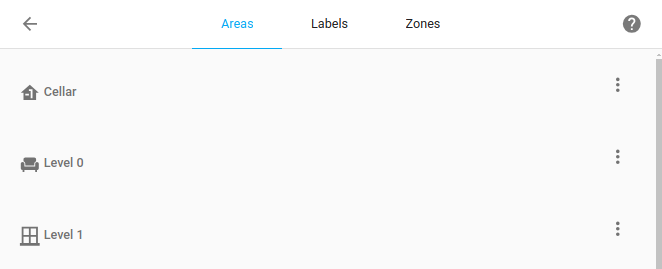
Go to Settings > Areas, labels & zones and select Add > Create floor.
-
In the dialog, enter the floor details:
- Give the floor a Name (required).
- Under Level, enter the floor level.
- The number can be negative. For example, for underground floors.
- The level determines the default floor icon. It doesn’t change the order of the floors. To change the order, refer to Reordering floors on built-in dashboards.
- Under Icon, select an icon from the Material Design Icons (MDI).
- Under Areas, select Add area to add the areas that are on this floor.
- Under Aliases, add alternative names.
- Aliases are alternative names used in voice assistants to refer to an entity, area, or floor.
-
Select Create.
- Result: A new floor is created.
-
You can also assign areas to that floor later.
Reordering floors on built-in dashboards
Follow these steps to rearrange floors and areas on the built-in dashboards (such as Overview, Lights, and Security).
- Go to Settings > Areas, labels & zones.
- Rearrange the floors and areas in one of the following ways:
- Drag and drop the floors and areas.
- Next to a floor, or next to the Other areas section, select Menu
> Reorder. - In the dialog, move the floors or areas.
- Select Save.
Deleting a floor
Follow these steps to delete a floor. Areas that are assigned to a floor will become unassigned. AutomationsAutomations in Home Assistant allow you to automatically respond to things that happen in and around your home. [Learn more] and scriptsA script is a saved list of steps that runs when you start it, for example, from a dashboard, with Assist, or from an automation. Unlike an automation, a script has no triggers, so it doesn’t start by itself. [Learn more] or voice assistants that used a floor as a target will no longer work as they no longer have a target.
- Go to Settings > Areas, labels & zones.
- Next to the floor, select Menu
> Delete floor. - To confirm, select Delete.
- Result: The floor is deleted. Its areas are no longer assigned to a floor.
- If you have automationsAutomations in Home Assistant allow you to automatically respond to things that happen in and around your home. [Learn more], scriptsA script is a saved list of steps that runs when you start it, for example, from a dashboard, with Assist, or from an automation. Unlike an automation, a script has no triggers, so it doesn’t start by itself. [Learn more], or voice assistants that used floors as a target, you will need to update these.