

Backups
It is important to regularly back up your Home Assistant setup. You may have spent many hours configuring your system and creating automations. Keep your configurations safe so that you can restore a system or migrate your Home Assistant to new hardware.
What a backup contains and where it’s stored
Backups are encrypted by default and stored in a compressed archive file (.tar). By default, Home Assistant stores them locally, in one of the following folders:
- On Home Assistant Operating SystemHome Assistant OS, the Home Assistant Operating System, is an embedded, minimalistic, operating system designed to run the Home Assistant ecosystem on single board computers (like the Raspberry Pi) or Virtual Machines. It includes Home Assistant Core, the Home Assistant Supervisor, and supports apps. Home Assistant Supervisor keeps it up to date, removing the need for you to manage an operating system. Home Assistant Operating System is the recommended installation type for most users., backups are in the
/backupfolder. - On Home Assistant ContainerHome Assistant Container is a standalone container-based installation of Home Assistant Core. Any OCI compatible runtime can be used, but the documentation focus is on Docker. [Learn more], for example when you run Home Assistant in Docker, backups are in the
backupsfolder of your configuration directory.
On Home Assistant OS, a full backup includes the following folders:
configshare-
addons(only manually installed or created apps, not those installed from the store) sslmedia
A partial backup consists of any number of the above default directories and installed apps.
On Home Assistant Container, a backup contains the Home Assistant settings and, if you choose, the history. Apps, the media and share folders, and network storage are only available on Home Assistant OS.
Preparing for a backup
Before creating a backup, check if you can reduce the size of the backup. This is especially important if you want to use the backup to migrate the system to new hardware, for example from a Raspberry Pi Compute Module 4 to a Raspberry Pi Compute Module 5.
- Check if your configuration directory contains a large database file:
- Go to Settings > System > Repairs.
- From the three dots
menu, select System information and under the Recorder section, look for the Estimated database size (MiB). - By default, the data is kept for 10 days. If you have modified that to a longer period, check the
recorderintegration page for options to keep your database data down to a size that won’t cause issues. - Note the
purge_keep_daysoption, and the include and exclude options.
- On Home Assistant OS, to check how much space you’ve used in total, go to Settings > System > Repairs.
- From the three dots
menu, select System information, and check under Home Assistant Supervisor > Disk used. - If you have apps installed that you no longer use, uninstall those apps. Some apps require quite a bit of space.
- From the three dots
- If you want to store the backup on your network storage instead of just locally on your system, follow the steps on adding a new network storage and select the Backup option.
Setting up an automatic backup process
The automatic backup process creates a backup on a schedule and also deletes old automatic backups.
- Go to Settings > System > Backups.
- On the Set up backups card, select Set up backups.
- Result: The Encryption key step opens.
- Under Download emergency kit, select Download, and store the file somewhere safe.
- You need the encryption key in the emergency kit to restore your backups.
- To learn more about backup encryption, refer to the documentation on the backup emergency kit.
- Select Next.
- Choose how to set up your automatic backups:
- To use the recommended settings, select Recommended. Home Assistant backs up everything daily, except media, the share folder, and the local apps folder, and keeps the last 3 backups. It stores the backups on this system, and on Home Assistant Cloud if you are logged in.
- Result: Home Assistant saves the settings and creates the first backup. You’re done.
- To choose your own settings, select Custom, and continue with the next step.
- To use the recommended settings, select Recommended. Home Assistant backs up everything daily, except media, the share folder, and the local apps folder, and keeps the last 3 backups. It stores the backups on this system, and on Home Assistant Cloud if you are logged in.
- On the Automatic backups step, define the schedule:
- Under Schedule, select Daily, or select Custom days to back up on specific days.
- Under Time, select System optimal to let Home Assistant pick a time after it cleans up its database. To pick the time yourself, select Custom.
- Make sure you pick a time when all your backup locations are available. Otherwise, the backup fails for the locations that aren’t available.
- Under Retention, define how many backups to keep, or for how many days.
- Older automatic backups are deleted. For example: if you back up daily and keep 7 backups, the backups that are older than 7 days are deleted.
- These retention settings do not delete manual backups. However, Home Assistant Cloud replaces its previous backup whenever a new backup is uploaded, even if the previous backup was created manually.
- App update backups have their own limit. For details, refer to App update backups.
- Select Next.
- On the Backup data step, define the data you want to back up, and select Next.
- It is recommended to leave out media and the share folder to reduce the size of the backup.
- A large backup also takes longer to restore.
- Some apps may also be quite large.
- On the Locations step, turn on the locations where you want to store your backups.
- To learn more about the locations, refer to the section on defining backup locations.
- Select Save and create backup.
- Result: Home Assistant saves the settings and creates the first backup.
To change these settings later, go to Settings > System > Backups, and on the Automatic backup card, select Configure backup settings. On Home Assistant OS, this page also has Backup preference when updating. It defines whether Home Assistant creates a backup before an update. You can change this each time you update.
To download the emergency kit again, or to show or change your encryption key, use the Encryption key card on the backups page.
Defining backup locations
You might need a backup in case your system has crashed. If you only store backups on the device itself, you won’t be able to access them easily. It is recommended to keep a copy on another system (outside of Home Assistant) and ideally also one off-site.
You will find an overview of integrations which provide a backup location here.
About the backup storage on Home Assistant Cloud
If you have Home Assistant Cloud, you can store a backup of maximum 5 GB on Home Assistant Cloud. This cloud storage space is available for all existing and new Home Assistant Cloud subscribers without additional cost. It stores one backup file: the backup that was last saved to Home Assistant Cloud. These backups are always encrypted. To restore encrypted backups, you need the encryption key stored in the backup emergency kit.
To define the backup location for automatic backups
- Go to Settings > System > Backups, and on the Automatic backup card, select Configure backup settings.
- Under Locations, turn on all the backup locations you want to use.
- If you don’t see Home Assistant Cloud in the list, you are not logged in.
- If you want to back up to your NAS (such as Synology) or a cloud provider (such as Google Drive or Microsoft OneDrive), check their integration documentation for specific instructions on setting up a Home Assistant backup.
- If you don’t see a network storage, you haven’t added one. Follow the steps on adding a new network storage and select the Backup option.
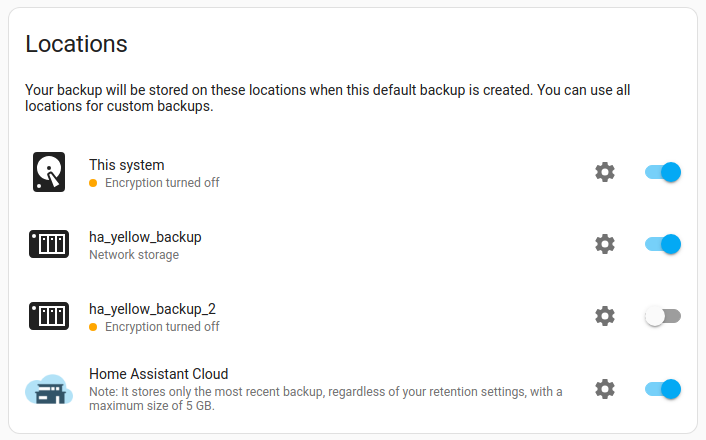
- To change the encryption or the retention of a location, select the cog
next to it. - Under Encryption, select Turn off or Turn on. Backups on Home Assistant Cloud are always encrypted.
- Under Retention for this system, or the retention for another location, select Use global settings, or set a retention for this location only. Home Assistant Cloud always keeps only one backup.
Creating a backup automation using the backup action
If the backup automation settings provided in the UI do not match your use case, you can manually configure your own backup automation using the backup.create_automatic action.
Using the backup.create_automatic action in your own automation allows you to create automated backups on any schedule you like, or even add conditions and actions around it. For example, you could make an automation that triggers on a calendar, turns on your NAS, waits until it is online, and then triggers a backup.
To get notified when an automatic backup fails, use the event entity and sensors of the Backup integration.
Creating a manual backup
This creates a backup instantly. You can create a manual backup at any time, irrespective of any automatic backups you may have defined.
- Go to Settings > System > Backups.
- In the lower-right corner, select Backup now.
- If you haven’t set up backups yet, the setup opens instead. Follow the steps on setting up an automatic backup process.
- Select Manual backup.
- On the Backup data step, define the data you want to back up, and select Next.
- It is recommended to leave out media and the share folder to reduce the size of the backup.
- A large backup also takes longer to restore.
- Some apps may also be quite large.
- On the Synchronization step, enter a Backup name, and choose the Locations.
- To learn more about the locations, refer to the section on defining backup locations.
- To store the backup on Home Assistant Cloud, include the Home Assistant settings in the backup data.
- To start the backup process, select Create backup.
Downloading your local backups
When you download a backup from the Home Assistant backup page, it is decrypted on the fly, so that you can view the data using your favorite archive tool. This works for all backup locations, including Home Assistant Cloud, if the backup uses your current encryption key. If the backup uses a different key, Home Assistant asks for that key. You can also download the backup encrypted.
There are multiple ways to download your local backup from your Home Assistant instance and store it on another device:
Option 1: Download from the backup page:
- Under Settings > System > Backups, select Show all backups.
- In the list, on the row of the backup you want to download, select the three dots
menu and select Download. - Result: The backup is stored in the Downloads folder of your computer.
- If a backup is stored on multiple locations, you can select where you download it from:
- Select the backup, and under Locations, select the three dots
and select Download from this location.
- Select the backup, and under Locations, select the three dots
Option 2: On Home Assistant OS, copy backups from the backup folder:
- If you haven’t already done so, configure access to files on Home Assistant, using one of the methods listed there.
- For example, use the Samba share app.
- In your file explorer, access Home Assistant, open the
backupfolder and copy the file to your computer.
Downloading a backup from Home Assistant Cloud
If you were logged in to Home Assistant Cloud and had Cloud backup enabled when creating a backup, your last backup is stored on Home Assistant Cloud.
There are two ways to download the backup from Home Assistant Cloud:
-
Option 1: From the backups page
- Go to Settings > System > Backups and select Show all backups.
- Select the backup from the list.
- Under Locations, select the three dots
and select Download from this location.
-
Option 2: From your Home Assistant Cloud account
- Log in to your Home Assistant Cloud account.
- Under Stored files, you can see the latest available backup file. Select the Download button.
App update backups
On Home Assistant Operating SystemHome Assistant OS, the Home Assistant Operating System, is an embedded, minimalistic, operating system designed to run the Home Assistant ecosystem on single board computers (like the Raspberry Pi) or Virtual Machines. It includes Home Assistant Core, the Home Assistant Supervisor, and supports apps. Home Assistant Supervisor keeps it up to date, removing the need for you to manage an operating system. Home Assistant Operating System is the recommended installation type for most users., Home Assistant can create a backup of an app before it updates the app. This app update backup contains the app and its data, so you can go back to the previous version of the app if needed.
- App update backups are stored in the default local backup location. This is the system itself, unless you added network storage for backups. The first network storage that you add with the Backup usage becomes the default location. For details, refer to Change default local backup location.
- By default, Home Assistant keeps one app update backup per app, and deletes older ones.
- The retention of automatic backups doesn’t delete app update backups.
Changing app update backup settings
- Go to Settings > System > Backups, and select the App update backup card.
- Result: The App update backups page opens.
- Under Backup preference when updating, select Backup before update or Skip backups.
- You can still change this each time you update an app.
- Under Retention, enter how many app update backups to keep per app.
Deleting obsolete backups
If you defined a retention for automatic backups, old automatic backups are deleted automatically. The retention doesn’t delete manual backups, so you might still have some old backups around that you want to delete. Home Assistant Cloud is an exception: it only keeps the last backup that was uploaded to it, also if that’s a manual backup.
To delete old backups, follow these steps:
- In Home Assistant, under Settings > System > Backups, select Show all backups.
- To delete one backup: from the list, select the backup of interest.
- Select the three dots
menu and select Delete.
- Select the three dots
- To delete multiple backups: select the
Enter selection mode button. - From the list of backups, select all the ones you want to delete and select Delete selected.
-
Consider keeping at least one recent backup for recovery purposes.
- To delete a backup that is stored on Home Assistant Cloud, you have 2 options:
-
Option 1: Trigger backup deletion from within Home Assistant
- Follow steps 1 and 2 from above.
- When you select Delete in Home Assistant, the backup is deleted from all its locations, including Home Assistant Cloud.
-
Option 2: Delete the backup from the Nabu Casa account page.
- Log in to your Nabu Casa account.
- Under Backups, delete the backup.
-
Option 1: Trigger backup deletion from within Home Assistant
Restoring a backup
There are two ways to use a backup:
- On your current system to recover your settings.
- During onboarding, to migrate your setup to a new device or to a device on which you performed a factory reset.
Estimated duration
The time it takes to restore a backup depends on your installation. Home Assistant Core and all apps are being reinstalled. For a larger installation, this process can take about 45 minutes.
Restoring a backup during onboarding
You can use a backup during the onboarding process to restore your configuration.
Migration: This procedure also works if you want to migrate from one device to another. In that case, use the backup of the old device on the new device. The target device can be a different device type. For example, you can migrate from a Raspberry Pi to another device.
Prerequisites
- This procedure assumes you have already completed the installation procedure on your target device and are now viewing the welcome screen as part of the onboarding.
- The login credentials of the device from which you made the backup.
- The backup emergency kit that contains the key needed to decrypt the backup.
-
Required storage capacity: If you migrate the installation to a new device, make sure the new device has more storage capacity than the existing device.
- Before migrating, on the old system, check how much storage you used.
- Go to Settings > System > Repairs > … > System Information, and under Home Assistant Supervisor, look at the Disk used value.
- The target device must have more free space than the source device.
- If your target device is a Home Assistant Yellow, note that it is the size of the eMMC that is relevant.
- The restore process mainly uses the eMMC, not the NVMe.
- The size of the backup file is no indication of the size of your installation. To know the size of your installation, you need to check the Disk used value mentioned above.
- If you are migrating to a new device:
- You do not need to transfer the backup to a USB or SD card to bring it to your device.
- You will be able to upload the backup file from the device you are accessing the onboarding from.
To restore a backup during onboarding
- If you are migrating to a new device and you had controllers or radios connected (such as a Z-Wave stick or a Connect ZBT-2):
- make sure to plug them into the new device.
- You can either restore a backup from your local machine or a backup stored on Home Assistant Cloud:
-
Option 1: restoring from a local backup.
- On the welcome screen, select Upload backup.
- Select Select backup file.
- The file explorer opens on the device on which you are viewing the Home Assistant User interface.
- You can access any connected network drive from there.
- Select the backup file.
-
Option 2: restoring from a Home Assistant Cloud backup.
- On the welcome screen, select Home Assistant Cloud.
- Sign in to Home Assistant Cloud.
-
Option 1: restoring from a local backup.
- In the dialog, select all the parts you want to restore.
- Your current system will be overwritten with the parts that you choose to restore.
- If you want to restore the complete configuration with all directories and apps, select everything.
- Enter the encryption key stored in the backup emergency kit.
- To start the process, select Restore backup.
- The restore may take a while, depending on the amount of data.
- Don’t refresh the page. Just wait.
- If you refresh the page, you will see a “Not found” message. This is because the system is shutdown, wiped, and reinstalled from the backup. During that time, it won’t be reachable.
- If your previous installation had certificates enabled directly for the
httpintegration, when the restore is complete, it will no longer respond tohttp://requests. In this case, usehttps://(addeds) instead.
- On the login screen, enter the credentials of the system from which you took the backup.
- The login password and username must match the ones you used at the time the backup was taken.
- Your dashboard should show all the elements as they were when you created the backup.
- If some devices are shown as unavailable, you may need to wake the battery-powered devices.
- If you had network storage connected on the previous system, you may need to reconnect those.
- If you had Zigbee devices, and you migrated to a new device with its own Zigbee radio built-in:
- Because this is now a different Zigbee radio, you need to migrate Zigbee.
To restore a backup on your current system
- Go to Settings > System > Backups, and select Show all backups.
- To restore a backup file from your computer, first upload it: select the three dots
menu, select Upload backup, and then Select backup file. Select the file, and then select Upload backup.
- To restore a backup file from your computer, first upload it: select the three dots
- From the list of backups, select the backup from which you want to restore.
- Under Select what to restore, select the parts you want to restore:
- Your current system will be overwritten with the parts that you choose to restore.
- If you want to restore the complete configuration with all directories and apps, select everything.
- If you only want to restore specific elements, only select the folders and apps you want to restore.
- Select Restore.
- Result: The Restore backup dialog opens.
- If the backup uses a different encryption key than the one on this system, enter that key.
- To start the restore, select Restore.
- This may take a while, depending on how much there is to compress or decompress.
- Once the restore is complete, Home Assistant restarts to apply the new settings.
- You will lose the connection to the UI and it will return once the restart is completed.
- On the login screen, enter the password and username as they were at the time the backup was taken.
Troubleshooting backups
A backup fails and doesn’t show why
Symptom: “Last automatic backup failed” or “Failed to create backup”
An automatic or manual backup fails, and Home Assistant doesn’t say why.
Description
The reason is in the logs of Home Assistant.
Resolution
- Go to Settings > System > Logs.
- In Search logs, enter
backup.- Result: The list shows the backup errors. They start with
Error creating backup:and include the reason, such asCould not lock database within 30 seconds.
- Result: The list shows the backup errors. They start with
- Find the reason in the problems below. If it isn’t listed, use it to search the community forum.
A backup fails because the database can’t be locked
Symptom: “Could not lock database within 30 seconds”
A backup fails, and the logs show Error during pre-backup: Could not lock database within 30 seconds.
Description
Before Home Assistant creates a backup, the Recorder stops writing to its database, so that the database in the backup is complete. The Recorder first finishes the work that it’s busy with. If that takes longer than 30 seconds, the backup fails.
This could be caused, for example, by one of the following situations:
- The Recorder does its maintenance. By default, it cleans up old data every night at 04:12, and repacks the database on the second Sunday of each month.
- The database is large, or Home Assistant writes a lot of data to it.
- The storage is slow. For example, you use a USB stick as the data disk. An SSD is much faster.
This only happens with the default SQLite database. If you use MariaDB or PostgreSQL, Home Assistant doesn’t lock the database, and this error doesn’t occur.
Resolution
- Wait a few minutes, and then create the backup again.
- If automatic backups fail, change when they run. The default, System optimal, starts between 04:45 and 05:45. That’s shortly after the Recorder maintenance at 04:12, and a long repack can still be running then.
- Go to Settings > System > Backups. On the Automatic backup card, select Configure backup settings.
- Under Backup cycle, set Time to Custom, and pick a time later in the day.
- Time is only shown when Schedule is set to Daily or Custom days.
- If backups keep failing, make the database smaller. For example, keep fewer days of history, or exclude entities that change often. For details, refer to Preparing for a backup.