

Onboarding Home Assistant
After Home Assistant has been installed on your device, there are 5 steps to complete setting up Home Assistant. The entire onboarding takes only a few minutes and is done in your browser, so no command-line or coding is required.
-
Open the address shown in your installation guide in your browser.
- For Home Assistant Operating System, this is usually http://homeassistant.local/.
- If Home Assistant does not open at that address, try http://homeassistant.local:8123/.
- Result: You now see the Preparing Home Assistant page, while Home Assistant downloads its latest version. This may take 20 minutes or more, depending on your hardware and internet connection. Once preparation is finished, the welcome screen is shown.
- For Home Assistant Container: usually
http://<host>:8123, where<host>is the host name or IP address of the computer running Home Assistant Container.- Result: The welcome screen is shown.
- If you ran into issues with this step, refer to the installation troubleshooting.
- For Home Assistant Operating System, this is usually http://homeassistant.local/.
-
On the welcome screen, you can either create a new installation or restore an existing installation from a backup.
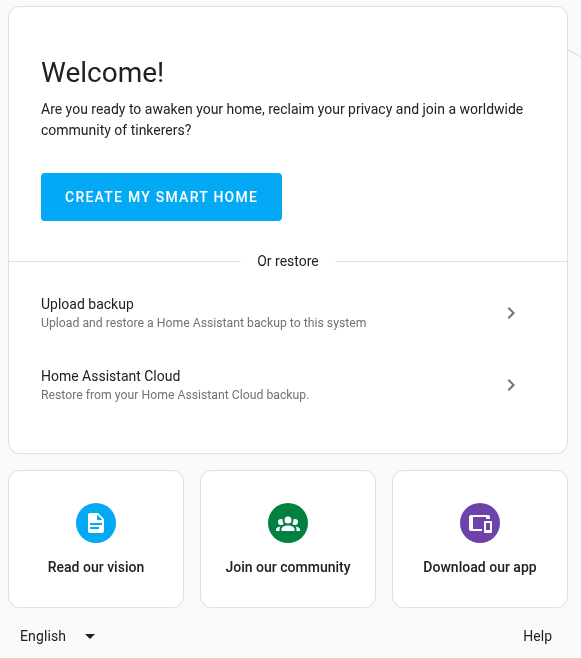
- To create a new installation, select Create my smart home, and then create the owner account of Home Assistant:
-
This account is an administrator account. It will always be able to change everything. -
Enter a Name, Username, and Password, and repeat the password under Confirm password.
- Make sure the username is lowercase and contains no whitespace.
- The Name is the name of the person that is shown in the UI. The username is used for login.

-
Store the name, username, and password somewhere safe. There is no way to recover the owner credentials.
-
Select Create account.
-
- To restore a backup of a previous installation, under Or restore, select Upload backup or Home Assistant Cloud. For the steps, refer to Restoring a backup during onboarding.
- If you have a Home Assistant Yellow, follow the Yellow documentation on restoring from backup.
- If you have a Home Assistant Green, follow the Green documentation on restoring from backup.
- To create a new installation, select Create my smart home, and then create the owner account of Home Assistant:
-
Enter the location of your home.
- To find your location, search for your address under Search address. Or, to let Home Assistant detect it, select Detect
at the end of the search field. This makes a one-time request to an external service. - The home location is used to configure the time zone, unit system, and currency.
- It is also used to create the home zone, which designates the area of your home with a default radius of 100 m.
- This home zone can be used for automations such as opening the shades at sunrise, or starting the vacuum when you leave the home.
- You can always change this information later in the settings.
- Select Next.
- If Home Assistant can’t determine the country from your location, it then asks for your country, so that it uses the correct units. Select your country and select Next.
- To find your location, search for your address under Search address. Or, to let Home Assistant detect it, select Detect
-
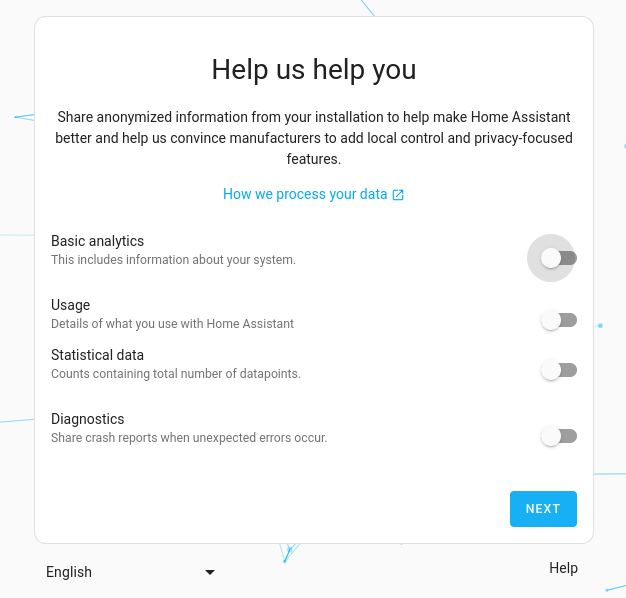
On the Help us help you screen, select which information you are willing to share.
- Sharing is turned off by default. Sharing some of this data helps the Home Assistant project find out which platforms to support and where to focus its efforts.
- The data is anonymized and aggregated. To see the charts made from this data, take a look at the analytics page.
- To confirm, select Next.
-
Review the final setup screen. - If Home Assistant has found compatible devices, you see We found compatible devices! and a list of the discovered integrations. Some are already added, while others may need additional configuration.
- If no compatible devices are found, you see All set! instead.
- Select Finish to complete onboarding and open the default dashboard.