Zone
Zones allow you to specify certain regions on a map. They enable zone presence-detection. This information can be used in automations. For example, to start the vacuum after you left home or start the heating at home when you leave the office.
Create a zone for each area you want to automate on. For example, work, school, and home. Different technologies can be used to detect presence in these zones. A common method is app-based detection using a mobile phone. Zone automations work with person and device tracker entities.
 Map dashboard showing a school, work, and a home zone and the location of two people.
About the home zone
During the onboarding process, Home Assistant asked for your home location. You either entered this manually or asked Home Assistant to detect it automatically. This location was used to create the home zone with a 100 m radius. The home zone is a special, pre-defined zone with a few characteristics that set it apart from other zones.
- The name of this zone is defined by the name of your Home Assistant installation name (which defaults to “Home”).
- The home zone cannot be deleted and is designated with the home icon in the zone configuration page.
- The home zone’s location is used by integrations that are location-based. For example, the Sun integration, which uses it to calculate the position of the sun relative to your home.
- During onboarding, Home Assistant used the location to define settings such as the unit system and time zone. If you change the location later, unit system and time zone will not be changed automatically anymore.
- Devices that are in the home zone will not appear on the map in the Home Assistant UI. For example, if you are using your phone for presence detection, you won’t see your phone on the Map dashboard while you are at home.
Adding a new zone or editing zones
If you have configured the zone or some of the general settings in YAML, as described in editing zones in YAML and in editing the general settings in YAML, you cannot edit them using the UI.
-
Go to Settings > Areas, labels & zones and select the Zones tab.
-
To edit an existing zone, select the edit
button. To add a new zone, select Create zone. -
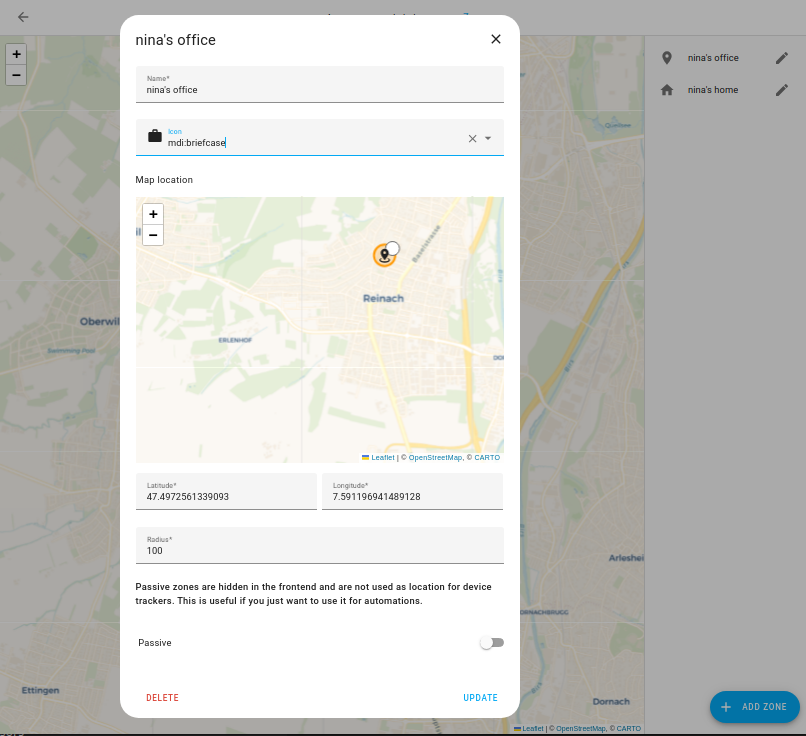
Give your zone a name, for example
Nina's office, orschool.- The home zone always has the name of your Home Assistant installation. To change the name of the home, go to Settings > System > General.
-
Pick any icon from Material Design Icons and prefix the name with
mdi:.- For example,
mdi:school,mdi:briefcase,mdi:home,mdi:cart, ormdi:castle. - For the home zone, the icon cannot be changed.
- For example,
-
To change the location, enter the GPS coordinates in Latitude and Longitude or drag the icon on the map. To change the zone radius, adjust the size of the zone circle or edit the Radius in meters.
-
If you want to hide the zone from the frontend and not use the zone for device tracker state, enable Passive. You can still use it in automations.
- For the home zone, Passive is not available.
-
To save your changes, select Save if you are editing a zone or Create if you are adding a new zone.
Editing zones in YAML
Zones can also be configured via configuration.yamlThe configuration.yaml file is the main configuration file for Home Assistant. It lists the integrations to be loaded and their specific configurations. In some cases, the configuration needs to be edited manually directly in the configuration.yaml file. Most integrations can be configured in the UI. [Learn more]. If you define these settings in YAML, they cannot be edited in the UI. They will appear greyed out.
# Example configuration.yaml entry
zone:
  - name: School
    latitude: 32.8773367
    longitude: -117.2494053
    radius: 250
    icon: mdi:school

  - name: Work
    latitude: 32.8753367
    longitude: -117.2474053

  # This will override the default home zone
  - name: Home
    latitude: 32.8793367
    longitude: -117.2474053
    radius: 100
    icon: mdi:account-multiple
To find the latitude and longitude of a place:
- In Bing Maps, right-click and copy the coordinates.
- In Google Maps, right-click and select What is here?.
State
The state of a zone is a number, which represents the number of persons that are currently in a zone.
The number of persons in a zone can be helpful for automations. For example, you can determine if someone is home, if one person is home, or if no one is home. The same applies to all other zones.
Supported functionality
Zones provide triggers, conditions, and actions for automations. You can use them to react when people or tracked devices enter or leave a zone, or to check whether a zone is occupied.
List of triggers
The Zone integrationIntegrations connect and integrate Home Assistant with your devices, services, and more. [Learn more] provides the following triggers. Each link below opens a dedicated page with examples, fields, and a step-by-step UI walkthrough.
-
Zone entered (
zone.entered) Triggers when one or more people or device trackers enter a zone. -
Zone left (
zone.left) Triggers when one or more people or device trackers leave a zone. -
Zone occupancy cleared (
zone.occupancy_cleared) Triggers when one or more zones transition from occupied to unoccupied. -
Zone occupancy detected (
zone.occupancy_detected) Triggers when one or more zones become occupied.
For an overview of every trigger across all integrations, see the triggers reference.
List of conditions
The Zone integrationIntegrations connect and integrate Home Assistant with your devices, services, and more. [Learn more] provides the following conditions. Each link below opens a dedicated page with examples, fields, and a step-by-step UI walkthrough.
-
Is in zone (
zone.in_zone) Tests if one or more people or device trackers are in a zone. -
Is not in zone (
zone.not_in_zone) Tests if one or more people or device trackers are not in a zone. -
Zone occupancy is detected (
zone.occupancy_is_detected) Tests if one or more zones are occupied. -
Zone occupancy is not detected (
zone.occupancy_is_not_detected) Tests if one or more zones are unoccupied.
For an overview of every condition across all integrations, see the conditions reference.
List of actions
The Zone integrationIntegrations connect and integrate Home Assistant with your devices, services, and more. [Learn more] provides the following actions. Each link below opens a dedicated page with examples, parameters, and a step-by-step UI walkthrough.
-
Reload zones (
zone.reload) Reloads the zones from the YAML configuration.
For an overview of every action across all integrations, see the actions reference.
Zone automation examples
These examples show how you can use zone triggers and conditions in automations.
You don’t need to edit YAML to use these examples. Copy a YAML snippet from this page, open the automation editor in Home Assistant, and press Ctrl+V (or Cmd+V on Mac). Home Assistant automatically converts the pasted YAML into the visual editor format, whether it’s a full automation, a single trigger, a condition, or an action.
Automation: notify when Nina arrives at work
When Nina enters the work zone, this automation sends a notification to your phone.
-
Trigger: Zone entered
-
Target: Nina (
person.nina) -
Zone: Work (
zone.work)
-
Target: Nina (
-
Action: Send a notification message
-
Target: My Device (
notify.my_device)
-
Target: My Device (
YAML example for a work arrival notification
alias: "Notify when Nina arrives at work"
triggers:
  - trigger: zone.entered
    target:
      entity_id: person.nina
    options:
      zone: zone.work
actions:
  - action: notify.send_message
    target:
      entity_id: notify.my_device
    data:
      message: "Nina arrived at work."
Automation: turn off the office fan when home is empty
When the home zone becomes empty, this automation checks that Nina is not in the home zone and turns off the office fan.
-
Trigger: Zone occupancy cleared
-
Zone: Home (
zone.home)
-
Zone: Home (
-
Condition: Is not in zone
-
Target: Nina (
person.nina) -
Zone: Home (
zone.home)
-
Target: Nina (
-
Action: Turn off fan
-
Target: Office fan (
fan.office)
-
Target: Office fan (
YAML example for turning off the office fan when home is empty
alias: "Turn off the office fan when home is empty"
triggers:
  - trigger: zone.occupancy_cleared
    options:
      zone: zone.home
conditions:
  - condition: zone.not_in_zone
    target:
      entity_id: person.nina
    options:
      zone: zone.home
actions:
  - action: fan.turn_off
    target:
      entity_id: fan.office