

Home energy management
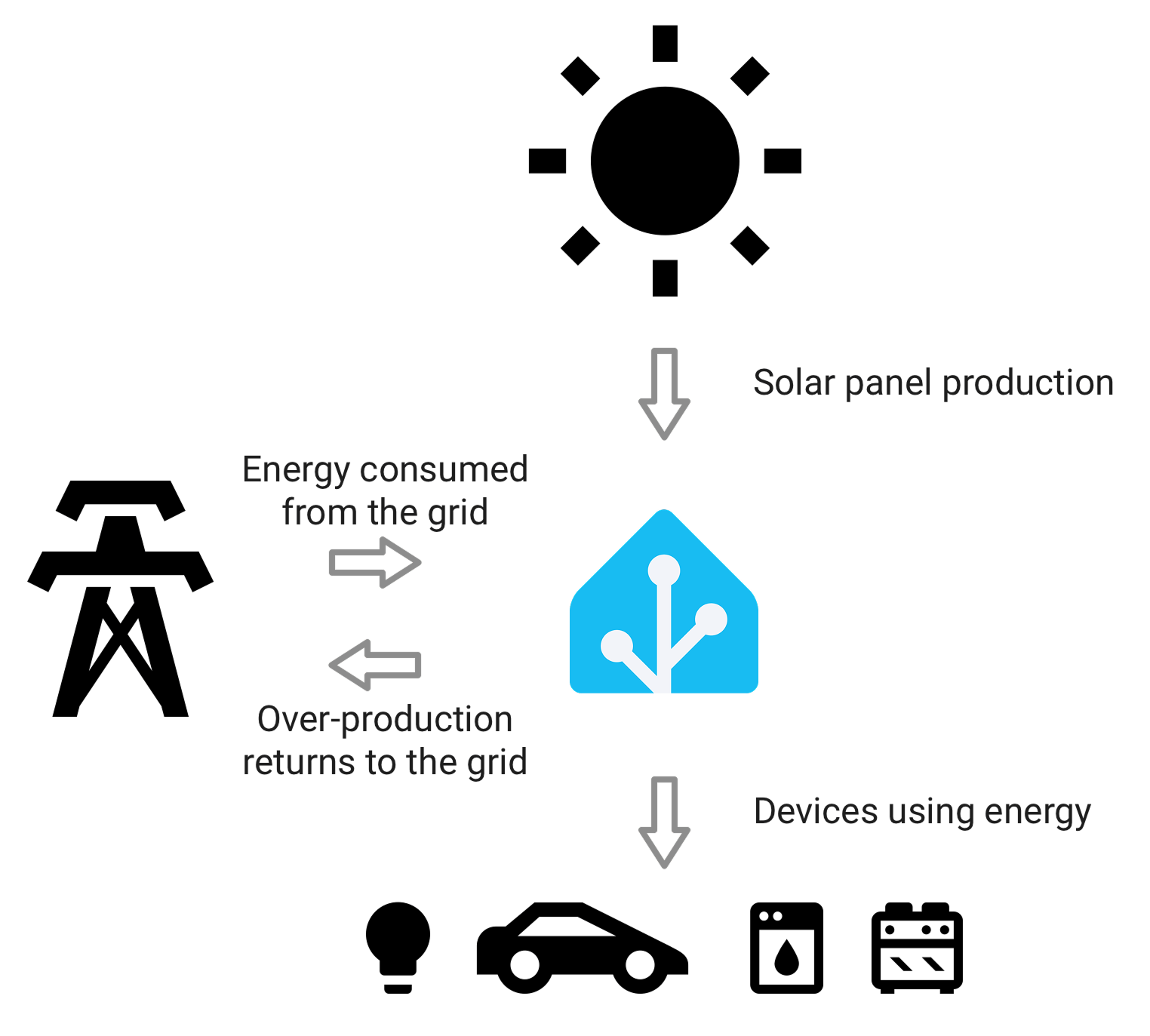
Home Assistant turns your home into a clear, easy-to-read picture of how energy flows in and out of it. You can see how much electricity you draw from the grid and when, how much your solar panels produced today, how full your home battery is, and which appliances are quietly costing you the most. With that information, you can plan when to run the dishwasher, charge the car when power is cheap or your panels are at their peak, and set automations that quietly save you money in the background.


The Energy dashboard works with electricity, gas, and water. For each one, your usage is grouped into three simple types: what you consume, what you produce, and what you store. You can start with a single source, even just your electricity meter, and add more as you go. Every source you add makes the picture more complete.
Home Assistant is open and works with hardware from many different brands, so you are not locked into one ecosystem. Any energy monitor, smart plug, solar inverter, or utility meter that integrates with Home Assistant can feed data into the Energy dashboard.
Setting up the Energy dashboard
To add energy data to the dashboard, start with the type of source or device you want to track:
- Integrate your energy use from the electricity grid
- Integrate your solar panels
- Integrate your home batteries
- Integrate your gas consumption
- Integrate your water consumption
- Integrate individual devices
If you have a sensor that returns instantaneous power readings (W or kW), then to add a sensor that returns energy usage or generation (kWh), refer to the Riemann sum integral integration.
You can also configure power sensors alongside energy sensors in the Energy dashboard. Power inputs accept sensors with state_class: measurement and appropriate units (for example W or kW).
Customizing the Energy dashboard
The Energy dashboard is generated from the energy sources and devices you configure. You can show or hide individual cards without changing your energy sources. This lets you keep the dashboard focused on the graphs and summaries you use most.
Before you customize the dashboard, add at least one energy source or device. If no sources or devices are configured, the Customize energy dialog has no cards to show.
To show or hide cards on the Energy dashboard:
- Go to Settings > Dashboards > Energy > Edit dashboard.
- In the toolbar, select Customize cards.
- In the Customize energy dialog, expand a section, such as Overview, Electricity, Gas, Water, or Now.
- Turn the switch for each card on or off.
- Select Save.
Your card selection applies to the Energy dashboard for the whole Home Assistant system, not only to your browser or user account. Cards that you keep visible continue to use the same energy data and date controls as before.
Cards that are not available
Some cards in the Customize energy dialog might be unavailable. A card is unavailable when the energy source or device it needs is not configured. For example, a solar card needs a solar panel source.
To make an unavailable card available, add the matching source or device on the energy settings page. The dialog only shows sections that have at least one card available for your current energy configuration.
Hidden dashboard tabs
If you hide every card in an Energy dashboard tab, Home Assistant hides that tab. Home Assistant keeps at least one tab available, so the dashboard does not become empty.
To show a hidden card or tab again, return to Customize cards, turn the card back on, and save your changes.