

Model Context Protocol Server
The Model Context Protocol Server (MCP) integration lets you connect an AI agent, such as ChatGPT or Claude, to Home Assistant. The AI agent can then control your devices and see the current state of your home.
Prerequisites
- Your MCP server URL. To get it:
- Go to Settings > System > AI.
- If the Model Context Protocol card shows an Enable button, select it.
- Next to the MCP server you want to use, select the copy icon
. We recommend Your MCP API because it lets the AI agent control everything Home Assistant has access to.
- An AI agent that supports MCP servers.
- If the AI agent runs in the cloud, for example when you use it through a website, your Home Assistant instance must be accessible from the internet. Use Home Assistant Cloud or another method of remote access.
For detailed configuration instructions, refer to the Client configuration section.
Configuration
To add the Model Context Protocol Server service to your Home Assistant instance, use this My button:

If the above My button doesn’t work, you can also perform the following steps manually:
-
Browse to your Home Assistant instance.
-
In the bottom right corner, select the
Add Integration button. -
From the list, select Model Context Protocol Server.
-
Follow the instructions on screen to complete the setup.
When you set up the integration, it exposes all LLM APIs and requires an administrator account. To change this, go to Settings > Devices & services, select Model Context Protocol Server, and then select Configure.
Configuration options
The integration provides the following configuration options:
If MCP clients can use every LLM API, including LLM APIs that are added later. This option is turned on by default. If you set up the integration before this option existed, it stays turned off so that your clients keep the LLM APIs you selected. Turn it off to select individual LLM APIs.
The LLM APIs that MCP clients can use when Expose all LLM APIs is turned off. Clients can only control or provide information about entities that are exposed to them.
Client configuration
Home Assistant implements the standard Model Context Protocol, including OAuth 2.0 with PKCE. It supports OAuth Client ID Metadata Documents, so AI agents set up the client ID and callback URL automatically.
Example: Claude
Before you start, copy your MCP server URL as described in the prerequisites.
Claude connects to your MCP server from the cloud, also when you use Claude Desktop. Your Home Assistant instance must be accessible from the internet.
-
Open the form to add a connector:
- On claude.ai, go to the Claude connectors page. In the top-right corner, select Add > Add custom connector.
- In Claude Desktop, go to Settings > Connectors and select Add > Add custom connector.
-
Enter the following details:
-
Name:
Home Assistant - MCP Server URL: Paste your MCP server URL.
-
Name:
-
Select Add.
-
Claude verifies the MCP server and shows a dialog. Enter the following details:
- Authentication: Select Sign in now.
- OAuth client: Select Use Claude’s published identity.
-
Select Add.
-
On the page for your new connector, select Connect.
-
Log in to your Home Assistant instance.
-
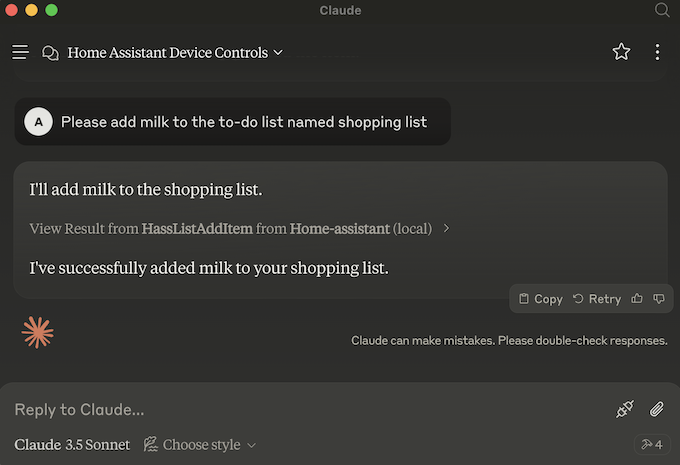
You can now enable tools from Home Assistant when chatting with Claude, allowing you to control Home Assistant in a similar way to how you control it through the Voice Assistant. Claude will ask you for permission before calling any tools.
Example: ChatGPT
Before you start, copy your MCP server URL as described in the prerequisites.
If you use ChatGPT on chatgpt.com, your Home Assistant instance must be accessible from the internet.
- Open the form to add an MCP server:
- On chatgpt.com, go to the ChatGPT plugins page. In the top-right corner, select Add > Add custom MCP server.
- In ChatGPT Desktop, go to Settings > Plugins and select Add > Add MCP server.
- Enter the following details:
-
Name:
Home Assistant - Connection: Paste your MCP server URL.
- Authentication: Select OAuth.
-
Name:
- Select I understand and want to continue.
- Select Create as plugin.
- ChatGPT offers to Connect Home Assistant. Select Continue to Home Assistant.
- Log in to your Home Assistant instance.
Example: Claude Code
Claude Code connects to MCP servers over HTTPS only. Use the MCP server URL of your remotely accessible Home Assistant instance, as described in the prerequisites.
-
Install Claude Code and log in.
-
In your terminal, run the following command. Replace
<your_mcp_server_url>with your MCP server URL.claude mcp add --transport http home-assistant <your_mcp_server_url> -
Run the following command:
claude mcp login home-assistant -
In your web browser, log in to your Home Assistant instance.
-
You can now enable tools from Home Assistant when chatting with Claude, allowing you to control Home Assistant in a similar way to how you control it through the Voice Assistant. Claude will ask you for permission before calling any tools.
Example: Codex
-
Install Codex and sign in.
-
In your terminal, run the following command. Replace
<your_mcp_server_url>with your MCP server URL, for examplehttp://homeassistant.local:8123/api/mcp.codex mcp add homeassistant --url <your_mcp_server_url> -
Codex opens your Home Assistant instance in your web browser. Log in to your Home Assistant instance.
Example: OpenCode
-
Install OpenCode.
-
In your terminal, run the following command. Replace
<your_mcp_server_url>with your MCP server URL.opencode mcp add home-assistant --url <your_mcp_server_url> -
Run the following command:
opencode mcp auth home-assistant -
In your web browser, log in to your Home Assistant instance.
Supported functionality
Tools
MCP Tools enable LLMs to perform actions through Home Assistant. The tools used by the configured LLM API are exposed.
Prompts
The MCP Prompts provided inform LLMs how to call the tools. The tools used by the configured LLM API are exposed.
Resources
When the configured LLM API includes the GetLiveContext tool, Home Assistant
also exposes a read-only MCP Resource
named homeassistant://assist/context-snapshot.
This resource returns a plain-text snapshot that matches the existing
GetLiveContext tool output. It is intended for inspection, debugging, and
explanation workflows where a static snapshot is useful. If the configured LLM
API does not expose GetLiveContext, this resource is not available.
Known limitations
The Home Assistant Model Context Protocol integration currently only supports a subset of MCP features:
- Prompts: Supported
- Tools: Supported
- Resources: Supported (Assist only)
- Sampling: Not supported
- Notifications: Not supported
Troubleshooting
Repeated OAuth failures
Symptom: Unable to access Home Assistant after several failed login attempts
If authentication keeps failing during the OAuth setup flow, the most likely cause is that one or more OAuth details are incorrect, such as the client ID or the Home Assistant URL.
Resolution
- Review the OAuth configuration in your client and verify the details:
- Make sure the Client ID is the base URL of the LLM client application (for example,
https://claude.aifor Claude orhttps://chatgpt.comfor ChatGPT), and never your Home Assistant instance URL. IndieAuth validates that the redirect URI shares the same scheme and domain with the client ID; setting the client ID to your Home Assistant instance causes the authorization flow to fail. - Home Assistant does not use a client secret. If the field is required by the client application, enter any text; if it is optional, leave it blank.
- Make sure the URL used to access Home Assistant matches the configured Internal URL or External URL in Settings > System > Network.
- Make sure the Client ID is the base URL of the LLM client application (for example,
- If you have explicitly enabled IP bans in Home Assistant and repeated failed sign-in attempts caused a ban, check the
ip_bans.yamlfile in your Home Assistant configuration directory. If your computer’s IP address or the client’s IP address is listed there, remove it, restart Home Assistant, and then try authenticating again.
Symptom: OAuth discovery fails or authorization server metadata is rejected
When connecting an external client (such as ChatGPT or Claude) through a tunnel, reverse proxy, or custom domain, the client fails to complete OAuth discovery or rejects the metadata with an error regarding the issuer or registration endpoint.
Description
This can occur for two reasons:
-
Hostname or proxy mismatch: Home Assistant checks incoming requests against its configured internal and external URLs. If the hostname used by the remote LLM client does not match the configured URL, or if reverse-proxy headers (
X-Forwarded-Host,X-Forwarded-Proto) are missing or mismatched, Home Assistant cannot resolve theissuerin/.well-known/oauth-authorization-serverand returns relative paths. Conforming OAuth clients reject this metadata because RFC 8414 requires theissuerto match the URL used to discover it. -
Unsupported Dynamic Client Registration (RFC 7591): Home Assistant uses the
draft-ietf-oauth-client-id-metadata-documentstandard (client_id_metadata_document_supported: true) rather than RFC 7591 Dynamic Client Registration. LLM clients that strictly require RFC 7591 Dynamic Client Registration cannot register automatically.
Resolution
- Go to Settings > System > Network and make sure that the External URL (or Internal URL) matches the exact hostname and scheme used by the remote LLM client to reach Home Assistant.
- If using a reverse proxy or tunnel (such as Cloudflare Tunnel), make sure Home Assistant is configured to trust forwarded headers from the proxy. See Reverse proxies in the HTTP integration documentation for details on configuring Trust X-Forwarded-For and Trusted proxies.
- If the LLM client supports manual OAuth configuration (such as ChatGPT’s user-defined OAuth client), enter the authorization and token endpoints manually rather than relying on automatic discovery.
- Using Home Assistant Cloud (
https://<your-id>.ui.nabu.casa) avoids reverse-proxy and tunnel configuration pitfalls because it automatically handles canonical hostnames and SSL termination.
Removing the integration
This integration can be removed by following these steps:
To remove an integration instance from Home Assistant
- Go to Settings > Devices & services and select the integration card.
- Next to the entry you want to remove, select the three dots
menu. Then, select Delete. - Depending on the integration, the entries are listed under one of the following headings:
- Devices
- Hubs
- Services
- Integration entries
- Depending on the integration, the entries are listed under one of the following headings:
- To confirm, select Delete.
- Home Assistant also deletes the devices and entities of the entry.
- If Home Assistant asks you to restart, restart Home Assistant.
- If Home Assistant asks whether to also delete the application credentials, select Remove or Keep.
- If you keep them, Home Assistant uses them automatically when you add the integration again.
- To delete them later, refer to Deleting application credentials.