llama.cpp
The llama.cpp integrationIntegrations connect and integrate Home Assistant with your devices, services, and more. [Learn more] allows you to use a local or remote server that implements the OpenAI-compatible chat completions API as a conversation agent in Home Assistant.
This integration lets you connect with self-hosted models running on servers such as llama.cpp, llama-cpp-python, vLLM, DeepSeek, or other compatible API backends.
If you are using Ollama, you should prefer the official Ollama integration.
If you are using OpenRouter, you should prefer the official OpenRouter integration.
Controlling Home Assistant is done by providing the AI access to the Assist API of Home Assistant. You can control what devices and entities it can access from the exposed entities page. The AI can provide you information about your devices and control them.
This integration does not integrate with sentence triggers.
Prerequisites
This integration requires an external server running an OpenAI-compatible API. Standard examples of compatible servers and their typical URLs include:
-
llama.cpp: Running on
http://localhost:8080/v1or another port of your choosing. See the llama.cpp quick start guide for more details. -
llama-cpp-python: Running on
http://localhost:8000/v1or another port of your choosing. See the llama-cpp-python installation guide for more details. -
vLLM: Running on
http://localhost:8000/v1or another port of your choosing. See the vLLM installation guide for more details. -
DeepSeek: Using the cloud API URL
https://api.deepseek.com.
Configuration
To add the llama.cpp service to your Home Assistant instance, use this My button:

If the above My button doesn’t work, you can also perform the following steps manually:
-
Browse to your Home Assistant instance.
-
In the bottom right corner, select the
Add Integration button. -
From the list, select llama.cpp.
-
Follow the instructions on screen to complete the setup.
Once the connection is established, you will be prompted to select the chat model to use.
Options
To define options for llama.cpp, follow these steps:
-
In Home Assistant, go to Settings > Devices & services.
-
If multiple instances of llama.cpp are configured, choose the instance you want to configure.
-
On the card, select the cogwheel
. - If the card does not have a cogwheel, the integration does not support options for this service.
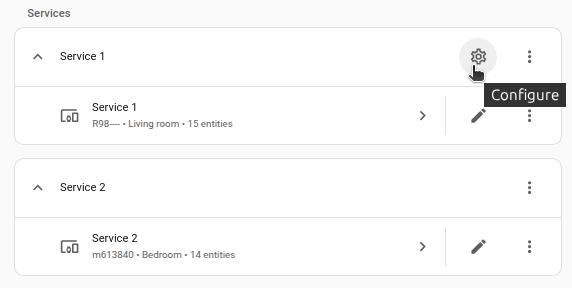
-
Edit the options, then select Submit to save the changes.
The conversation agent has the following configuration options:
Instructions for the AI on how it should respond to your requests. It is written using Home Assistant Templating.
Select the level of control over Home Assistant. The model can only control or provide information about entities that are exposed to it.
If you choose not to use the recommended settings, you can configure the following options:
The maximum number of tokens that the AI model should generate in its completion of the prompt.
A value that determines the level of creativity and risk-taking the model should use when generating text. A higher temperature means the model is more likely to generate unexpected results, while a lower temperature results in more deterministic results.
Supported functionality
The llama.cpp integration provides the following entities:
- Conversation agent: A conversation agent that can handle text-based queries, respond to requests, and control Home Assistant devices when configured to do so
Known limitations
This integration requires an external server that implements the OpenAI-compatible chat completions API. Features that depend on specific proprietary API properties (such as billing or usage tracking) are not supported.
Troubleshooting
Cannot connect to the server
Symptom: Connection failed or timed out during setup
When configuring the integration, you receive a connection error.
Resolution
To resolve this issue, try the following steps:
- Confirm the server is running and reachable from the Home Assistant host.
- Verify that the URL contains the correct protocol (HTTP or HTTPS), hostname, port, and path (such as
/v1). - Ensure any firewall or network settings do not block connections between Home Assistant and the server.
- If authentication is required, verify that the API key is correct.
Removing the integration
This integration follows standard integration removal. No extra steps are required.
To remove an integration instance from Home Assistant
- Go to Settings > Devices & services and select the integration card.
- From the list of devices, select the integration instance you want to remove.
- Next to the entry, select the three dots
menu. Then, select Delete.