

Radio Browser
The Radio Browser integrationIntegrations connect and integrate Home Assistant with your devices, services, and more. [Learn more] brings the worldwide directory of internet radio stations from Radio Browser into Home Assistant. It adds Radio Browser as a media source, so you can browse thousands of stations and play them on your media players, like a speaker in the kitchen or a Cast device in the living room.
There is no account and no API key to set up. The directory is free and community-maintained.
Prerequisites
To see stations near you under Local stations, set your home location in Home Assistant under Settings > System > General. Browsing all other categories works without it.
Configuration
To add the Radio Browser service to your Home Assistant instance, use this My button:

If the above My button doesn’t work, you can also perform the following steps manually:
-
Browse to your Home Assistant instance.
-
In the bottom right corner, select the
Add Integration button. -
From the list, select Radio Browser.
-
Follow the instructions on screen to complete the setup.
There is nothing to configure. The Radio Browser integration has no options, and you can add it only once.
Supported functionality
Radio Browser does not add any entitiesAn entity represents a sensor, actor, or function in Home Assistant. Entities are used to monitor physical properties or to control other entities. An entity is usually part of a device or a service. [Learn more]. Instead, it adds a media source you can browse from the media browser and from the Play media action.
To listen to a station, go to Media > Radio Browser, then pick a station and choose the player to send it to:
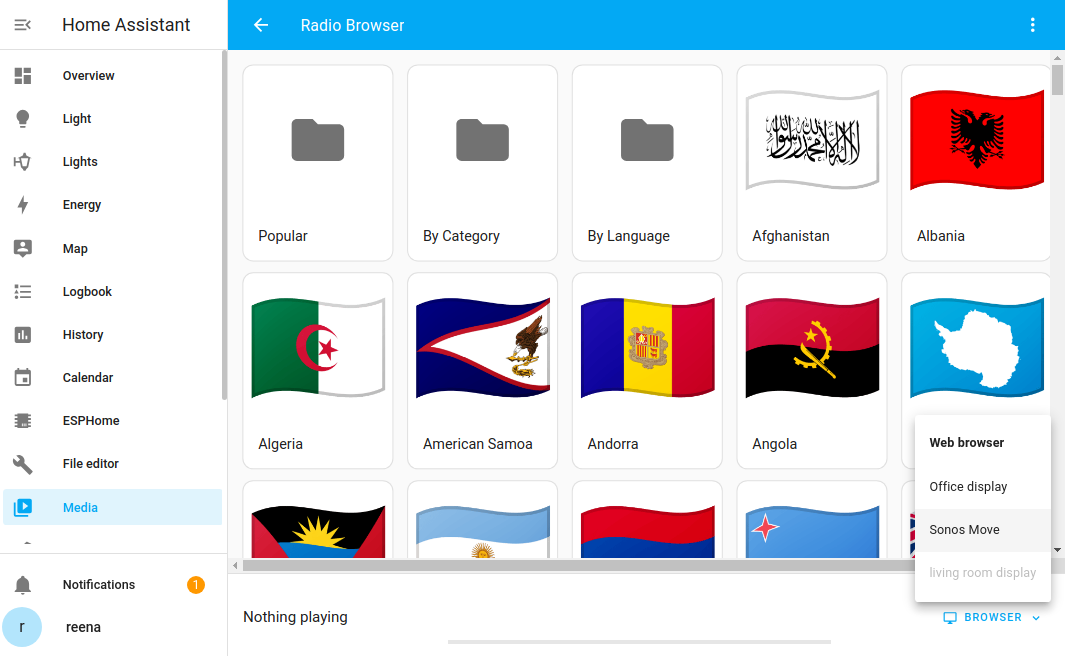
When you open Radio Browser, you can find stations in several ways:
- Popular: The most listened-to stations across the whole directory.
- By Category: Stations grouped by genre and topic tags, such as news, jazz, or classical.
- By Language: Stations grouped by the language they broadcast in.
- Local stations: Stations broadcasting close to your Home Assistant location.
- Country list: Stations grouped by country.
Examples
You can also start a station from an automation or script. The easiest way is to create the automation in the UI: add the Play media action, browse the Radio Browser directory, and select a station. The station identifier is filled in for you. This lets you, for example, start your favorite station on the kitchen speaker every morning.
If you prefer to write the automation in YAML, you need the station’s UUID. To find it:
- Open the Radio Browser website.
- Search for the station you want.
- Select the station to open its details page. The UUID is shown on that page and is also part of the station’s URL.
Then use the UUID in the media_content_id:
action: media_player.play_media
target:
  entity_id: media_player.YOUR_MEDIA_PLAYER
data:
  media_content_id: >-
    media-source://radio_browser/963ccae5-0601-11e8-ae97-52543be04c81
  media_content_type: audio/mpeg
See the media player documentation for more options.
Data updates
Radio Browser does not poll in the background. The station directory is fetched live from the Radio Browser service each time you browse it, so you always see the current listings.
Known limitations
- The directory is maintained by its community, and anyone can add a station. Some stations have an outdated stream, a wrong logo, or no longer broadcast at all. Home Assistant leaves out the stations Radio Browser marks as broken, fixes known mistakes in the station data, and shows a station listed more than once only once.
- Stations whose stream type cannot be determined are not shown, as Home Assistant cannot tell a media player how to play them. Not every media player supports every stream format either, so a station that plays on one player may not play on another.
- Local stations only shows stations within 100 kilometers of your home location, in the country set in Home Assistant, that have a location in the directory. Many stations have no location, so they only show up under their country.
- Popular shows the 250 most listened-to stations, By Category the 100 most used tags, and a search returns up to 100 stations, the most listened-to first.
- Radio Browser is an online service. Without an internet connection, you cannot browse or play its stations.
Troubleshooting
Cannot connect during setup
If you see a “Failed to connect” error during setup, Home Assistant could not reach the Radio Browser service. Check that Home Assistant has a working internet connection, then try again. Radio Browser runs on community servers, so it may be down for a while. If it is, try again later.
A station does not play
The stream of a station can be down, or in a format your media player does not support. Try playing the station on another media player. Many stations are listed more than once, in different formats or qualities, so searching for the station by name may also turn up a version that does play.
Local stations is empty
Local stations needs your home location and country. Set them under Settings > System > General. If it is still empty, there are no stations with a location within 100 kilometers of your home in the directory; you can still find them under Country list.
The details of a station are wrong
The station data comes from Radio Browser, which has no way to edit a station. Corrections for wrong streams, logos, or names are collected in the python-radios library that this integration uses; see its contributing guide to suggest one.
Removing the integration
This integration follows standard integration removal. No extra steps are required.
To remove an integration instance from Home Assistant
- Go to Settings > Devices & services and select the integration card.
- Next to the entry you want to remove, select the three dots
menu. Then, select Delete. - Depending on the integration, the entries are listed under one of the following headings:
- Devices
- Hubs
- Services
- Integration entries
- Depending on the integration, the entries are listed under one of the following headings:
- To confirm, select Delete.
- Home Assistant also deletes the devices and entities of the entry.
- If Home Assistant asks you to restart, restart Home Assistant.
- If Home Assistant asks whether to also delete the application credentials, select Remove or Keep.
- If you keep them, Home Assistant uses them automatically when you add the integration again.
- To delete them later, refer to Deleting application credentials.