Telegram bot
Use Telegram on your mobile or desktop device to send and receive messages or commands to/from your Home Assistant. This integration creates notification actions to send, edit, receive messages or download attachments from a Telegram Bot account.
Introduction - Telegram bot platforms
Platforms are Telegram bot implementations for managing communications with Telegram for sending and receiving messages. When setting up this integration, you should specify the platform which fits your environment and use case.
Broadcast
Telegram implementation to support sending messages only. Your Home Assistant instance does not have to be exposed to the internet and there is no polling to receive messages or commands sent to the bot.
Polling
Telegram chatbot polling implementation. This implementation fetches data from Telegram via long polling with a timeout of 10 seconds. (In long polling, the bot will wait until the timeout expires before fetching the data again if there are no updates from Telegram.)
Your Home Assistant instance does not have to be exposed to the internet.
Webhooks
Telegram chatbot webhooks implementation as described in the Telegram documentation. This implementation allows Telegram to push updates directly to your server and requires your Home Assistant instance to be exposed to the internet.
Prerequisites
Create a bot in Telegram
To create your first Telegram bot, follow these steps:
- Tell Telegram to create a bot for you:
- In Telegram, open a chat with @BotFather and enter
/newbot. - Follow the instructions on screen and give your bot a name.
- BotFather will give you a link to your new bot and an HTTP API token.
- Store the API token somewhere safe, it will be used for setting up the integration later.
- In Telegram, open a chat with @BotFather and enter
- Get your chat ID:
- Send any message to @id_bot.
- Note down the value of the ID field in the bot’s response. You will need to add this ID to the allowlist after setting up the integration to permit your new bot to send/receive messages with this target.
- Make the first contact with your new bot (bots are not allowed to initiate contact with users):
- From the conversation with BotFather, select the link to open a chat.
- In the chat, enter
/start.
Allow Telegram bot to access your Home Assistant files (Optional)
To enable Telegram bot to send local files, you must grant access to it by adding the file’s folder to allowlist_external_dirs.
Example configuration.yaml:
homeassistant:
  allowlist_external_dirs:
    - "/media"
Allow Telegram to connect to your Home Assistant (Webhooks platform only)
This integration currently does not support self-signed certificates for HTTPS. If you are using the Reverse proxy or Direct method, please ensure that your certificates are signed by a public Certificate Authority (CA).
If you plan to use the Webhooks platform, you will need to allow Telegram to connect to your Home Assistant using one of the following methods:
Home Assistant Cloud
If you have a Home Assistant Cloud subscription, you can enable remote access to your Home Assistant.
Reverse proxy
If your Home Assistant is behind a publicly accessible reverse proxy (for example NGINX, Caddy, Traefik) with HTTPS enabled, do the following:
- Go to Settings > System > Network and configure Home Assistant URL.
- Configure the HTTP integration to allow Home Assistant to accept connections from your reverse proxy:
- Set
use_x_forwarded_fortotrue. - Add the IP address of the reverse proxy to
trusted_proxies.
- Set
Example configuration.yaml:
http:
  use_x_forwarded_for: true
  trusted_proxies:
    - 192.168.0.0/16
Direct
If your Home Assistant is publicly accessible, do the following:
- Go to Settings > System > Network and configure Home Assistant URL.
- Configure the HTTP integration to enable HTTPS on your Home Assistant by configuring the following variables:
server_hostserver_portssl_certificatessl_key
Configuration
To add the Telegram bot service to your Home Assistant instance, use this My button:

If the above My button doesn’t work, you can also perform the following steps manually:
-
Browse to your Home Assistant instance.
-
In the bottom right corner, select the
Add Integration button. -
From the list, select Telegram bot.
-
Follow the instructions on screen to complete the setup.
When configuring the API endpoint, note the following protocol requirements:
-
(Default) Official Telegram servers: HTTPS is required.
-
Custom API endpoints: Both HTTP and HTTPS are supported.
The endpoint of the Telegram bot API server. You should only change this value if you are using a self-hosted or third-party Telegram bot API server. Changing this value will result in a 10-minute lockout on the official Telegram bot API server. Defaults to the official Telegram bot API server at https://api.telegram.org.
Webhooks configuration
If you are using Home Assistant Cloud, you must include 127.0.0.1 in the Trusted networks field because the IP address of incoming requests is not forwarded to your Home Assistant.
If you are using a custom API endpoint, you must include the IP address or IP range of the server in CIDR notation, like 192.168.0.0/16, in the Trusted networks field.
If you have selected the Webhooks Telegram bot type, the integration setup will continue with the webhooks configuration step.
Allow to overwrite the external URL from the Home Assistant configuration for different setups (https://<public_url>:<port>).
Options
To define options for Telegram bot, follow these steps:
-
In Home Assistant, go to Settings > Devices & services.
-
If multiple instances of Telegram bot are configured, choose the instance you want to configure.
-
On the card, select the cogwheel
. - If the card does not have a cogwheel, the integration does not support options for this service.
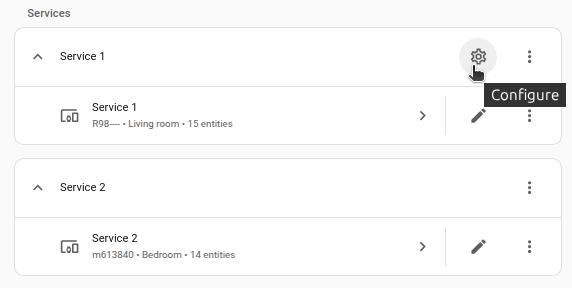
-
Edit the options, then select Submit to save the changes.
Default parser for messages if not explicit in message data, either markdown (legacy), markdownv2, html or plain_text. Refer to Telegram’s formatting options for more information.
Allowlisting chat IDs via Subentries
A Telegram chat ID is a unique numerical identifier for an individual user (positive) or a chat group (negative). You must allowlist the chat ID for the Telegram bot before it can send/receive messages for that chat. To allowlist the chat ID, retrieve the chat ID and create a subentry:
- Go to Settings > Devices & services.
- Select the Telegram bot integration.
- Next to the entry, select the three dots
menu. Then, select Add allowed chat ID.
Notifiers
This integration will add a notify entityAn entity represents a sensor, actor, or function in Home Assistant. Entities are used to monitor physical properties or to control other entities. An entity is usually part of a device or a service. [Learn more] for each configured chat ID.
You can use the notify.send_message action to publish notifications.
Example YAML configuration
action: notify.send_message
data:
  message: "Reminder: Have you considered frogs?"
  entity_id: notify.telegram_bot_chat
List of actions
The Telegram bot integrationIntegrations connect and integrate Home Assistant with your devices, services, and more. [Learn more] provides the following actions. Each link below opens a dedicated page with examples, parameters, and a step-by-step UI walkthrough.
-
Answer callback query (
telegram_bot.answer_callback_query) Responds to a button press on a Telegram inline keyboard. -
Delete message (
telegram_bot.delete_message) Deletes a message a Telegram bot sent earlier. -
Download file (
telegram_bot.download_file) Downloads a file received by a Telegram bot to local storage. -
Edit caption (
telegram_bot.edit_caption) Edits the caption of a media message a Telegram bot sent earlier. -
Edit message (
telegram_bot.edit_message) Edits the text of a message a Telegram bot sent earlier. -
Edit message media (
telegram_bot.edit_message_media) Replaces the media of a message a Telegram bot sent earlier. -
Edit reply markup (
telegram_bot.edit_replymarkup) Edits the inline keyboard of a message a Telegram bot sent earlier. -
Leave chat (
telegram_bot.leave_chat) Removes a Telegram bot from a chat. -
Send animation (
telegram_bot.send_animation) Sends an animation through a Telegram bot to one or more chats. -
Send chat action (
telegram_bot.send_chat_action) Shows a status such as typing in a Telegram chat. -
Send document (
telegram_bot.send_document) Sends a document through a Telegram bot to one or more chats. -
Send location (
telegram_bot.send_location) Sends a location through a Telegram bot to one or more chats. -
Send media group (
telegram_bot.send_media_group) Sends a group of photos, videos, documents, or audio files as an album. -
Send message (
telegram_bot.send_message) Sends a text message through a Telegram bot to one or more chats. -
Send message draft (
telegram_bot.send_message_draft) Shows a temporary draft message in a Telegram chat. -
Send photo (
telegram_bot.send_photo) Sends a photo through a Telegram bot to one or more chats. -
Send poll (
telegram_bot.send_poll) Sends a poll through a Telegram bot to one or more chats. -
Send sticker (
telegram_bot.send_sticker) Sends a sticker through a Telegram bot to one or more chats. -
Send video (
telegram_bot.send_video) Sends a video through a Telegram bot to one or more chats. -
Send voice (
telegram_bot.send_voice) Sends a voice message through a Telegram bot to one or more chats. -
Set message reaction (
telegram_bot.set_message_reaction) Sets a Telegram bot’s emoji reaction on a message.
For an overview of every action across all integrations, see the actions reference.
Telegram notification platform
The notification platform has been marked as legacy and might be deprecated in the future. Please use notifiers instead.
The telegram notification platform requires the telegram_bot integration to work with, and it’s designed to generate a customized shortcut (notify.USERNAME) to send notifications (messages, photos, documents, and locations) to a particular chat_id with the old syntax, allowing backward compatibility. The data attributes parse_mode, disable_notification, message_tag, disable_web_page_preview, and message_thread_id are also supported.
The required YAML configuration now reduces to:
notify:
  - platform: telegram
    name: NOTIFIER_NAME
    chat_id: USER_CHAT_ID
Event entity
The Telegram bot integration provides an eventEvery time something happens in Home Assistant, an event is fired. There are different types of events, such as state change events, when an action was triggered, or the time changed. All entities produce state change events. Every time a state changes, a state change event is produced. Events can be used to trigger automations or scripts. For example, you can trigger an automation when a light is turned on, then a speaker turns on in that room. Events can also be used to trigger actions in the frontend. For example, you can trigger an action when a button is pressed. [Learn more] entityAn entity represents a sensor, actor, or function in Home Assistant. Entities are used to monitor physical properties or to control other entities. An entity is usually part of a device or a service. [Learn more] which represents the state of the last message sent or received. It also provides several event attributes that can be used in automations.
Event: Attachment received
The telegram_attachment event is triggered when the bot receives a file.
Example event attributes:
bot:
  config_entry_id: "<config entry id of the bot>"
  first_name: "<first name of the bot>"
  id: "<id of the bot>"
  last_name: "<last name of the bot>"
  username: "<username of the bot>"
chat_id: "<origin chat id>"
date: "<message timestamp>"
event_type: "telegram_attachment"
file_id: "<unique identifier for the file>"
file_mime_type: "<MIME type of the file, if available>"
file_name: "<name of the file, if available>"
file_size: "<file size in bytes, if available>"
friendly_name: "<name of the event entity>"
from_first: "<first name of the sender>"
from_last: "<last name of the sender>"
id: "<message id>"
message_thread_id: "<message thread id>"
text: "<caption of the file, if available>"
user_id: "<id of the sender>"
Example automation:
triggers:
  - trigger: state
    entity_id:
      - event.bot_update_event # Replace with your telegram bot event entity
conditions:
  - condition: state
    entity_id: event.bot_update_event # Replace with your telegram bot event entity
    attribute: event_type
    state: telegram_attachment
actions:
  - action: notify.persistent_notification
    data:
      message: >-
        Received a file.
        MIME type   : {{ trigger.to_state.attributes.file_mime_type }}
        Size (bytes): {{ trigger.to_state.attributes.file_size }}
        File ID     : {{ trigger.to_state.attributes.file_id }}
        File name   : {{ trigger.to_state.attributes.file_name }}
Event: Callback query received
The telegram_callback event is triggered when the bot receives a callback query from an inline keyboard button.
The id attribute is used as the callback_query_id parameter for the answer_callback_query action.
Example event attributes:
# Callback query always have no args
args: []
bot:
  config_entry_id: "<config entry id of the bot>"
  first_name: "<first name of the bot>"
  id: "<id of the bot>"
  last_name: "<last name of the bot>"
  username: "<username of the bot>"
chat_id: "<origin chat id>"
chat_instance: "<chat instance id>"
command: "<callback query>"
data: "<data associated to action callback>"
event_type: "telegram_callback"
from_first: "<first name of the sender>"
from_last: "<last name of the sender>"
friendly_name: "<name of the event entity>"
id: "<callback id>"
message: "<message origin of the action callback>"
user_id: "<id of the sender>"
Example automation:
triggers:
  - trigger: state
    entity_id:
      - event.bot_update_event # Replace with your telegram bot event entity
conditions:
  - condition: state
    entity_id: event.bot_update_event # Replace with your telegram bot event entity
    attribute: event_type
    state: telegram_callback
actions:
  - action: notify.persistent_notification
    data:
      message: >-
        Received callback query.
        Callback ID   : {{ trigger.to_state.attributes.id }}
        Callback query: {{ trigger.to_state.attributes.data }}
Event: Command received
The telegram_command event is triggered when the bot receives a command.
A command looks like /thecommand or /othercommand with some args.
Example event attributes:
args: "<any other text following the command>"
bot:
  config_entry_id: "<config entry id of the bot>"
  first_name: "<first name of the bot>"
  id: "<id of the bot>"
  last_name: "<last name of the bot>"
  username: "<username of the bot>"
chat_id: "<origin chat id>"
command: "/thecommand"
date: "<message timestamp>"
event_type: "telegram_command"
friendly_name: "<name of the event entity>"
from_first: "<first name of the sender>"
from_last: "<last name of the sender>"
id: "<message id>"
message_thread_id: "<message thread id>"
user_id: "<id of the sender>"
Example automation:
triggers:
  - trigger: state
    entity_id:
      - event.bot_update_event # Replace with your telegram bot event entity
conditions:
  - condition: state
    entity_id: event.bot_update_event # Replace with your telegram bot event entity
    attribute: event_type
    state: telegram_command
actions:
  - action: notify.persistent_notification
    data:
      message: >-
        Received command.
        Command: {{ trigger.to_state.attributes.command }}
        Args   : {{ trigger.to_state.attributes.args }}
Event: Text received
The telegram_text event is triggered when the bot receives a text message (any message that does not begin with /).
Example event attributes:
bot:
  config_entry_id: "<config entry id of the bot>"
  first_name: "<first name of the bot>"
  id: "<id of the bot>"
  last_name: "<last name of the bot>"
  username: "<username of the bot>"
chat_id: "<origin chat id>"
date: "<message timestamp>"
event_type: "telegram_text"
friendly_name: "<name of the event entity>"
from_first: "<first name of the sender>"
from_last: "<last name of the sender>"
id: "<message id>"
message_thread_id: "<message thread id>"
text: "<the text received>"
user_id: "<id of the sender>"
Example automation:
triggers:
  - trigger: state
    entity_id:
      - event.bot_update_event # Replace with your telegram bot event entity
conditions:
  - condition: state
    entity_id: event.bot_update_event # Replace with your telegram bot event entity
    attribute: event_type
    state: telegram_text
actions:
  - action: notify.persistent_notification
    data:
      message: >-
      Message received.
      Chat ID   : {{ trigger.to_state.attributes.chat_id }}
      First name: {{ trigger.to_state.attributes.from_first }}
      Last name : {{ trigger.to_state.attributes.from_last }}
      Message   : {{ trigger.to_state.attributes.text }}
Event: Message sent
The telegram_sent event is triggered when the bot sends a message of any type.
The message_id attribute can be used with the edit, delete and set_message_reaction actions to interact with a previously sent message.
Example event attributes:
bot:
  config_entry_id: "<config entry id of the bot>"
  first_name: "<first name of the bot>"
  id: "<id of the bot>"
  last_name: "<last name of the bot>"
  username: "<username of the bot>"
chat_id: "<origin chat id>"
from_first: "<first name of the sender>"
from_last: "<last name of the sender>"
id: "<message id>"
message_thread_id: "<message thread id>"
user_id: "<id of the sender>"
Example automation:
triggers:
  - trigger: state
    entity_id:
      - event.bot_update_event # Replace with your telegram bot event entity
conditions:
  - condition: state
    entity_id: event.bot_update_event # Replace with your telegram bot event entity
    attribute: event_type
    state: telegram_sent
actions:
  - action: notify.persistent_notification
    data:
      message: >-
      Bot sent a message.
      Chat ID   : {{ trigger.to_state.attributes.chat_id }}
      Message ID: {{ trigger.to_state.attributes.message_id }}
Sample automations with inline keyboards and callback queries
A quick example to show some of the callback capabilities of inline keyboards with a dumb automation consisting in a simple repeater of normal text that presents an inline keyboard with 3 buttons: ‘EDIT’, ‘NO’ and ‘REMOVE BUTTON’:
- Pressing ‘EDIT’ changes the sent message.
- Pressing ‘NO’ only shows a brief notification (answering the callback query).
- Pressing ‘REMOVE BUTTON’ changes the inline keyboard removing that button.
Text repeater:
alias: Telegram bot that repeats text
triggers:
  - trigger: state
    entity_id:
      - event.bot_update_event # Replace with your telegram bot event entity
conditions:
  - condition: state
    entity_id: event.bot_update_event # Replace with your telegram bot event entity
    attribute: event_type
    state: telegram_text
actions:
  - action: telegram_bot.send_message
    data:
      message: "You said: {{ trigger.to_state.attributes.text }}"
      title: "*Dumb automation*"
      disable_notification: true
      inline_keyboard:
        - Edit message:/edit_msg, Don't:/do_nothing
        - Remove this button:/remove_button
Message editor:
alias: Telegram bot that edits the last sent message
description: ""
triggers:
  - trigger: state
    entity_id:
      - event.bot_update_event # Replace with your telegram bot event entity
conditions:
  - condition: state
    entity_id: event.bot_update_event # Replace with your telegram bot event entity
    attribute: event_type
    state: telegram_callback
  - condition: state
    entity_id: event.bot_update_event # Replace with your telegram bot event entity
    attribute: command
    state: /edit_msg
actions:
  - action: telegram_bot.answer_callback_query
    data:
      show_alert: true
      message: Editing the message!
      callback_query_id: "{{ trigger.to_state.attributes.id }}"
  - action: telegram_bot.edit_message
    data:
      inline_keyboard:
        - Edit message:/edit_msg, Don't:/do_nothing
        - Remove this button:/remove_button
      message_id: "{{ trigger.to_state.attributes.message.message_id }}"
      chat_id: "{{ trigger.to_state.attributes.chat_id }}"
      title: "*Message edit*"
      message: >-
        Callback received from {{ trigger.to_state.attributes.from_first }}.
        Message id: {{ trigger.to_state.attributes.message.message_id }}.
        Data: {{ trigger.to_state.attributes.data|replace("_", "\_") }}
Keyboard editor:
alias: Telegram bot that edits the keyboard
triggers:
  - trigger: state
    entity_id:
      - event.bot_update_event # Replace with your telegram bot event entity
conditions:
  - condition: state
    entity_id: event.bot_update_event # Replace with your telegram bot event entity
    attribute: event_type
    state: telegram_callback
  - condition: state
    entity_id: event.bot_update_event # Replace with your telegram bot event entity
    attribute: command
    state: /remove_button
actions:
  - action: telegram_bot.answer_callback_query
    data:
      callback_query_id: "{{ trigger.to_state.attributes.id }}"
      message: Callback received for editing the inline keyboard!
      show_alert: false
  - action: telegram_bot.edit_replymarkup
    data:
      inline_keyboard:
        - Edit message:/edit_msg, Don't:/do_nothing
      chat_id: "{{ trigger.to_state.attributes.chat_id }}"
      message_id: last
Only acknowledges the ‘NO’ answer:
alias: Telegram bot that simply acknowledges
triggers:
  - trigger: state
    entity_id:
      - event.bot_update_event # Replace with your telegram bot event entity
conditions:
  - condition: state
    entity_id: event.bot_update_event # Replace with your telegram bot event entity
    attribute: event_type
    state: telegram_callback
  - condition: state
    entity_id: event.bot_update_event # Replace with your telegram bot event entity
    attribute: command
    state: /do_nothing
actions:
  - action: telegram_bot.answer_callback_query
    data:
      message: OK, you said no!
      callback_query_id: "{{ trigger.to_state.attributes.id }}"
Sample automation to receive chat_id and message_id identifiers of sent messages
The following sample automation stores the chat_id and message_id of the last sent message using input entities.
These attributes can then be used in other Telegram bot actions.
alias: Notifications about messages sent by Telegram bot
triggers:
  - trigger: state
    entity_id:
      - event.bot_update_event # Replace with your telegram bot event entity
conditions:
  - condition: state
    entity_id: event.bot_update_event # Replace with your telegram bot event entity
    attribute: event_type
    state: telegram_sent
actions:
  - action: input_number.set_value
    data_template:
      value: "{{ trigger.to_state.attributes.chat_id }}"
    target:
      entity_id: input_number.chat_id # Replace with your input entity
  - action: input_number.set_value
    data_template:
      value: "{{ trigger.to_state.attributes.message_id }}"
    target:
      entity_id: input_number.message_id # Replace with your input entity
Example: send_message with formatted Text
actions:
  - action: telegram_bot.send_message
    data:
      title: Example Message
      message: 'Message with *BOLD*, _ITALIC_ and `MONOSPACE` Text'
Example: send_message with message tag
actions:
  - action: telegram_bot.send_message
    data:
      title: Example Message
      message: "Message with tag"
      message_tag: "example_tag"
Example: send_message with disabled webpage preview
actions:
  - action: telegram_bot.send_message
    data:
      message: >-
        <a href="https://www.home-assistant.io/">HA site</a>
      parse_mode: html
      disable_web_page_preview: true
Example: send_message then edit it after a delay
actions:
  - action: telegram_bot.send_message
    data:
      message: testing
    response_variable: response
  - delay:
      seconds: 5
  - action: telegram_bot.edit_message
    data:
      message: done testing
      chat_id: "{{ response.chats[0].chat_id }}"
      message_id: "{{ response.chats[0].message_id }}"
Example: send_message to a topic within a group
actions:
  - action: telegram_bot.send_message
    data:
      message: "Message to a topic"
      message_thread_id: 123
Example: send_media_group
actions:
  - action: telegram_bot.send_media_group
    data:
      media:
        - url: https://example/image.jpg
          caption: My album
          media_type: photo
        - url: https://example/video.mp4
          media_type: video
Example: automation to send a message and delete after a delay
alias: telegram send message and delete
actions:
  - action: telegram_bot.send_message
    data:
      message: testing
    response_variable: response
  - delay:
      seconds: 5
  - repeat:
      sequence:
        - action: telegram_bot.delete_message
          data:
            message_id: "{{ repeat.item.message_id }}"
            chat_id: "{{ repeat.item.chat_id }}"
      for_each: "{{ response.chats }}"
Example: Multi-step automation that reports progress using draft messages
triggers:
  - trigger: state
    entity_id:
      - event.bot_update_event # Replace with your Telegram bot event entity
conditions:
  - condition: state
    entity_id: event.bot_update_event # Replace with your Telegram bot event entity
    attribute: text
    state: "Start morning routine"
actions:
  - action: telegram_bot.send_message_draft
    data:
      draft_id: 1
      message: "_Opening shades..._"
      chat_id: "{{ trigger.to_state.attributes.chat_id }}"
      message_thread_id: "{{ trigger.to_state.attributes.message_thread_id }}"
  - action: cover.open_cover
    target:
      entity_id: cover.bedroom
  - action: telegram_bot.send_message_draft
    data:
      draft_id: 1
      message: "_Adjusting thermostat..._"
      chat_id: "{{ trigger.to_state.attributes.chat_id }}"
      message_thread_id: "{{ trigger.to_state.attributes.message_thread_id }}"
  - action: climate.set_temperature
    target:
      entity_id: climate.bedroom
    data:
      temperature: 24
  - action: telegram_bot.send_message
    data:
      message: "Done!"
      chat_id: "{{ trigger.to_state.attributes.chat_id }}"
      message_thread_id: "{{ trigger.to_state.attributes.message_thread_id }}"
Known limitations
The following features are not available in this integration:
- Editing the bot (You can edit the bot using @BotFather on the Telegram app instead)
- All payment related features such as Telegram Premium, Telegram Star and Telegram Gifts
- Telegram Business
- Telegram ADS
- Mini Bot Apps and Mini Bot Store
- Calls and live streaming
- Wallpapers and Themes
Troubleshooting
Error sending message: Can’t parse entities
When using send actions such as telegram_bot.send_message with the markdownv2 parse mode, the action will fail with the “Can’t parse entities” error if the user input in the message field contains malformed Markdown syntax.
You can perform any of the following steps to resolve this issue:
- Use the
plain_textparse mode either by configuring the Telegram bot options or by specifying it via the action’sparse_modedata attribute. - Escape special characters in the
messagefield with a preceding ‘\’ character. - Format your message according to the formatting options.
Telegram Webhook bot is unable to receive updates
If your Telegram bot is unable to receive updates (for example, all events other than telegram_sent are not triggered), please follow the troubleshooting steps below:
- Reconfigure your Telegram bot to use the Polling platform and test again to verify that the issue is not related to network connectivity between Telegram and your Home Assistant.
- Check your firewall rules to verify that incoming connections are not blocked.
- Verify that your webhook URL is public and accessible.
If the issue persists, please refer to the Webhooks Guide for more detailed troubleshooting.
Removing the integration
This integration follows standard integration removal. No extra steps are required.
To remove an integration instance from Home Assistant
- Go to Settings > Devices & services and select the integration card.
- From the list of devices, select the integration instance you want to remove.
- Next to the entry, select the three dots
menu. Then, select Delete.