Media player
Interacts with media players on your network.
Building block integration
This media player is a building block integration that cannot be added to your Home Assistant directly but is used and provided by other integrations.
A building block integration differs from the typical integration that connects to a device or service. Instead, other integrations that do integrate a device or service into Home Assistant use this media player building block to provide entities, services, and other functionality that you can use in your automations or dashboards.
If one of your integrations features this building block, this page documents the functionality the media player building block offers.
The state of a media player
A media player can have the following states:
- Off: The media player is turned off and is not accepting commands until turned on.
- On: The media player is turned on, but no details on its state are currently known.
- Idle: The media player is turned on and accepting commands, but currently not playing any media. Possibly at some idle home screen.
- Playing: The media player is currently playing media.
- Paused: The media player has an active media and is currently paused
- Buffering: The media player is preparing to start playback of media.
- Unavailable: The entity is currently unavailable.
- Unknown: The state is not yet known.
List of triggers
The Media player integrationIntegrations connect and integrate Home Assistant with your devices, services, and more. [Learn more] provides the following triggers. Each link below opens a dedicated page with examples, fields, and a step-by-step UI walkthrough.
-
Media player muted (
media_player.muted) Triggers after one or more media players are muted. -
Media player paused playing (
media_player.paused_playing) Triggers after one or more media players pause playing. -
Media player started playing (
media_player.started_playing) Triggers after one or more media players start playing. -
Media player stopped playing (
media_player.stopped_playing) Triggers after one or more media players stop playing. -
Media player turned off (
media_player.turned_off) Triggers after one or more media players turn off. -
Media player turned on (
media_player.turned_on) Triggers after one or more media players turn on. -
Media player unmuted (
media_player.unmuted) Triggers after one or more media players are unmuted. -
Media player volume changed (
media_player.volume_changed) Triggers after the volume of one or more media players changes. -
Media player volume crossed threshold (
media_player.volume_crossed_threshold) Triggers after the volume of one or more media players crosses a threshold.
For an overview of every trigger across all integrations, see the triggers reference.
List of conditions
The Media player integrationIntegrations connect and integrate Home Assistant with your devices, services, and more. [Learn more] provides the following conditions. Each link below opens a dedicated page with examples, fields, and a step-by-step UI walkthrough.
-
Media player is muted (
media_player.is_muted) Tests if one or more media players are muted. -
Media player is not playing (
media_player.is_not_playing) Tests if one or more media players are not playing. -
Media player is off (
media_player.is_off) Tests if one or more media players are off. -
Media player is on (
media_player.is_on) Tests if one or more media players are on. -
Media player is paused (
media_player.is_paused) Tests if one or more media players are paused. -
Media player is playing (
media_player.is_playing) Tests if one or more media players are playing. -
Media player is not muted (
media_player.is_unmuted) Tests if one or more media players are not muted. -
Volume (
media_player.is_volume) Tests the volume of one or more media players.
For an overview of every condition across all integrations, see the conditions reference.
List of actions
The Media player integrationIntegrations connect and integrate Home Assistant with your devices, services, and more. [Learn more] provides the following actions. Each link below opens a dedicated page with examples, parameters, and a step-by-step UI walkthrough.
-
Browse media (
media_player.browse_media) Browses the media available on a media player. -
Clear media player playlist (
media_player.clear_playlist) Removes all items from a media player’s playlist. -
Join media players (
media_player.join) Groups media players together for synchronous playback. -
Next track (
media_player.media_next_track) Selects the next track on a media player. -
Pause media (
media_player.media_pause) Pauses playback on a media player. -
Play media (
media_player.media_play) Starts playback on a media player. -
Play/Pause media (
media_player.media_play_pause) Toggles play and pause on a media player. -
Previous track (
media_player.media_previous_track) Selects the previous track on a media player. -
Seek media (
media_player.media_seek) Jumps to a different position in the media currently playing. -
Stop media (
media_player.media_stop) Stops playback on a media player. -
Play media (
media_player.play_media) Plays specific media on a media player. -
Set media player repeat (
media_player.repeat_set) Sets the repeat mode of a media player. -
Search media (
media_player.search_media) Searches the media available on a media player. -
Select media player sound mode (
media_player.select_sound_mode) Selects a sound mode of a media player. -
Select media player source (
media_player.select_source) Changes the input source of a media player. -
Set media player shuffle (
media_player.shuffle_set) Enables or disables shuffle mode on a media player. -
Toggle media player (
media_player.toggle) Toggles a media player on or off. -
Turn off media player (
media_player.turn_off) Turns off a media player. -
Turn on media player (
media_player.turn_on) Turns on a media player. -
Unjoin media player (
media_player.unjoin) Removes a media player from a group. -
Turn down media player volume (
media_player.volume_down) Turns down the volume of a media player. -
Mute/unmute media player (
media_player.volume_mute) Mutes or unmutes a media player. -
Set media player volume (
media_player.volume_set) Sets the volume level of a media player. -
Turn up media player volume (
media_player.volume_up) Turns up the volume of a media player.
For an overview of every action across all integrations, see the actions reference.
Media player automation examples
Here are a few examples of how you can use Media player triggers and conditions in automations.
Requires the Purpose-specific triggers and conditions Labs preview feature. Enable it at Settings > System > Labs.
You don’t need to edit YAML to use these examples. Copy a YAML snippet from this page, open the automation editor in Home Assistant, and press Ctrl+V (or Cmd+V on Mac). Home Assistant automatically converts the pasted YAML into the visual editor format, whether it’s a full automation, a single trigger, a condition, or an action.
Automation: dim the room when a movie starts
When the living room TV starts playing, dim the lights so the room is ready for watching.
-
Trigger: Media player started playing
- Target: Living room TV
-
Action: Turn on light
- Target: Living room lights
YAML example for dimming the room when a movie starts
alias: "Dim the room when the TV starts playing"
triggers:
  - trigger: media_player.started_playing
    target:
      entity_id: media_player.living_room_tv
actions:
  - action: light.turn_on
    target:
      entity_id: light.living_room_lights
    data:
      brightness_pct: 25
Automation: send a bedtime reminder if audio is still playing
At bedtime, check whether the bedroom speaker is still playing, and send a notification if it is.
- Trigger: Time: 23:00
-
Condition: Media player is playing
- Target: Bedroom speaker
-
Action: Send a notification message
-
Target: My Device (
notify.my_device)
-
Target: My Device (
YAML example for a bedtime playback reminder
alias: "Remind me when audio is still playing at bedtime"
triggers:
  - trigger: time
    at: "23:00:00"
conditions:
  - condition: media_player.is_playing
    target:
      entity_id: media_player.bedroom_speaker
actions:
  - action: notify.send_message
    target:
      entity_id: notify.my_device
    data:
      message: >
        Bedroom audio is still playing.
Device class
A device class is a measurement categorization in Home Assistant. It influences how the entity is represented in the dashboard. This can be modified in the customize section. For example, different states may be represented by different icons, colors, or text.
The screenshot shows different icons representing device classes of the media player entity:
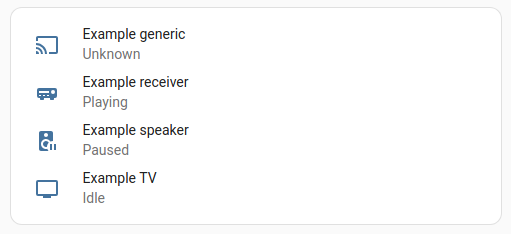 Example of different icons representing device classes of the media player entity.
The following device classes are supported for media players:
-
tv: Device is a television type device. -
speaker: Device is a speaker or stereo type device. -
receiver: Device is an audio/video receiver type device taking audio and outputting to speakers and video to displays.